Making WordPress Updates Safe When You Do Not Have a Dev Team
Why WordPress Updates Feel Risky (And Why You Cannot Skip Them)
The real risks: broken layouts, checkout issues and white screens
Updating WordPress, plugins and themes can feel like playing Jenga with your own website. Things look fine until suddenly they do not.
The most common problems small UK businesses see after updates are:
- Broken layouts: menus disappear, sliders look wrong, fonts change, or the site design “goes narrow” on mobile.
- Contact forms and lead flows failing: forms submit but never send email, or error messages appear after clicking “Send”.
- WooCommerce checkout trouble: customers cannot add items to the basket, the checkout button stops working, or orders show as “pending” even when payment cleared.
- Login and account issues: customers cannot log in, password resets fail, or admins are locked out of the dashboard.
- White screen of death: the site only shows a blank white page or a cryptic error, often after a major plugin or theme update.
All of that is stressful if you do not have a developer on call. The good news is that most of these risks can be managed with a simple process built around backups, maintenance windows and basic testing.
Why you still need to update: security, bugs and compatibility
Leaving everything as it is can feel safer, but it is usually the riskiest option overall.
- Security fixes: WordPress core, plugins and themes regularly patch vulnerabilities. Attackers actively scan for old versions they can exploit.
- Bug fixes: updates often correct issues you may already be seeing, such as random errors, slow admin screens or failed cron tasks.
- Compatibility: as PHP and server software evolve, older plugins and themes can simply stop working. Payment gateways and third-party integrations also expect you to stay roughly up to date.
So the goal is not to avoid updates. The goal is to make them predictable and recoverable, even if you are not technical.
If you want to dig into which updates should be automatic and which should be manual, have a look at our article on WordPress automatic updates vs managed updates for UK SMEs.
What this guide assumes about you and your site
This guide is written for owners or managers who:
- Run a WordPress or WooCommerce site for a UK business.
- Do not have an in-house development team.
- May have some technical confidence, but are not developers.
- Have access to your hosting control panel or can talk to your host’s support.
It also assumes:
- Your site is live and in regular use (not a test site).
- You have at least basic access to backups, or are willing to put that in place.
- You are ready to set aside 45 to 60 minutes once a month for safe updates.
You do not need a staging site to follow this guide, although we will explain when it is worth introducing one.
The Safety Net: Backups and Rollbacks You Can Actually Use
What a rollback really is in WordPress terms
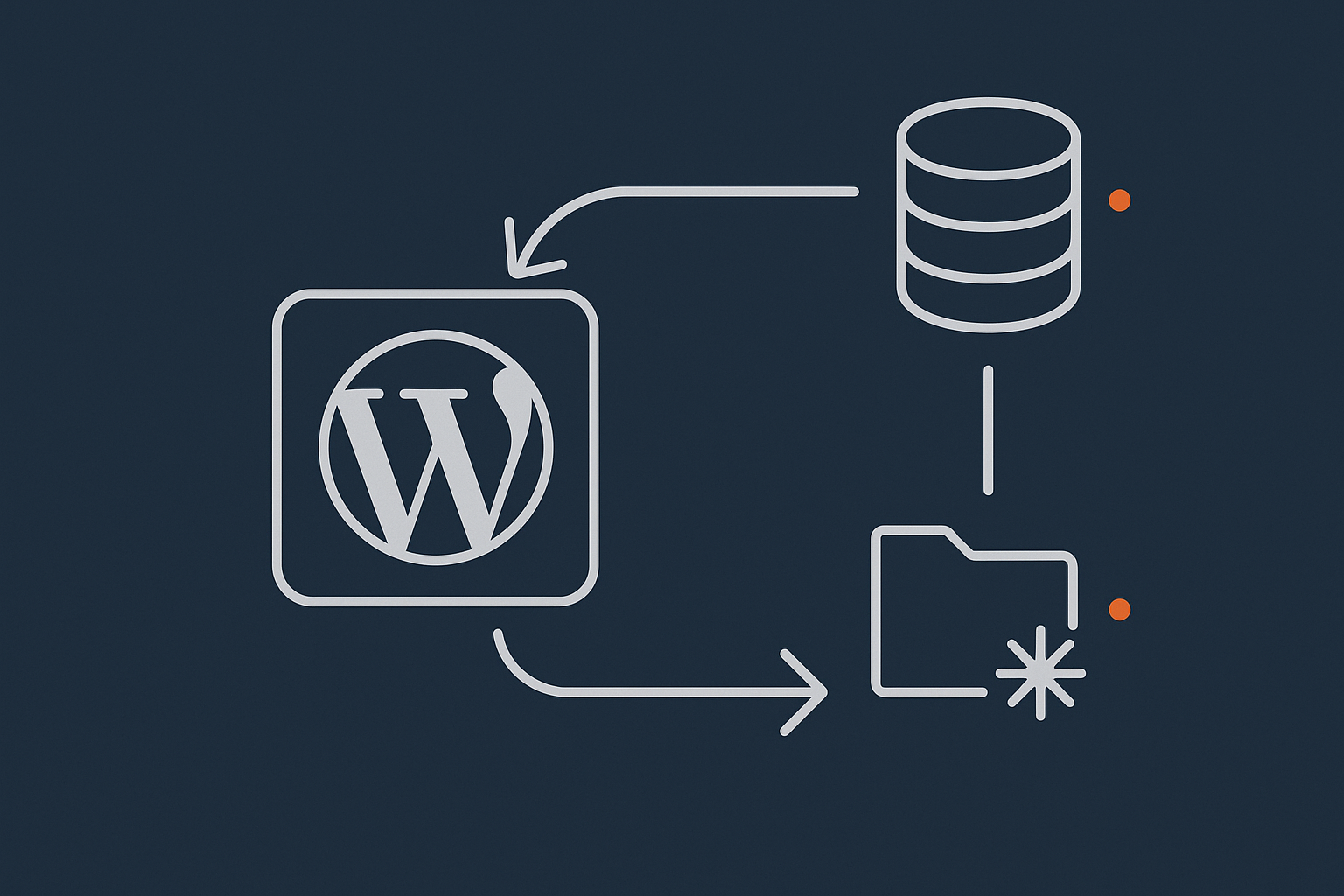
“Rollback” sounds technical, but in WordPress it usually means one of two things:
- Restoring a backup of the whole site from before you did the updates. This puts files and database back as they were at that point.
- Reverting a specific plugin, theme or core update to the previous version, often without touching anything else.
You do not need to know how every file works. You just need a clear way to:
- Trigger a full-site restore if everything goes wrong.
- Rollback individual plugins or themes when only one change caused the problem.
Later, we will turn that into a simple “break glass” procedure you can follow under pressure.
Minimum backup standard before any update
Before you update anything, you want a snapshot of both your database and your files.
Database backup (orders, content, settings)
The WordPress database holds:
- Posts, pages and products
- Orders, customer accounts and WooCommerce settings
- Plugin and theme options
- Menus, widgets and many custom fields
Minimum safe standard:
- Automatic daily backups of the database, stored off the server.
- On-demand backup you can trigger just before maintenance.
- Ability to restore a specific backup easily and quickly.
Many hosts, including those offering managed WordPress hosting, provide point-and-click database restores. If yours does not, consider a reliable backup plugin or talk to your host about options.
Files backup (plugins, themes, uploads, wp-config)
Your files include:
- WordPress core files
- Plugins and themes
wp-config.phpand other configuration fileswp-content/uploads(all your media)
Minimum safe standard:
- A full file backup at least daily.
- The ability to restore the whole site to a known good point in time.
- Backups stored on separate infrastructure, not just in a folder on the same server.
If you run a busy WooCommerce shop, ask your host whether database backups are taken more frequently than file backups. Orders often change more often than theme files.
If you want a broader strategy that covers real incidents, not just updates, see our guide on building a disaster recovery plan with your hosting provider.
How to check if your hosting already handles backups and restores
Log in to your hosting control panel and look for terms like:
- Backups / Snapshots
- Restore points
- JetBackup, Acronis or similar tools
- “WordPress Manager” with backup features
Questions to answer:
- How often are backups taken?
- How long are they kept?
- Can you restore yourself, or do you need to contact support?
- Can you take a manual backup just before you start updates?
If you are using managed WordPress hosting with G7Cloud, for example, you get automated daily backups with point-and-click restores, which is usually enough for a safe update routine.
Simple rollback options without a developer
Using hosting control panel restore points
This is your “big red button” option and should be your first line of defence if multiple things go wrong.
Typical process (varies slightly by host):
- Before updates, log in to your control panel and take a manual snapshot of the site.
- Make a note of the snapshot’s time and date.
- Perform your updates and testing.
- If the site breaks badly and you cannot quickly fix it, go back to the control panel and select Restore for that snapshot.
Trade off: a full restore will revert all changes since that snapshot, including new orders or form submissions. For WooCommerce sites, aim to keep the maintenance window short and choose quiet times to minimise this impact.
Using plugin-level rollbacks (for specific extensions)
Sometimes only one plugin causes trouble. In that case you may be able to roll back just that plugin to its previous version.
Options include:
- WordPress.org rollbacks: some plugins and themes in the official repository can be reverted using tools like “WP Rollback” (a free plugin) which lets you switch between versions.
- Premium plugin portals: for paid plugins, your account area may list older versions you can download and upload manually via FTP or the WordPress dashboard.
Risks:
- Rolling back a plugin without matching related extensions can cause new conflicts.
- Some plugins modify the database during updates, and rolling back files only might not fully undo those changes.
So plugin-level rollback is useful, but your full-site backup remains the ultimate safety net.
When you must ask your host for help
Contact your host’s support rather than guessing if:
- The restore options in your panel look confusing or incomplete.
- Restoring an earlier backup does not fix the problem.
- The site is down and you do not know which backup point is safe to use.
- You suspect a security incident rather than a simple bad update.
Good hosts used to handling hassle free WordPress maintenance will often perform or guide restores for you, and help identify whether the issue is with your code or the server itself.
Documenting a basic “break glass” rollback procedure
Write this down clearly and keep it somewhere easy to find. For example:
- Where to log in for backups (control panel URL and credentials).
- How to trigger a manual backup before updates.
- Which backup to restore if something goes wrong (today’s pre-update snapshot).
- Who to contact at your host and how (support email, ticket system, phone number).
Print it or store it in a shared document so someone else can follow it if you are not available.
Planning Maintenance Windows That Do Not Hurt the Business
What a maintenance window is (in plain English)
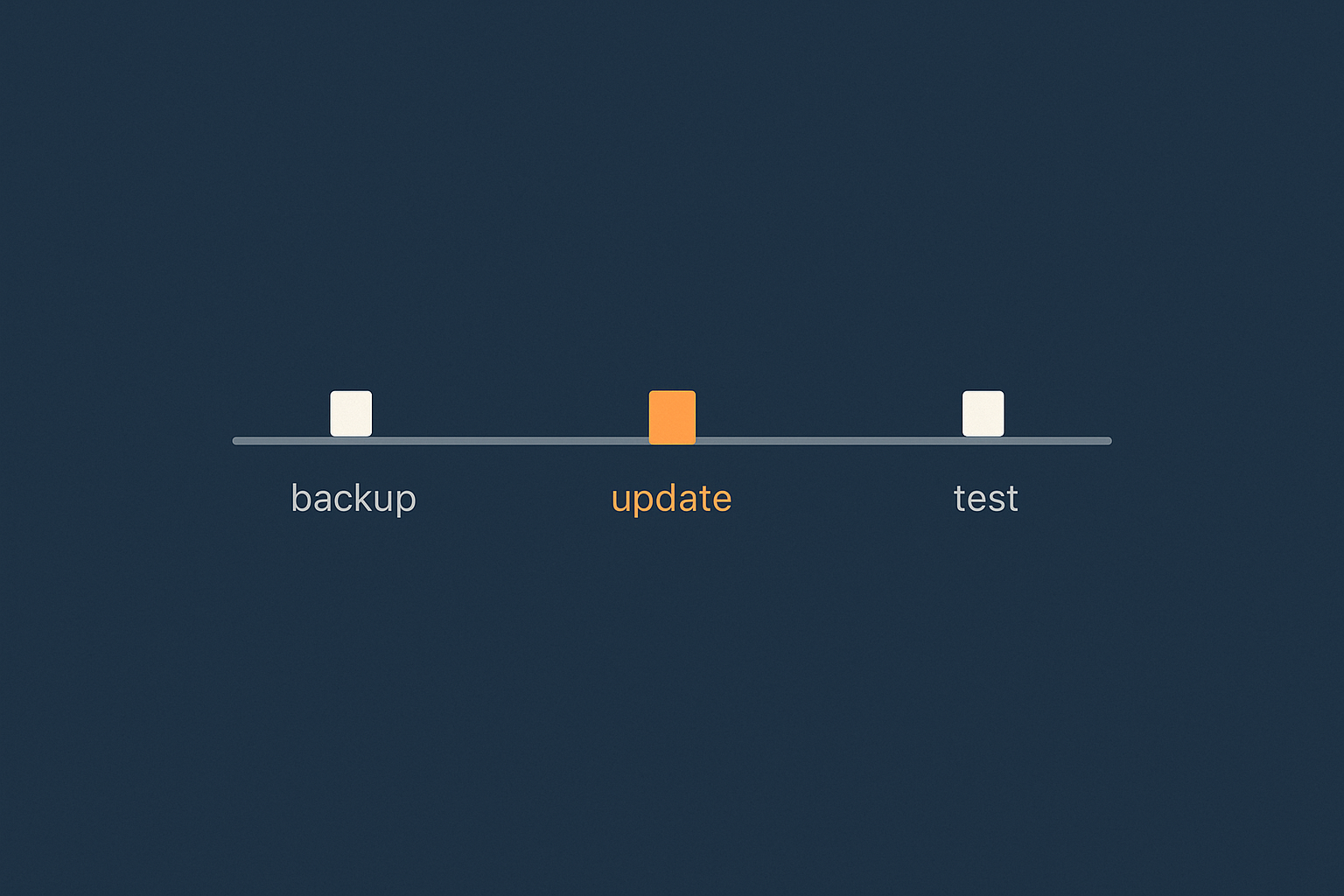
A maintenance window is a planned period where you expect:
- Lower traffic to the site
- Possible short disruption or slower performance
- Time to test and fix problems before normal business resumes
The aim is to schedule updates inside this window so you are not making big changes at your busiest time.
Choosing the right time for brochure sites vs WooCommerce shops
For brochure and lead-generation sites (service businesses, B2B, local trades):
- Early morning on a weekday, such as 07:00 to 08:00, often works well.
- Alternatively, early Sunday morning if your customers are mostly Monday to Friday.
For WooCommerce shops:
- Check analytics (Google Analytics or similar) for your quietest day and hour.
- Avoid regular peak times, payday weekends, and known campaigns or promotions.
- For very busy stores, consider late night windows, such as 01:00 to 03:00, if support and staff availability allow.
Hosts that provide specialist WooCommerce hosting can often share patterns they see across stores and suggest safer times for your sector.
How long to allocate and how often to schedule updates
For most small sites, a realistic pattern is:
- Once per month for routine updates.
- 60-minute maintenance window that includes:
- 5 to 10 minutes for backups and checks
- 15 to 30 minutes for updates
- 15 minutes for testing
You may also need occasional urgent windows for critical security patches. In those cases, shorten the testing but keep the backup and rollback steps the same.
Communicating maintenance to your team and customers
Even if you are a one-person business, communication helps.
- Internal notice: email or message colleagues with the day, time and expected impact, such as “The website may be briefly unavailable or slower between 07:00 and 08:00 on Wednesday while we apply security updates.”
- Customer notice (for shops): add a short banner the day before, or a message in your email footer, if the impact might be noticeable.
- Support awareness: if you have a support inbox or phone line, let whoever handles it know there might be short issues during the window.
Clear communication reduces pressure if anything does go wrong. People are less surprised if they saw a note in advance.
Using a maintenance mode page without harming SEO
A maintenance mode page can prevent customers seeing a broken site while you work, but it needs to be used carefully:
- Use a plugin or your host’s maintenance feature that:
- Shows a simple “Scheduled maintenance” page to visitors
- Still lets logged-in admins see the real site for testing
- Keep maintenance windows short. Very long or frequent outages can affect search visibility.
- For planned work under an hour or so, showing a maintenance page is usually fine.
Avoid blocking search engines completely unless your host or SEO consultant specifically advises it. Short, occasional maintenance is normal and search engines can handle it.
Testing Changes When You Do Not Have a Staging Site or Dev Team
Ideal vs realistic: staging, dev sites and what SMEs can manage
In an ideal world you would have:
- A dedicated staging site to test updates safely
- Automated tests to click around your key user journeys
- A developer to investigate any issues and fix them cleanly
Many SMEs will not have that today, and that is fine. You can still reduce risk by:
- Doing basic checks before and after updates on the live site
- Updating in small, testable batches
- Keeping a simple testing checklist you follow every time
If you later decide you are ready for staging, our guide to WordPress staging sites for UK businesses walks through the options. Many providers of managed WordPress hosting include one-click staging environments.
Low effort pre-update checks on the live site
Make a quick list of “critical journeys” to test
Your “critical journeys” are the paths that matter most to your business. Examples:
- Home page → Services page → Contact form submission
- Blog post → Email newsletter sign up
- Product page → Add to basket → Checkout → Thank you page
- Login → My account → Download or subscription management
Write these down once and reuse them every month. Before you start updating:
- Visit 1 or 2 key pages per journey and check they load without errors.
- Quickly submit a test form or add a sample product to the basket.
- Log in as a test customer if you have WooCommerce accounts.
The aim is to know what “normal” looks like today, so you can spot changes afterwards.
Check error logs and existing issues before you start
Spend a few minutes looking for signs of problems that already exist:
- In the WordPress dashboard, check Tools → Site Health for critical issues.
- Look at any error logs your host provides in the control panel.
- Note any recurring errors or warnings.
If you want a structured approach, we have a separate guide on logging and error monitoring for WordPress and WooCommerce.
If your host uses edge protection such as the G7 Acceleration Network, you may also see blocked requests from bad bots or abusive crawlers. Filtering this non human traffic before it reaches PHP or the database helps keep the site stable during updates, because the server has more headroom for real users.
Safer update order and batching strategy
Core, plugins and themes: which to update first
A sensible order for most sessions:
- Backups and quick checks.
- Plugins with security updates (if clearly marked).
- Other plugins, in small batches.
- Themes, especially your active theme and its child theme.
- WordPress core last, unless it is a critical security patch.
Why this order:
- Plugin conflicts cause many issues, so you want to identify them before changing the underlying core.
- Updating core last makes it easier to tell whether a problem comes from a plugin or from WordPress itself.
Splitting updates into small, testable chunks
Avoid clicking “Update all” on 35 plugins at once. Instead:
- Group non critical plugins into batches of 3 to 5 at a time.
- After each batch, quickly refresh your main pages and run one or two key journeys.
- If something breaks, you know the cause is in the last small batch, not among dozens of possible candidates.
For WooCommerce shops:
- Update WooCommerce-related extensions in a separate batch from marketing or utility plugins.
- Update the WooCommerce plugin itself in its own dedicated step, with extra testing before and after.
Simple post-update smoke tests you can follow every time
For brochure and lead generation sites
After all updates in your session:
- Load the home page and a few high-traffic pages. Check:
- No obvious layout issues
- No PHP warnings or notices on the page
- Submit at least one contact or enquiry form. Confirm:
- The success message appears
- The email or lead appears where it should (inbox or CRM)
- Check your navigation menus and key buttons.
- Test on at least one mobile device or using your browser’s mobile view.
For WooCommerce shops: cart, checkout and account tests
For each maintenance session, do a short but focused sequence:
- Visit a popular product page. Add the product to the basket.
- Go to the basket page. Check:
- Totals look correct
- Shipping and tax calculate as expected
- Proceed to checkout:
- Fill in test details
- For real payments, you may want to create a small-value test order using a test card or live card (and refund it later)
- Confirm:
- The order completes without errors
- The order appears correctly in WooCommerce → Orders
- You and/or the customer receive order emails
- If you use customer accounts, log in as a test account and access the My account area.
When a basic staging site is worth setting up
Even without a dev team, a staging site becomes worthwhile when:
- Your WooCommerce shop handles steady daily orders or higher order values.
- You are planning a major plugin, theme or WordPress version jump.
- You use a complex mix of payment gateways, shipping rules or custom code.
At that point, a staging site lets you apply and test updates safely before touching the live store. Many providers of managed WordPress hosting include one-click staging that copies both files and database across.
Using Built-in Rollback Features for WordPress Core, Plugins and Themes
Rolling back a problem plugin without taking the whole site down
If a recent plugin update clearly broke something, you may be able to roll it back specifically.
Practical steps:
- Identify the culprit:
- Was it in the most recent batch?
- Disable the suspect plugin and see if the issue disappears.
- Rollback options:
- If it is a free plugin from WordPress.org, use a tool like “WP Rollback” to select the previous version.
- If it is a premium plugin, download a previous version from your account and upload it via Plugins → Add New → Upload Plugin.
- Re-test your key journeys to confirm the fix.
Use this approach for isolated issues. For widespread breakage, a full restore from your pre-update snapshot is normally faster and safer.
Handling theme updates and child themes safely
Theme updates can be riskier than many plugins, because they directly affect how your site looks.
Guidelines:
- Always use a child theme for custom code or CSS, so parent theme updates do not overwrite your changes.
- Before updating your theme:
- Take a fresh backup.
- Note any custom CSS (Appearance → Customise → Additional CSS or your theme options).
- After updating, check:
- The home page layout
- Blog posts and archive pages
- WooCommerce product and basket pages if applicable
If a theme update breaks layout badly and you cannot fix it quickly, rolling back from your backup is often easier than trying to downgrade the theme only.
Core update issues: what you can fix yourself and when to escalate
WordPress core updates are usually well tested, but occasionally cause issues, particularly when older plugins rely on outdated functions.
You can usually handle:
- Minor display issues after an update by clearing caches and updating plugins.
- Simple admin notices that suggest further steps.
Escalate to your host or a professional if you see:
- White screen on both front end and admin after a core update.
- Fatal error messages mentioning core files in
wp-adminorwp-includes. - Database update errors that do not clear after refreshing.
In those cases, first restore your pre-update snapshot, then seek help. Providers that focus on managed WordPress hosting are used to handling this kind of rollback and investigation.
A Practical Update Routine You Can Repeat Every Month
5–10 minute prep: backups, health checks and timing
Before each session:
- Confirm the maintenance window:
- Check the clock and make sure you have 45 to 60 minutes free.
- Ensure no major campaigns or promotions are running.
- Take a manual backup:
- Use your hosting snapshot or backup tool.
- Label it clearly (for example, “Pre-update 2025-01 monthly maintenance”).
- Review Site Health in WordPress (Tools → Site Health).
- Check key journeys quickly as described earlier.
15–30 minutes of updates: sequence and pacing
During the window:
- Log in as an admin and go to Dashboard → Updates.
- Update plugins in batches:
- Start with security-related and well-known plugins.
- Update 3 to 5 at a time, then reload important pages.
- Update your theme (and child theme if relevant), then check layout.
- Update WordPress core if an update is available and you are ready.
Pause if something looks wrong and decide whether a plugin-specific rollback is enough, or whether to restore from your snapshot.
15 minutes of testing: a reusable checklist
After all updates complete, run through:
- Front end checks:
- Home page, a key service/product page, and contact or checkout page.
- Navigation menus and search function if you use it.
- Forms and lead capture:
- Submit at least one contact or enquiry form.
- Check that the message or lead appears where expected.
- WooCommerce basics (if applicable):
- Add to basket, view basket, checkout, receive confirmation.
- Verify order appears correctly in the dashboard.
- Mobile view on one device or in your browser.
If all looks good, you can consider the session complete.
Documenting what you changed (so the next issue is easier to fix)
Keep a simple maintenance log, such as a shared document or spreadsheet, with:
- Date and time of the maintenance window
- What was updated (core version, key plugins, theme)
- Any issues found and how they were resolved
- Which backup was taken (name or timestamp)
This log helps you or your host quickly trace back when a problem started and which update is the likely cause.
Extra Precautions for Busy WooCommerce Stores
Why WooCommerce updates are more sensitive than normal plugins
WooCommerce is tied deeply into your database, payment gateways and theme templates. An update that looks small on the surface can affect:
- Order creation and status
- Tax and shipping calculations
- Checkout performance and stability
- Compatibility with payment and shipping plugins
That is why you treat WooCommerce updates with more caution than, say, a social sharing plugin.
Coordinating with payment gateways, shipping and key extensions
Before major WooCommerce updates:
- Check compatibility notes from:
- Your payment gateways (Stripe, PayPal, Klarna, etc.)
- Shipping plugins or fulfilment integrations
- Membership, subscriptions or bookings extensions
- Update payment and shipping plugins to their latest versions compatible with your new WooCommerce version.
- Test:
- A normal card payment
- Any alternative payments you support (PayPal, Buy Now Pay Later, etc.)
Providers offering specialist WooCommerce hosting often maintain lists of known plugin combinations and can warn you if a particular set of versions is causing trouble.
Handling seasonal peaks and campaign periods safely
During key trading times (Black Friday, Christmas, big promotions):
- Avoid large version jumps for WooCommerce or major gateways unless it is a critical security fix.
- Freeze non-essential updates in the two weeks before a peak.
- Schedule bigger updates for quieter periods, even if that means staying on a stable version for a few extra weeks.
If your traffic is high, it is also worth keeping an eye on server resources. Network-level protection such as the G7 Acceleration Network can filter abusive bots and brute force traffic before it reaches PHP or the database, which helps maintain consistent response times and prevent avoidable downtime during busy campaigns.
When to consider managed maintenance or a more hands-on host
If you are running a store where every hour of downtime hurts, it may be time to:
- Move to managed WordPress hosting where updates, backups and staging are part of the service.
- Use a provider that offers hassle free WordPress maintenance as an add-on, handling complex updates for you.
- Agree clear maintenance windows and support expectations with your host.
G7Cloud, for example, can combine managed hosting with automated backups, staging, and the G7 Acceleration Network for performance and bad bot filtering, which removes much of the manual work described in this guide.
Where Hosting and Managed Maintenance Can Take Work Off Your Plate
What a good managed WordPress host should handle for updates
A capable managed host should provide:
- Automatic daily backups with quick restore options.
- Safe automatic updates for minor WordPress releases, and possibly vetted plugin updates.
- PHP and database tuning suitable for WordPress and WooCommerce.
- Support staff familiar with typical WordPress issues.
With managed WordPress hosting with G7Cloud, for instance, you also get the G7 Acceleration Network in front of your site, which caches pages and filters bad bots before they hit PHP, reducing wasted server load and making performance under load more predictable.
How automated maintenance, backups and staging reduce your risk
Automated systems cannot remove every risk, but they can reduce the number of things you must remember:
- Nightly backups mean there is always a recent restore point.
- One-click staging lets you try updates safely before touching live.
- Monitored updates (where the host watches for failures) can halt problematic updates and roll back.
For sites where media size is a concern, the G7 Acceleration Network also handles image optimisation automatically, converting images on the fly to modern AVIF and WebP formats. This typically cuts image file sizes by over 60 percent without extra plugins or WordPress changes, which improves load times and Core Web Vitals.
Questions to ask your provider before your next big update
Whether you stay where you are or consider moving (using something like our free WordPress migration service if needed), ask your host:
- How often are backups taken, and how quickly can you restore my site?
- Is a staging site included, and how do I use it for WooCommerce safely?
- Do you provide any update management or testing, or is that fully my responsibility?
- How do you handle bad bot traffic and brute force attacks so they do not overload the server?
- What support response time can I expect if an update goes wrong at 7am on a weekday?
The answers will tell you how much of this guide you must do yourself, and which parts your provider can take off your plate.
Summary: A Safe-Update Checklist You Can Bookmark
Quick step-by-step list for each update session
- Schedule a maintenance window at a quiet time.
- Take a fresh backup (snapshot or manual backup).
- Run pre-update checks:
- Site Health and key journeys
- Quick scan of logs if available
- Update in batches:
- Plugins in small groups, testing between each
- Themes, then WordPress core
- Test core journeys:
- For brochure sites: pages, navigation, forms
- For WooCommerce: cart, checkout, My account, order emails
- Decide on rollback:
- If something breaks badly, either roll back just the offending plugin or restore from your pre-update backup.
- Update your maintenance log:
- What you changed, any issues, and which backup you used.
What to improve later: staging, monitoring and error logging
Once the basic routine feels comfortable, consider improving your setup with:
- A staging site for testing big changes and WooCommerce updates.
- Better error logging and monitoring, so problems after updates are easier to diagnose.
- Managed maintenance from a host that handles backups, staging and updates for you.
If you would rather spend less time on this and more on your business, it may be worth exploring managed WordPress hosting with G7Cloud and the G7 Acceleration Network. Together they provide the backups, performance, bad bot filtering and tooling that make safe updates far more straightforward, even without a development team.