

A Simple Guide to Optimising WooCommerce Performance
Why WooCommerce Performance Matters More Than You Think
How speed affects revenue, SEO and customer trust
WooCommerce performance is not a “nice to have”. It affects how much you sell, how visible you are in search, and how much your customers trust you with their money.
For e‑commerce, the impact of delay is brutal:
- Conversion rate: shoppers on slow sites abandon carts more often, especially on mobile and during payment.
- Average order value: if browsing feels painful, people buy fewer items per visit.
- SEO and ads: Google uses speed and Core Web Vitals as ranking signals. Paid traffic is wasted if visitors bounce before the page is usable.
- Trust: a laggy checkout or spinning loader just before payment makes people nervous. Many will close the tab rather than risk a failed charge.
Unlike a brochure site, WooCommerce loads product data, stock, shipping, tax rules and payment gateways on the fly. Small delays add up across a full journey from category page to order confirmation. Optimising this journey is where performance work actually pays off.
What “slow” actually looks like on a WooCommerce site
Store owners often think “the site loads in a few seconds, so it’s fine”. In practice, slowness shows up in specific places:
- Product category pages that feel “sticky” when scrolling because of huge images and bloated JavaScript.
- Product detail pages where the image gallery and variation dropdowns take several seconds to become interactive.
- Cart updates that spin for 3 to 5 seconds every time a quantity changes.
- Checkout where address lookup, shipping calculation and payment loading all stack up into a 10+ second wait.
- Admin area that crawls when viewing orders or editing products, especially during busy periods.
Customers will tolerate a slightly slow homepage more than a slow checkout. So when you think about optimisation, focus on the full buying journey rather than a single “homepage speed score”.
The three big bottlenecks: hosting, code and front end weight
Most WooCommerce performance issues fit into three buckets:
- Hosting: underpowered shared hosting, slow disks, not enough PHP workers, high network latency, or overwhelmed servers.
- Code: heavy themes, page builders, bloated WooCommerce add‑ons, inefficient database queries, and badly configured caching.
- Front end weight: oversized images, too many scripts and styles, unused fonts, and third‑party trackers.
Good managed WooCommerce hosting plus a sensible theme and plugin stack will solve most problems for typical UK businesses. This guide walks through each area in a practical order, so you can get quick wins first and then tackle deeper issues as needed.
Step 1: Get a Clear Picture of Your Current Performance
Key metrics to watch for WooCommerce (TTFB, FCP, LCP, time to checkout)
Before changing anything, measure where you are. The most useful metrics for WooCommerce are:
- TTFB (Time To First Byte): how long the server takes to start responding. High TTFB often points to hosting or backend code issues.
- FCP (First Contentful Paint): when something meaningful first appears on screen. Affects perceived speed.
- LCP (Largest Contentful Paint): when the main content (often a hero image or product image) loads. This is a key Core Web Vitals metric.
- Time to interactive: when the page stops feeling “frozen” and you can click things.
- Time to checkout completion: real‑world measure from clicking “Add to basket” to seeing order confirmation.
You do not need perfect numbers, but you should know roughly:
- How fast pages load on a decent 4G mobile connection.
- Which parts of the journey are clearly slower than others.
- Whether slowness comes from the server or from front end weight.
Using tools like PageSpeed Insights and WebPageTest without getting lost
Google’s PageSpeed Insights and WebPageTest.org are good starting tools if you focus on a few key results and ignore the noise.
Tips:
- Test a category page, a popular product page, the cart and the checkout separately.
- Look at TTFB and LCP first. These tell you if the server or the page weight is the main problem.
- Check the “waterfall” view in WebPageTest for long waits on HTML or slow third‑party scripts such as chat widgets and tag managers.
- Repeat tests a few times. Cached responses will be faster than the first visit.
If you would like a deeper walkthrough of these tools and metrics, including how to interpret waterfalls and Core Web Vitals, see the guide How to Diagnose Slow WordPress Performance Using Real Tools and Metrics. The same principles apply to WooCommerce, with checkout pages needing extra care.
Testing real customer journeys (category → product → cart → checkout)
Single‑page tests can look fine while the overall journey feels slow. To mimic real customers:
- Open an incognito window.
- Browse to a product category that gets real traffic.
- Click into a typical product.
- Add it to the basket.
- Go through cart and checkout as far as you safely can.
As you do this, note:
- Which pages feel slow to start loading (server or network issue).
- Which pages load but feel stuck before you can scroll or click (front end weight).
- Any obvious “jumps” or layout shifts as images load.
- Any errors or timeouts on shipping, coupons or payment.
You can also use real user monitoring tools or your analytics to see average page load times by URL. Check if there are spikes around sales, product launches or marketing campaigns.
When slow means a hosting problem vs an application problem
As a rough rule:
- If TTFB is high (over ~1 second consistently) on many pages, especially simple ones, your hosting or PHP/database layer is likely the issue.
- If TTFB is reasonable but the page only becomes usable after 5+ seconds, that suggests front end weight or heavy scripts.
- If cart and checkout are slower than everything else, look at WooCommerce add‑ons, payment/shipping integrations and database queries.
- If the site is fine at quiet times but crawls under traffic, you may be hitting PHP worker limits or CPU/RAM bottlenecks.
If your measurements point to slow backend responses, it is worth reviewing your hosting and PHP setup. G7Cloud has a detailed article on web hosting performance features that explains what actually affects real‑world speed.
Step 2: Make Sure Your WooCommerce Hosting Is Not Holding You Back
What WooCommerce actually needs from hosting (in plain English)
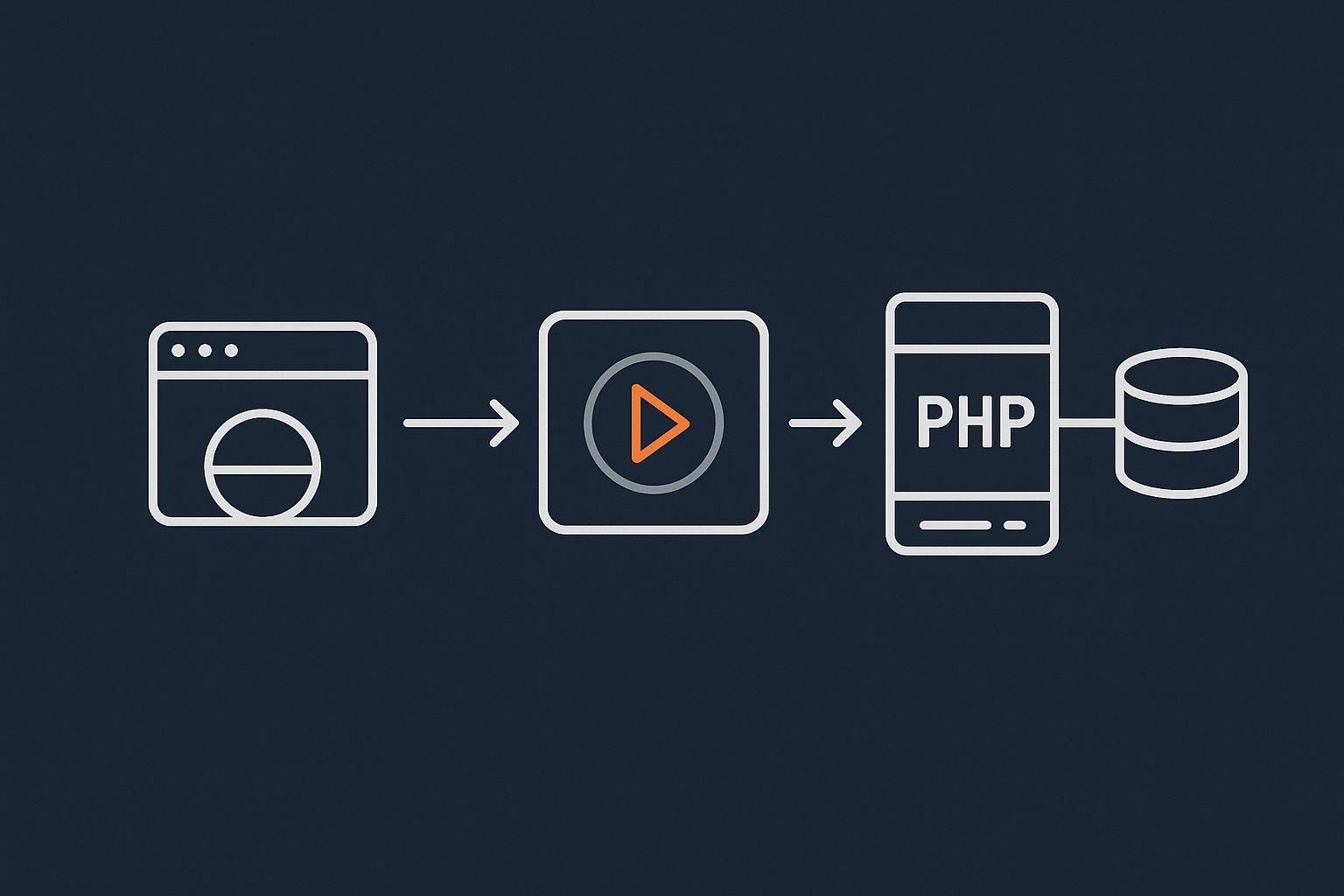
WooCommerce is more demanding than a typical WordPress blog because it constantly reads and writes to the database, especially on cart and checkout. For stable performance, you need hosting that provides:
- Consistent CPU: enough processing power to handle PHP for concurrent shoppers and background tasks.
- Fast storage: SSD or NVMe, not slow spinning disks.
- Enough RAM: to avoid swapping to disk under load, which kills performance.
- Reasonable PHP worker limits: so multiple users can hit dynamic pages at once without queuing forever.
- A tuned database: with proper caching and sensible limits.
Managed WooCommerce hosting typically bakes these requirements in, including optimised PHP, object caching and database settings, which saves time compared to generic shared hosting.
Shared hosting, VPS and dedicated: what is realistic for e‑commerce?
Broadly, your options are:
- Shared hosting: Your site shares CPU, RAM and disk with many others. Cheap, but noisy neighbours and low PHP limits often make busy WooCommerce shops sluggish.
- VPS / cloud instance: Dedicated slice of resources, more control, and better isolation. Needs management and tuning if unmanaged.
- Dedicated or virtual dedicated servers: All resources reserved for you. Suitable for busy stores or multi‑site setups.
For most small to mid‑sized UK stores, a well managed VPS or high‑quality shared platform designed for WooCommerce is realistic. As order volume and traffic grow, moving to virtual dedicated servers or a dedicated cluster gives more headroom and stability.
If you are unsure what you really need, the guide Shared, VPS or Dedicated Hosting: How to Choose the Right Foundation for Your Business explains the trade‑offs in more detail, including cost versus control.
PHP versions, workers and database performance basics
Three technical pieces have an outsized effect on WooCommerce speed:
- PHP version: Newer supported versions (PHP 8.1/8.2 at the time of writing) are significantly faster and more secure than older ones. Many stores still run 7.x or old 8.0, which leaves performance on the table.
- PHP workers: Each worker handles one PHP request at a time. If you have too few workers, visitors queue; too many on a small server and you can overload CPU/RAM.
- Database tuning: Proper indexes, query caching and a sensible buffer pool size can make order lookups and product queries far quicker.
For a modest store, a handful of PHP workers with good caching is often enough; larger stores may need more. If you are on managed WordPress hosting with G7Cloud or a similar provider, these settings are usually tuned for WooCommerce, and you can refer technical questions to support rather than editing configurations yourself.
If you want to explore the technical side, G7Cloud’s articles on PHP versions and tuning PHP‑FPM give more detail, although they assume some server knowledge.
How network latency and bad bots affect WooCommerce speed
Even with good hosting, high latency between your users and the server adds delay to every page. This is particularly noticeable for UK stores hosting in distant regions, or for international customers.
Abusive bots and scrapers also consume resources. They hit product and search pages, hammer the login and wp‑admin endpoints, and can crowd out genuine customers, especially on small servers.
An edge network such as the G7 Acceleration Network sits between visitors and your origin server. It caches static content closer to users and terminates connections at the edge, reducing the distance requests travel and improving response times globally. G7Cloud’s bot protection within the G7 Acceleration Network filters abusive and non human traffic before it hits PHP or the database, which reduces wasted server load and helps keep WooCommerce responsive during busy periods.
Step 3: Tidy Up Your Theme and Plugins
Why “too many plugins” is lazy advice, and what really matters
“You have too many plugins” is a common but unhelpful diagnosis. The real question is:
- What each plugin actually does on the front end and database.
- How well written it is.
- Whether its functionality is really needed.
A store can run quickly with 40 well built, focused plugins, yet crawl with 10 poorly written ones that load huge scripts on every page or run slow queries on each request.
Focus on:
- Plugins that load scripts or styles globally, even where not needed.
- WooCommerce add‑ons that modify cart/checkout behaviour and may add slow database queries.
- Marketing and analytics plugins that add blocking JavaScript and third‑party requests.
G7Cloud’s article The Truth About WordPress Plugins: How Many Is Too Many? has a practical framework for assessing impact rather than counting icons.
Spotting heavy themes, page builders and WooCommerce add‑ons
Your theme and builder choices affect both backend work and front end weight:
- Heavy multipurpose themes often load multiple sliders, icon sets and scripts whether or not you use them.
- Page builders (Elementor, WPBakery and others) can generate deeply nested HTML and many CSS/JS files, which slow rendering.
- WooCommerce add‑ons for bundles, dynamic pricing, subscriptions and similar features can add complex queries and calculations at checkout.
To spot problems:
- Run a product page through your testing tool and inspect which scripts/styles take longest.
- Temporarily switch to a lightweight theme (on a staging site) to compare speed and confirm if the theme is a major cause.
- Disable non‑essential WooCommerce add‑ons on staging and retest cart/checkout timings.
A simple process to audit plugins without breaking your site
To safely audit plugins on a live WooCommerce shop:
- Create a staging copy of your site at your host.
- List all plugins in a spreadsheet with their purpose and whether they affect front end, checkout or admin only.
- Group non‑essential plugins (cosmetic tweaks, rarely used features) and essential ones (payments, shipping, security, key integrations).
- On staging, disable one non‑essential group at a time, then run your key tests:
- Category → product → cart → checkout
- Basic admin tasks (editing product, viewing orders)
- If a disabled group makes a clear performance difference, dig down to the specific plugin by re‑enabling one by one.
- Once you know which plugins are heavy, decide if you can replace, optimise or at least restrict them to the pages where they are needed.
This structured approach avoids guesswork and reduces the risk of breaking something critical in production without understanding the impact.
Step 4: Use Caching Safely With WooCommerce
The two layers of caching: page cache and object/database cache
Caching is one of the biggest levers for WooCommerce performance, but it has to be applied carefully.
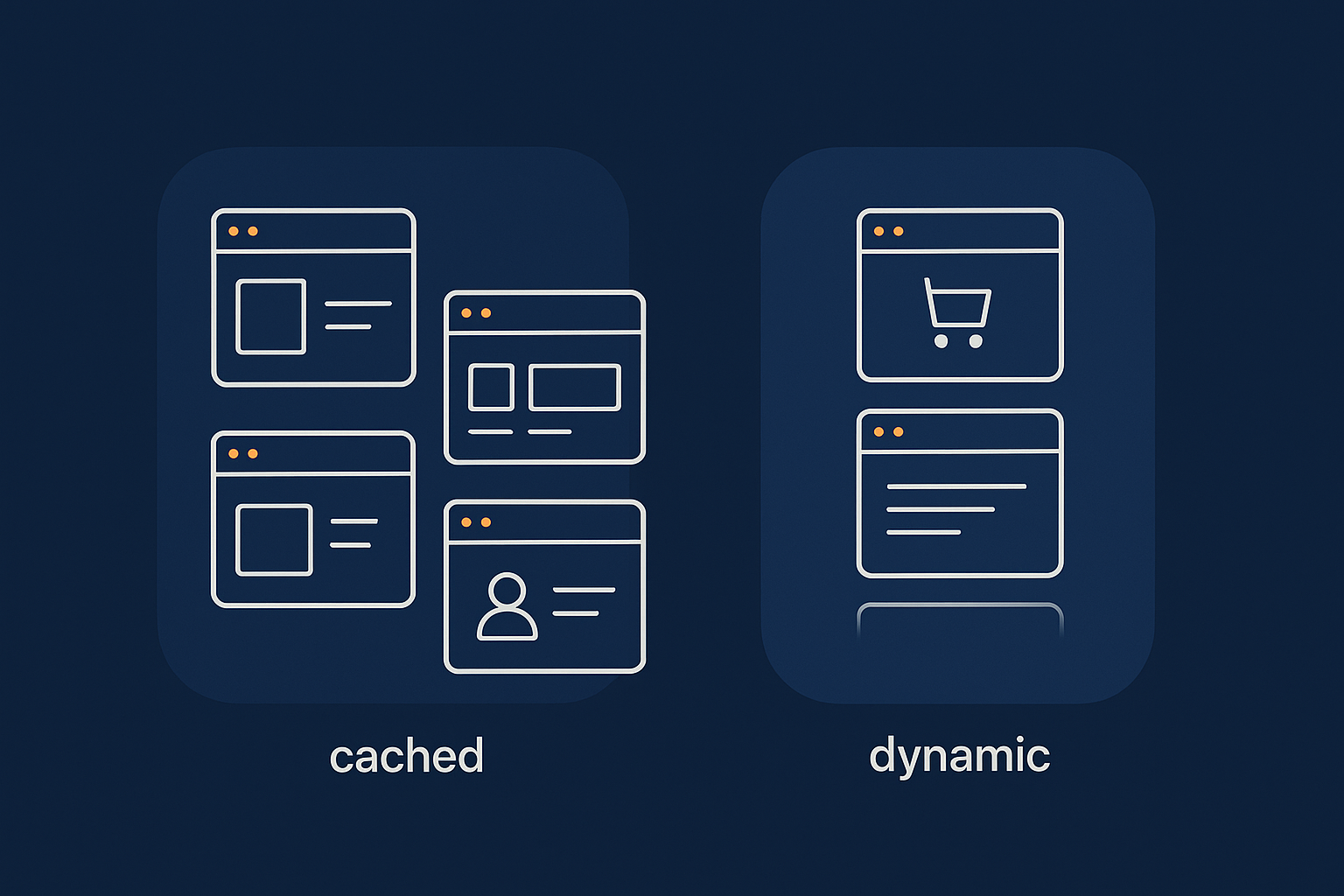
- Page cache: Stores full HTML responses for pages so they can be served without running PHP each time. Best for product listings, product pages and other non‑personalised content.
- Object or database cache: Stores results of expensive queries or calculations. WooCommerce can benefit from persistent object caching (for example Redis) to speed up repeated lookups.
Many managed WooCommerce hosting platforms include both layers and configure them for you. If you manage your own server, you will need to choose and configure a caching plugin or stack yourself.
Which WooCommerce pages should be cached and which must stay dynamic
As a simple rule:
- Safe to cache (for logged out users):
- Homepage (if it does not show personalised content)
- Category/shop/archive pages
- Product pages (careful with per‑user pricing or highly dynamic stock data)
- Blog posts and CMS pages
- Must stay dynamic:
- Cart
- Checkout
- My Account and order history
- Any pages with unique content per user or session
For logged in users (especially admins), most responses should bypass the page cache so they always see fresh data.
Avoiding common WooCommerce caching mistakes (stuck carts, wrong prices)
Typical errors include:
- Caching cart or checkout pages, leading to:
- “Stuck” carts that do not update quantities or totals.
- Wrong customer details appearing.
- Old totals after coupons or shipping changes.
- Over‑aggressive HTML minification or combining scripts in a way that breaks WooCommerce AJAX calls.
- Not excluding sensitive cookies from cache rules (for example cart or session cookies).
To reduce risk:
- Use caching plugins that explicitly support WooCommerce and offer default exclusions.
- After enabling/change caching, thoroughly test adding products, updating quantities, applying coupons and completing test orders.
- Use a staging environment to trial major changes first.
How an edge acceleration layer can handle caching rules for you
Correct cache rules can be fiddly. An edge layer such as the G7 Acceleration Network sits in front of WooCommerce and applies safe rules at the edge: catalog and product pages are cached aggressively for anonymous visitors, while cart, checkout and account pages are kept dynamic. This offloads work from PHP and the database while preserving correct behaviour for baskets and pricing.
Step 5: Reduce Front End Weight, Especially Images

Why product images are usually your biggest performance win
For almost every WooCommerce store, images dominate page weight. Large hero banners and multiple product shots quickly add megabytes, especially if uploaded straight from a camera or designer export.
Reducing image weight delivers benefits across:
- LCP: faster loading of the main product image.
- Mobile data usage: fewer customers bouncing due to slow or expensive connections.
- Time to first interaction: less blocking while huge assets download.
Choosing the right image sizes and formats for WooCommerce
Key practices:
- Upload at sensible dimensions: If your product images display at 800 × 800 px on desktop, there is rarely a need to upload 4000 px originals.
- Use appropriate quality: JPEG quality around 70–80 is a good balance for most product photography; PNG is best reserved for transparent graphics and logos.
- Set WooCommerce image sizes in
WooCommerce → Settings → Products → Display(or Customiser, depending on theme) so generated thumbnails are not excessively large.
Modern formats provide further gains. The G7 Acceleration Network automatically converts images to AVIF and WebP on the fly for compatible browsers, typically reducing image file sizes by over 60 percent while keeping quality suitable for real product photography. This optimisation is included free for every site hosted with G7Cloud and does not require any extra plugins or media settings inside WordPress.
Lazy loading, thumbnails and avoiding duplicate image sizes
To keep front end weight under control:
- Enable lazy loading: Recent WordPress versions add lazy loading automatically for many images, but check your theme and gallery plugins do not override this.
- Limit custom image sizes: Some themes and plugins register many sizes, which increases storage and processing. Keep only the sizes you actually use in templates.
- Optimise thumbnails: Ensure thumbnail dimensions match their display size in grids and sliders to avoid loading oversized images then scaling them down in CSS.
Review your media library periodically and remove unused high‑resolution duplicates, especially old design assets.
Automatic AVIF/WebP conversion and CDNs in practice
In practice, you have three main routes:
- Use an image optimisation plugin to compress and convert uploads to WebP/AVIF, often with a monthly quota.
- Use a CDN with built‑in image optimisation that transforms and caches images at the edge.
- Use a hosting platform with integrated acceleration, where optimisation happens transparently.
For example, the G7 Acceleration Network combines an edge CDN with on‑the‑fly AVIF/WebP conversion, so your WooCommerce store serves lighter images globally without managing separate plugins or CDN accounts. For many UK businesses, this removes the need for a separate third‑party CDN unless you have specific global routing or compliance requirements.
Step 6: Keep Your Database Lean and Checkout Fast
How WooCommerce uses the database (orders, sessions, transients)
WooCommerce stores:
- Products as custom post types plus metadata.
- Orders as posts and postmeta, along with order item tables in newer versions.
- Customer sessions in a dedicated table (
wp_woocommerce_sessions). - Transients and options for caching and configuration.
Over time, abandoned carts, expired sessions, old orders and orphaned metadata accumulate. This can slow queries, especially on cart and checkout where many reads and writes happen for each visitor.
Simple, safe database clean‑up tasks for store owners
Without diving into SQL, you can safely:
- Remove expired transients using a reputable plugin or scheduled task.
- Clear WooCommerce sessions older than a reasonable window (for example 48 hours) to reduce session table size.
- Limit order retention if you do not need very old orders online, exporting them for archive if required for accounting.
- Clean post revisions periodically so product editing does not create unbounded bloat.
Always:
- Take a full backup before bulk clean‑ups.
- Test clean‑up tools on staging first if possible.
- Avoid “optimisation” plugins that promise miracles but run dangerous queries without clear documentation.
Reducing queries on cart and checkout pages
Cart and checkout pages are where database load hurts most. To reduce queries:
- Minimise dynamic pricing rules and complex discount logic that runs per item.
- Review payment and shipping gateways that may query external APIs on each page load.
- Disable unnecessary order tracking, recommendations or cross‑sell widgets on checkout if they cause extra database lookups.
- Enable and tune object caching via your host to avoid repeating the same product and settings queries.
If you notice checkout slowing as order volume grows, your developer or host can profile queries to identify specific slow ones and add indexes or refactor code where needed.
Step 7: Plan For Traffic Spikes Without Falling Over
Why WooCommerce often slows or fails under peak load
WooCommerce sites commonly struggle during:
- Black Friday and seasonal sales.
- Product launches promoted by email or social media.
- Flash sales with countdown timers.
In these periods, the number of concurrent PHP requests can exceed what your server and PHP workers can handle. Symptoms include:
- Pages hanging at “Connecting…” or “Waiting for server”.
- Intermittent 502/504 errors.
- Admin becoming almost unusable.
Often, the server is busy with work that could be cached or blocked entirely, rather than genuine carts and checkouts.
Separating static and dynamic traffic to keep PHP free for real customers
To stay stable, you want PHP and the database mainly serving:
- Active carts and checkouts.
- Logged in customers.
- Admin tasks and stock updates.
Everything else (home, categories, product pages for anonymous users, assets) should be cached and ideally served without touching PHP. This separation means that even under heavy catalogue browsing, the dynamic cart/checkout layer remains responsive.
An edge cache like the G7 Acceleration Network helps by absorbing most static traffic at the edge, so the origin server focuses on the truly dynamic parts of WooCommerce.
Protecting against abusive bots and fake traffic
Traffic spikes are not always legitimate. Price scrapers, inventory bots and credential stuffing tools can generate high load without any sales. These bots often target:
- Product and search pages.
/wp-login.phpand/wp-admin.- XML‑RPC and API endpoints.
If they reach PHP and the database, they consume the same resources as real users. Rate limiting and IP blocking at application level helps, but it is better to stop abusive traffic before it reaches WordPress.
G7Cloud’s bot protection within the G7 Acceleration Network filters abusive and non human traffic at the edge, dropping known bad actors and throttling suspicious patterns. This keeps more capacity available for genuine shoppers and reduces the risk of slowdowns or outages during campaigns.
When to consider scaling up to VDS or enterprise hosting
If you are consistently:
- Hitting PHP worker limits despite good caching.
- Experiencing CPU or RAM saturation at peak times.
- Running resource intensive features (large catalogues, heavy search, custom pricing engines).
it may be time to move beyond basic hosting. Options include:
- Scaling vertically to larger virtual dedicated servers with more CPU/RAM.
- Offloading search, reporting or analytics to separate services to reduce load on the main database.
- Moving to an enterprise architecture with separate web and database servers, possibly with read replicas.
This kind of change should be planned with your host or developer, ideally well before your next big sale period.
Putting It All Together: A Simple WooCommerce Optimisation Checklist
Quick wins you can do in the next week
- Measure TTFB, LCP and full journey times (category → product → cart → checkout) using PageSpeed Insights and WebPageTest.
- Ensure you are on a current supported PHP version via your hosting control panel or support team.
- Review your theme and key plugins for obvious bloat, especially sliders, heavy builders and unnecessary front end scripts.
- Enable or verify proper caching for anonymous visitors, excluding cart, checkout and account pages.
- Optimise a sample of product images: resize to sensible dimensions and confirm modern formats such as AVIF/WebP are being served when possible.
Medium term improvements that may need developer or host input
- Implement or tune persistent object caching (for example Redis) for WooCommerce.
- Profile and reduce slow database queries on cart and checkout.
- Rationalise WooCommerce add‑ons, replacing heavy ones with leaner alternatives or custom code if justified.
- Introduce or refine an edge acceleration layer such as the G7 Acceleration Network for better caching, image optimisation and bot filtering.
- Set up regular, safe database clean‑ups for sessions, transients and old data.
When it is time to move host or change your setup
Consider a change of hosting or architecture if:
- TTFB remains high even after you optimise code and caching.
- The site slows significantly whenever traffic increases, despite good page caching.
- Your host cannot offer clear answers about PHP workers, database performance or resource limits.
- You are planning a major growth phase, with higher order volumes or international expansion.
For many UK businesses, moving to managed WooCommerce hosting with a built‑in acceleration layer and sensible defaults is the simplest route to better speed, uptime and security without constant tuning. If you already work with a trusted developer, involving them early when you plan hosting changes usually avoids unpleasant surprises later.
However you proceed, treat WooCommerce performance as an ongoing part of running your shop, not a one‑off project. Regularly measure real customer journeys, keep an eye on plugin and theme changes, and work with a host that understands e‑commerce workloads. The result is a store that feels fast, stays stable under load, and gives customers the confidence to complete their orders.




