
Speeding Up WooCommerce Checkouts in the UK: Hosting, Plugins and Layout Changes That Actually Move the Needle
Why Checkout Speed Matters More Than Any Other Page
What “fast enough” looks like for WooCommerce checkouts in the UK
For UK WooCommerce stores, the checkout is where hesitation turns into lost revenue. People will tolerate a slightly slow homepage, but not a checkout that hangs after they have entered card details.
For practical UK broadband and 4G/5G connections, good targets are:
- Initial checkout load (first view): under 3 seconds on a mid-range mobile on 4G.
- Time to first byte (TTFB): ideally under 500 ms for logged-in or cart sessions.
- Input delay when typing or clicking: under 200 ms so the form feels responsive.
- Payment confirmation step: visible progress within 1 second, final confirmation within 5–7 seconds even for slower gateways like 3D Secure.
You do not need a “perfect” PageSpeed score. You need a checkout that:
- Loads promptly on real UK mobile connections
- Does not jump around while people are typing
- Responds quickly to clicks and form submissions
Later in the article we will come back to specific metrics such as INP, CLS and TTFB that map cleanly to this experience.
How slow checkouts show up in the real world: abandons, support tickets and payment errors
Signs of a slow or fragile checkout often appear long before anyone runs a performance test:
- Abandoned checkouts spike during busy evenings or campaigns, even though traffic looks healthy.
- Support tickets with vague complaints such as “your site would not let me pay” or “it just kept spinning”.
- Orders stuck as “pending payment” where the payment did go through at the gateway, but WooCommerce never updated the order because the request timed out.
- Intermittent errors such as 502/504 at peak times, especially when using heavier payment options like PayPal or Klarna.
- Phone orders or emails from regulars saying they “could not get the website to work” on a certain day.
These symptoms are often blamed on payment gateways, but in many cases the underlying cause is slow PHP, an overloaded database or scripts on the page tying up the browser while the payment is processing.
How to measure your current checkout speed (WebPageTest, PageSpeed Insights, real devices)
Before changing anything, measure where you are:
-
Use WebPageTest (webpagetest.org):
- Test from a London location, using a mid-range Android device on 4G if available.
- Run at least 3 tests and look at the median result.
- Record TTFB, fully loaded time, and the size/number of requests.
-
Check PageSpeed Insights (pagespeed.web.dev):
- Test the actual checkout URL with a test cart, not just the homepage.
- Scroll to “Diagnostics” and “Passed audits” for specific blocking scripts and layout shifts.
-
Use real devices:
- On a normal 4G mobile, time how long it takes from tapping “Checkout” to fully usable page.
- Repeat on Wi-Fi from a different network to rule out local issues.
Write down your baseline times and any obvious red flags. You will use the same tools again after each change to confirm whether it “moved the needle” or not.
First Fix the Foundations: Hosting and Server Setup for Faster Checkouts
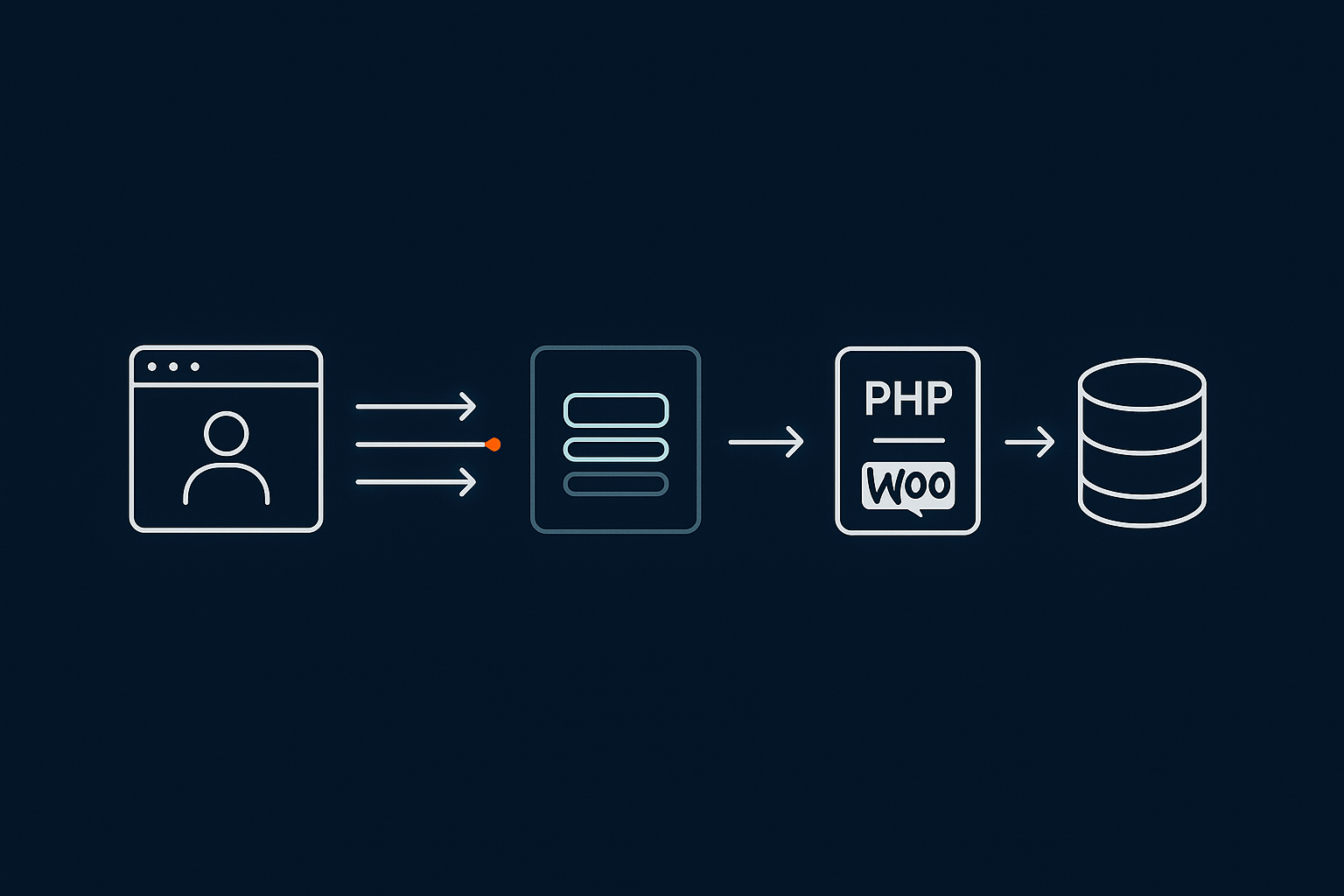
UK-based hosting and latency: why distance to your customers still matters
For logged-in carts and checkouts, most of the work happens dynamically on your origin server. Physical distance still affects how fast those requests travel.
For a UK-focused store, hosting your WooCommerce site in a London or UK data centre usually gives:
- Lower latency (round-trip times often under 20 ms for UK visitors)
- More consistent TTFB, especially at busy periods
- Less risk of cross-border routing issues between EU/US and the UK
Generic shared hosting often uses far-flung data centres to cut costs, which can easily add 100+ ms of latency before your PHP code even starts running. That may not sound huge, but it compounds with slow PHP, heavy plugins and busy databases.
Providers offering managed WooCommerce hosting tailored for UK stores will almost always keep your data in or very near the UK, which is a good foundational choice before you look at page-level tweaks.
PHP, database and object caching: what your host should already be doing
Good hosting should handle a lot of the heavy lifting so your checkout is not fighting the server on every request. As a minimum, look for:
- Current PHP version (PHP 8.1 or 8.2 at the time of writing) with OPcache enabled.
- Dedicated PHP workers or processes, not a single shared pool for hundreds of sites.
- Fast database storage (NVMe or high-end SSD) and properly tuned MySQL/MariaDB.
- Object caching via Redis or Memcached to reduce repeated database queries on logged-in requests.
Hosts that invest in web hosting performance features that keep PHP and databases fast help make your checkout more predictable under load, because the server can process more concurrent orders without queueing.
How to tell if your hosting is the bottleneck (TTFB, CPU usage, 502/504s)
Simple checks to see if the server is your weak point:
- TTFB from the UK: if logged-in checkout pages regularly show TTFB over 1 second, even when the site is quiet, hosting is a likely culprit.
- Resource usage in your control panel: frequent CPU or I/O maxing out suggests the server is under-provisioned for your traffic.
- 502/504 gateway errors during busy periods: often a sign that PHP workers or upstream services are saturated.
- Slow WP-Admin and Orders page: if the dashboard drags as well, it is rarely a front-end issue alone.
If you want a deeper dive into diagnosing slow server responses, including practical steps to improve TTFB on UK infrastructure, this guide on reducing WordPress time to first byte on UK hosting is a good next read.
When you should move from generic shared hosting to managed WooCommerce hosting or a VDS
You do not have to jump to enterprise hosting, but there is a point where cheap shared hosting quietly costs you more in lost orders. You should consider moving when:
- Your store does more than roughly £10k/month in online sales or sees regular spikes in traffic.
- You frequently hit “resource limits” or get warnings from your host during promotions.
- Your host cannot tell you how many PHP workers you have, or will not adjust limits.
- Support responses put blame on plugins without offering practical help or performance insight.
A modest virtual dedicated server or managed WooCommerce hosting tailored for UK stores gives you:
- Predictable resources for PHP and MySQL
- Better isolation from “noisy neighbours” on the same server
- Support teams used to dealing with WooCommerce and checkout issues specifically
This alone often cuts page response times by 30–50% with no code or design changes.
How edge caching and bot filtering help keep checkouts stable under load
Checkout itself cannot be fully cached, but the rest of your site can. That matters because if bots and casual visitors are clogging up PHP on the homepage or category pages, there are fewer resources left for people trying to pay.
Edge caching via a network such as the G7 Acceleration Network for caching, bot filtering and image optimisation serves cached copies of static pages close to visitors, while leaving key WooCommerce pages uncached. This means far fewer requests reach PHP and MySQL, keeping capacity free for carts and checkouts.
On top of that, G7Cloud’s bot protection within the G7 Acceleration Network filters abusive and non human traffic before it hits PHP or the database, which cuts wasted load and makes response times more consistent in busy periods or during attacks.
Smart Use of Caching on Cart and Checkout (Without Breaking Things)
What should and should not be cached on WooCommerce checkout
Pages that must stay dynamic (cart, checkout, account)
Some parts of WooCommerce must never be served from a standard HTML cache:
- Cart page (
/cart/) - Checkout page (
/checkout/) - My account and order pages (
/my-account/,/order-pay/etc.)
These pages depend on session data and user-specific content such as totals, coupons and addresses. Caching them as if they were blog posts can lead to:
- People seeing the wrong basket or totals
- Nonce and security token issues on forms
- Orders failing silently because dynamic updates are blocked
Caching layers should instead treat these URLs as “no cache” or bypass rules, while still benefiting from opcode cache, object cache and any optimised PHP configuration under the hood.
Fragments, AJAX and how WooCommerce keeps parts of the page fresh
WooCommerce uses cart fragments and AJAX calls to keep small parts of the page in sync, such as the mini cart in the header. These rely on JavaScript requests back to the server after the page loads.
Problems happen when:
- Fragment AJAX requests are cached or blocked at the edge or by a plugin.
- Excessive fragments are loaded on checkout for things that do not matter there.
In your cache plugin and any edge caching rules, ensure:
- AJAX endpoints like
/wc-ajax/*are excluded from HTML page caching. - Static assets (CSS, JS, images) are still cached, as they are safe and helpful to cache.
Configuring page cache plugins correctly for WooCommerce
Safe defaults in popular caching plugins (LSCache, WP Rocket, W3TC etc.)
Most modern cache plugins include basic WooCommerce compatibility, but you should still check:
- LSCache:
- Ensure “WooCommerce” is enabled in the plugin settings.
- Confirm the default “Do Not Cache URLs” list includes
cart,checkoutandmy-account.
- WP Rocket:
- In “Cache”, the option “Enable caching for logged-in users” is usually safe to disable for small shops to keep things simple.
- WooCommerce pages are automatically excluded, but double check in “Advanced Rules”.
- W3 Total Cache (W3TC):
- Use the “Disable caching for logged in users” option unless you really know you need it.
- Add explicit page cache exclusions for
/cart/,/checkout/and/my-account/.
If you are unsure how different caching layers fit together on WordPress and WooCommerce, this article on understanding WordPress caching layers is useful background.
Common misconfigurations that quietly slow or break checkout
Things to avoid:
- Caching HTML for logged-in users when you do not need it. This complicates configuration and increases the risk of serving stale checkout pages.
- Over-aggressive HTML or JavaScript minification that breaks validation or payment scripts.
- Combining all scripts into a single file that ends up huge and loaded site-wide, including on checkout.
- Disabling cache for the whole site just because cart or checkout has an issue, rather than properly excluding those URLs.
When in doubt, simplify: keep standard page caching on for product, category and content pages, and explicitly bypass cache for cart, checkout and account pages.
Using server-side and edge caching together without overcomplicating things
If your host provides both server-side page caching and an edge network, you only need a few clear rules:
- Let the edge cache public, non-logged-in pages such as home, categories and products.
- Bypass both edge and page cache for cart, checkout and account URLs.
- Still allow static assets (CSS, JS, images) to be cached at the edge even on checkout pages.
The G7 Acceleration Network for caching, bot filtering and image optimisation handles this separation automatically for typical WooCommerce setups, so that high-traffic pages are aggressively cached while the checkout remains dynamic and reliable.
Plugins That Directly Impact Checkout Speed (And How to Audit Them)
How to identify heavy plugins that touch the checkout
Using Query Monitor and waterfall charts to see what runs on checkout
An effective way to spot heavy plugins is to measure what they do specifically on the checkout:
- Install Query Monitor on a staging or low-traffic period.
- Load your checkout page with a realistic cart.
- Look at:
- Total page generation time and number of database queries.
- The “Queries by Component” or “Hooks” views to see which plugins dominate.
Combine this with a browser dev tools or WebPageTest waterfall chart. Look for:
- Large JavaScript or CSS files loaded from specific plugin paths.
- Third-party calls, such as marketing scripts, that delay the main thread or block paint.
Spotting payment, shipping, marketing and security plugins that load too much
Plugins most likely to slow checkout are those that integrate deeply:
- Payment gateways that load heavy iframes, multiple SDKs or external scripts (for example, some wallet or BNPL methods).
- Shipping calculators that make live API calls on every change of postcode or cart contents.
- Marketing, tracking and analytics scripts injected into “all pages”, including checkout.
- Security and captcha plugins that stack multiple verification layers on forms.
Not all of these are bad, but the more you pile onto checkout, the slower and more fragile it becomes. Identify the heaviest items first so you can decide whether they are worth the trade off.
Reducing JavaScript and CSS on the checkout page
Unloading non-essential scripts (sliders, popups, chat widgets) on checkout
Elements like sliders, popups, review carousels and live chat are useful on product pages but rarely necessary on checkout.
Use a script manager plugin such as Asset CleanUp or Perfmatters (or your theme’s settings if it offers similar control) to:
- Disable popups and slide-in offers on
/cart/and/checkout/. - Turn off homepage sliders, galleries and animation libraries on checkout templates.
- Restrict live chat widgets so they are not loaded during payment unless essential.
Each script you remove lightens the page and reduces the chance of conflicts with payment forms.
Being careful with optimisation plugins that can break forms
Certain optimisation tactics need extra care on checkout:
- Deferring or delaying JavaScript: if you delay scripts that power form validation or payment iframes, customers may see broken fields or errors only after submitting.
- Inlining or combining critical scripts: done aggressively, this can stop third-party gateways from initialising correctly.
When using performance plugins, add checkout URLs to “exclusion” lists for advanced features such as JS deferral, script delaying, or HTML rewriting. Test every payment method all the way through to a completed order after each change.
Choosing leaner alternatives for common heavy functionality
In many cases, switching plugin can make a noticeable difference:
- Choose one analytics plugin rather than several overlapping trackers.
- Prefer payment gateways with leaner on-page integrations and good documentation for WooCommerce.
- Replace all-purpose “mega security suites” with lean server-side security and rate limiting from your host.
- Use shipping plugins that offer caching of shipping rates where possible, rather than live recalculation on every keystroke.
Ask plugin vendors explicitly how they handle performance on checkout and whether they provide options to limit script loading to certain pages.
A simple plugin housekeeping routine for store owners
A monthly or quarterly routine keeps things under control:
- List all active plugins and tag which ones touch checkout.
- Remove or deactivate unused plugins, especially those no longer in use for marketing campaigns.
- Update plugins, WooCommerce and the theme on a staging site first, then push to live once tested.
- Re-test checkout speed with WebPageTest or similar after major changes.
Short, regular maintenance is more effective and safer than big clean-up projects once a year.
Checkout Layout Changes That Actually Make It Feel Faster
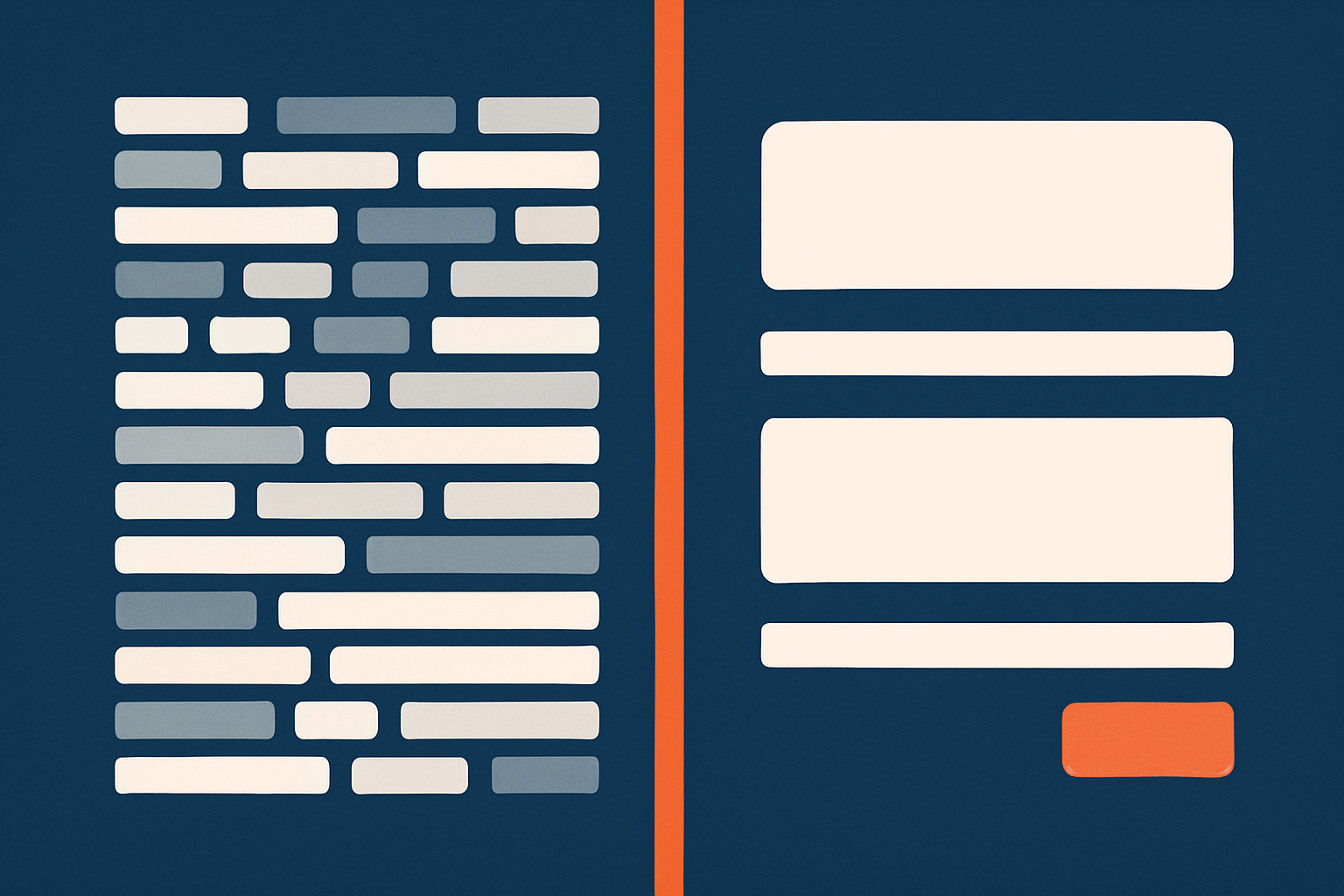
One-page vs multi-step checkout for UK customers
Perceived speed: why breaking forms into steps can help even when total time is similar
Sometimes checkout “speed” is more about how fast it feels than raw milliseconds. Multi-step layouts can improve perceived speed because:
- People focus on one short form at a time rather than a long wall of fields.
- Progress indicators reassure shoppers that they are close to completing.
- The browser has less content to paint and manage at once, which can feel smoother on older mobiles.
A well-built two or three step checkout (details → shipping → payment) can convert better than a long one-page layout, even if the total technical load time is similar.
When to keep it simple and stick to standard WooCommerce checkout
The default WooCommerce checkout is serviceable and, importantly, well tested. Custom funnels or page builders sometimes add friction and break extensions.
Stick closer to standard WooCommerce when:
- You have multiple complex payment or shipping methods.
- You rely on several third-party plugins that hook into the default checkout actions.
- You do not have a developer available to debug custom checkout behaviour.
In these cases, modest field reductions and layout tweaks within the standard template often give better results than wholesale redesigns.
Reducing the number of fields and distractions
Which fields you can safely remove or make optional in the UK
Fewer fields means less work for the customer and less validation overhead. For UK stores, you can often:
- Make company name optional unless you are primarily B2B.
- Remove second address line or keep it optional only.
- Hide phone number requirement if your courier does not need it, or make it optional.
- Skip order comments unless your products are highly customised.
Use a checkout field editor plugin to manage this without editing code. After changes, validate that tax, invoice and shipping rules still work as expected.
Where to put discount codes and account creation so they do not slow people down
Discount fields and account creation options are important but can distract from completing payment:
- Coupons: keep the link visible but subtle, expanding only when clicked rather than taking up half the screen.
- Account creation: offer a simple “Create an account” tick box using the email already entered, rather than forcing people down a separate registration path.
- Newsletter and marketing opt-ins: one clearly worded checkbox is fine. Avoid multiple popups or overlays on checkout.
The aim is for the eye to be drawn toward completing the order, not hunting for deal codes or sorting out account details.
Optimising shipping and payment UX
Using auto-complete, address lookup and sensible defaults
Address entry is one of the more tedious parts of checkout. You can make it faster for UK customers by:
- Using postcode lookup or API-based address completion.
- Setting sensible default country to “United Kingdom” if the majority of customers are UK-based.
- Pre-selecting the most common shipping method and showing others as alternatives rather than all expanded at once.
These changes reduce both time to complete checkout and the number of fields the browser has to handle.
Choosing payment methods that load quickly and feel trustworthy
Payment choice affects both performance and conversion:
- Offer at least one fast card option (such as a direct card gateway) that does not require popups or full-page redirects.
- Add a wallet option such as Apple Pay or Google Pay for mobile shoppers, but ensure the implementation is light.
- Limit the number of gateways shown; remove old or barely used options to reduce scripts and UI clutter.
Always test gateways on slower mobile connections to see if any particular method feels sluggish or error prone, even when the rest of checkout seems fine.
Design cues that reassure customers while the payment processes
Payment processing will never be instant in every case, but good design can reassure:
- Show a clear loading state or spinner with text such as “Processing payment, please wait…”.
- Disable the submit button while processing to avoid double clicks and duplicate attempts.
- Display trust signals subtly (security badges, SSL lock, card logos) near the payment area rather than scattered everywhere.
These elements do not make the server faster, but they do reduce abandonment due to uncertainty during the last crucial seconds.
Front-End Performance Tweaks That Help Checkouts Without a Redesign
Image, script and font optimisation specifically for checkout
Keeping checkout pages visually light (logos, badges, product thumbnails)
Checkouts do not need heavy imagery. Simple steps include:
- Using a small, optimised logo rather than the full-size homepage hero asset.
- Displaying smaller product thumbnails or even text-only line items for very large baskets.
- Reducing the number of trust badges and external images to the minimum truly needed.
Every kilobyte matters on marginal mobile connections or for customers at the edge of cell coverage.
Using modern image formats like AVIF and WebP without extra plugin bloat
Modern formats such as AVIF and WebP usually provide much smaller file sizes than JPEG or PNG at comparable quality. For checkouts, lean images mean faster loads and less CPU use on decoding.
If your host provides the G7 Acceleration Network for caching, bot filtering and image optimisation, images are automatically converted on the fly to AVIF and WebP where supported, typically cutting image sizes by over 60 percent while keeping them suitable for real shops. This feature is included free on G7Cloud hosting and works without needing extra plugins or WordPress changes.
Cleaning up your theme on checkout: sidebars, headers and footers
Many themes carry heavy headers, mega menus and full footers onto every page, including checkout:
- Remove or minimise sidebars on checkout templates.
- Replace mega menus with a simple logo and a few reassurance links (support, returns, contact).
- Trim footers to core legal and contact links; remove carousels or Instagram feeds.
Most modern themes and page builders allow per-page or per-template header/footer control. If not, a child theme with a simplified page-checkout.php template is usually enough.
Core Web Vitals that matter most on checkout (INP, CLS, TTFB) and realistic targets
While Core Web Vitals are often discussed in the context of SEO, they map directly to user experience on checkout:
- TTFB: measures how quickly the server responds. Target < 500 ms for logged-in checkouts in the UK.
- INP (Interaction to Next Paint): measures how responsive the page feels when customers type or click. Aim for < 200 ms.
- CLS (Cumulative Layout Shift): tracks how much layout jumps while loading. Strive for < 0.1, which usually means no elements jumping while customers are filling forms.
You will rarely get perfect scores for highly dynamic pages like checkouts, but staying within these ranges keeps the experience smooth enough that people are not consciously thinking about performance.
For a deeper, implementation-focused look at images, scripts and fonts that affect these metrics around checkout, the article on practical WooCommerce image, script and font optimisation for faster checkouts expands on many of these ideas.
Realistic Step-By-Step Plan: From Diagnosis to Faster Checkout

Step 1: Benchmark your current checkout (what to record and where)
Start with a simple checklist:
- Record:
- TTFB, fully loaded time and total page weight from WebPageTest (London, mobile).
- Any major Core Web Vitals flags from PageSpeed Insights.
- Initial “time to usable checkout” measured on your own phone over 4G.
- Note any recurring user complaints or error patterns.
Step 2: Fix hosting and caching basics first
Next, deal with the foundation:
- Confirm your site is hosted in a UK or nearby data centre.
- Check PHP version, OPcache and whether any form of object cache is active.
- Ensure cart, checkout and account URLs are excluded from page cache at both plugin and edge levels.
- Enable edge caching for non-logged-in pages so that homepage and catalogue traffic do not steal resources from checkout.
If you see consistent TTFB over 1 second on checkout even after these steps, consider upgrading to managed WooCommerce hosting tailored for UK stores where PHP and MySQL are tuned specifically for busy shops.
Step 3: Strip back plugins and scripts on checkout
Then reduce what the browser and server have to deal with:
- Use Query Monitor to identify the heaviest plugins running on checkout.
- Disable non-essential front-end plugins on checkout (popups, sliders, some chats) via a script manager.
- Review payment, shipping, marketing and security extensions; remove or replace those that are clearly bloated.
Re-test after small batches of changes so you can see which adjustments made the most difference.
Step 4: Tidy layout, fields and UX with minimal design changes
Once the back-end and scripts are leaner, tackle the layout:
- Remove unnecessary fields and make optional ones truly optional.
- Prevent layout shifts by simplifying headers and footers on checkout.
- Refine coupon and account creation placement so they do not dominate the page.
- Add clear progress and reassurance cues around the payment button.
All of this can typically be done with existing theme options, a checkout field editor and small CSS tweaks rather than a full redesign.
Step 5: Re-test, then plan seasonal load tests for UK peak periods
Finally, check that your improvements hold under real and peak conditions:
- Repeat your WebPageTest and PageSpeed checks with the same settings as in Step 1.
- Run through several test orders on different devices and networks.
- Before key UK trading periods (Black Friday, Boxing Day, January sales), use staging or a load testing service to simulate checkout load and watch server metrics.
The article on preparing a WooCommerce site for seasonal traffic spikes covers this in more depth, including how to stress test without booking oversized hosting year-round.
When You Need Help: Working With Your Host or Developer
What you can reasonably expect your hosting provider to handle
A competent WooCommerce-friendly host should be able to:
- Place your site on appropriate UK-based infrastructure.
- Configure PHP, MySQL and object caching for your traffic profile.
- Set up sensible server and edge caching rules that preserve checkout functionality.
- Provide logs and basic diagnostics when you experience slowdowns or errors.
Many providers, including those with the G7 Acceleration Network for caching, bot filtering and image optimisation, will also handle bad bot filtering at the network level so abusive traffic never reaches PHP or the database, making it much easier to keep checkouts stable during marketing pushes.
Changes a developer or performance specialist is better placed to do
Certain tasks are better handled by someone comfortable with code and debugging:
- Refactoring custom checkout templates and theme overrides.
- Diagnosing complex plugin conflicts between gateways, shipping modules and optimisation tools.
- Implementing advanced script loading strategies or custom tracking that avoid blocking checkout.
- Writing custom code to prune unnecessary hooks and actions on checkout only.
If checkout is central to your business, it is often worth a focused performance engagement rather than trying to tweak everything alone.
How to brief a migration if checkout speed is the main reason you are moving
If you decide to move hosts primarily for checkout performance, provide a clear brief:
- Share your current benchmarks (TTFB, load time, peak traffic periods).
- Describe known pain points (errors, abandons at certain steps, support complaints).
- List critical plugins, gateways and shipping methods in use.
- Highlight any seasonal peaks or campaigns you must be ready for.
Look for providers that offer a free WordPress and WooCommerce migration service, as they will typically have established procedures to move orders, customers and subscriptions safely with minimal downtime.
Summary: A Fast, Stable WooCommerce Checkout Without Chasing Every New Trick
Speeding up WooCommerce checkout in the UK is less about clever hacks and more about getting the basics right and keeping them that way.
The most reliable improvements usually come from:
- Running on properly resourced UK hosting with tuned PHP and database layers.
- Using caching intelligently so catalogues and content are fast while checkout remains dynamic.
- Keeping plugins and scripts on checkout lean and purposeful.
- Reducing form friction and distractions so customers can pay without delay or confusion.
- Reviewing performance ahead of busy seasons rather than after problems appear.
If you are at the stage where you want less technical juggling and more predictable results, exploring managed WooCommerce hosting tailored for UK stores and the G7 Acceleration Network for caching, bot filtering and image optimisation can take care of much of the heavy lifting around hosting, caching, bad bots and image optimisation, leaving you to focus on products and customers rather than server tuning.




