
How to Make WooCommerce Email Deliverability Reliable: From Order Confirmations to Password Resets
Why WooCommerce Email Deliverability Matters More Than You Think
What “deliverability” actually means in plain English
When people talk about “email deliverability”, they often mix together a few different ideas. In simple terms, deliverability is about whether your emails:
- Are actually sent from your WooCommerce site
- Are accepted by the recipient’s mail server
- Arrive in the inbox within a reasonable time, rather than spam or not at all
So it is not just about whether WooCommerce “tried” to send the email. A successful order confirmation means:
- WooCommerce triggered the email at the right time
- Your WordPress and server settings allowed it to leave the server
- Your sending reputation and authentication were good enough for providers such as Gmail, Outlook and corporate filters to trust it
- The customer can actually see and read it in their inbox
Each of those steps can break in different ways. The rest of this guide focuses on making all of them reliable, not just the first one.
The real business impact of missing emails (orders, refunds, password resets)
Missed WooCommerce emails are not just an irritation. They have direct financial and reputational costs, especially for UK retailers where customers expect quick, clear communication.
Common scenarios include:
- Order confirmations not arriving so customers think the order failed and buy from a competitor.
- Refund emails going missing, leading to unnecessary chargebacks or support tickets.
- Password reset emails never turning up, so users cannot log in and abandon their basket.
- Admin notifications not being delivered so you miss low stock alerts, failed payments or new orders.
These are all “transactional” emails. Customers are waiting for them in real time. If emails become unreliable, your support workload goes up and trust in your brand goes down.
Symptoms that point to deliverability problems, not plugin bugs
Many shop owners first blame WooCommerce plugins when emails go missing. In practice, most issues are deliverability problems. Signs include:
- Emails that sometimes arrive and sometimes do not, with no change in plugin settings
- Customers on Gmail not receiving emails, while others on corporate domains do (or vice versa)
- Emails landing in spam for some users, even though the WooCommerce templates look normal
- Delays of 10–60 minutes during busy periods, even though orders are being created instantly
If your email logs or transactional email dashboard show emails as “sent” but users do not see them, you are usually dealing with deliverability, not WooCommerce logic.
For wider stability advice, it can help to combine this guide with a maintenance routine such as Making WooCommerce Stable and Fast: A Step‑by‑Step Maintenance Routine for Busy Shop Owners.
How WooCommerce Sends Emails by Default
The WordPress mail() function and your hosting server
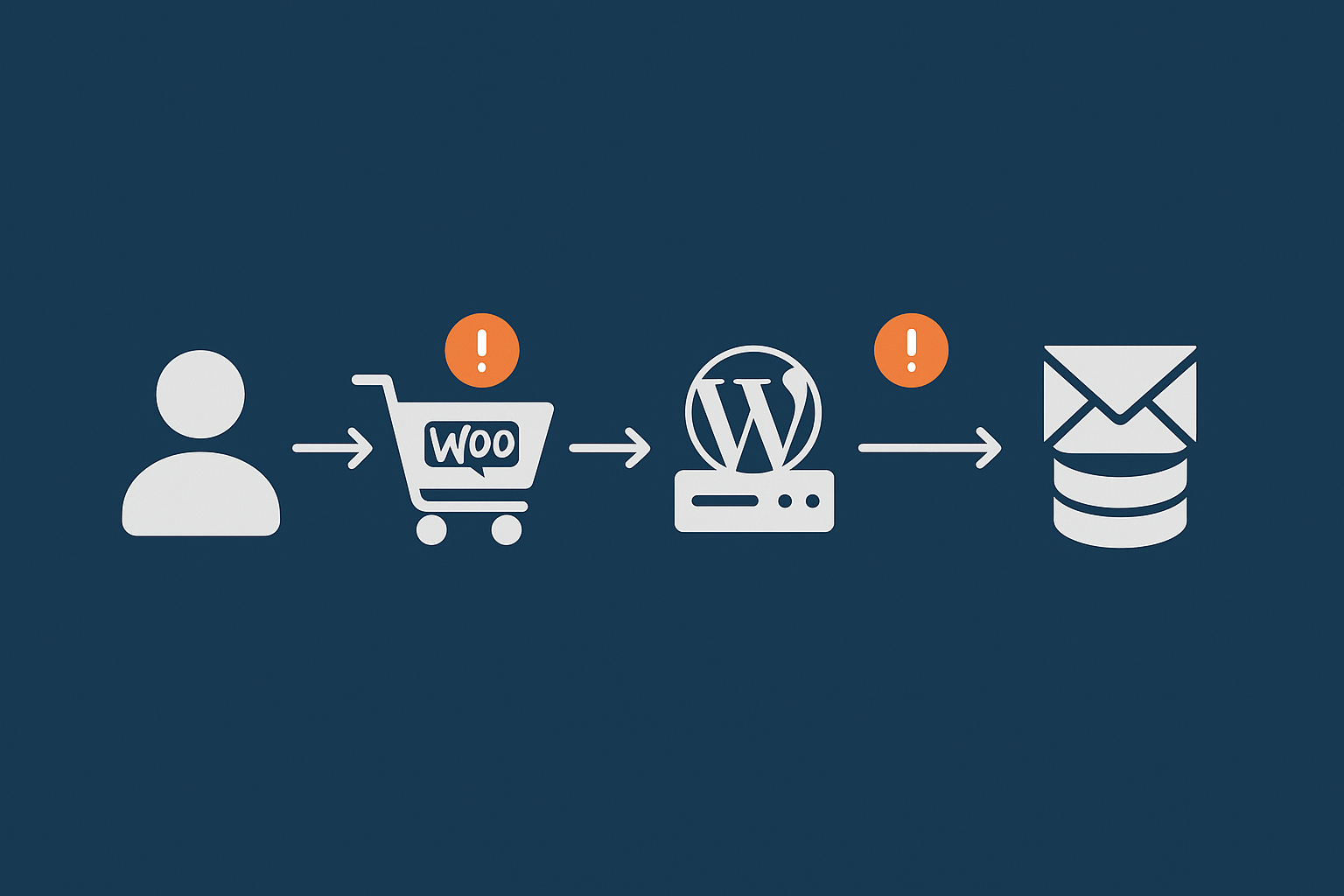
Out of the box, WooCommerce does not talk directly to an email server. It hands emails to WordPress core, which usually uses PHP’s built-in mail() function. That function passes the message over to the hosting server, which then tries to deliver it like a normal outbound email.
This approach is fragile because:
- Many shared hosts throttle or disable
mail()to control abuse. - Outgoing messages may not have proper authentication or reputation.
- You often get no clear feedback when something fails.
Even if your provider includes basic email on the same server, treating a busy WooCommerce shop as if it were a small personal blog tends to cause issues as volume grows.
Where WooCommerce email templates fit in (and what they do not affect)
WooCommerce email templates control the appearance of your emails:
- Branding, colours and logo
- Layout of order details
- Wording around shipping, refunds and receipts
They do not control:
- Whether the email is actually sent
- Whether the recipient’s server will accept it
- Whether it lands in the inbox or spam folder
Styling problems are separate from deliverability problems. You can have perfectly branded templates that no one ever sees because the message was blocked higher up the chain.
Common myths: “My host includes email, so deliverability is solved”
Many hosting packages include basic email accounts, which can be useful for day-to-day communication. This does not automatically mean your WooCommerce transactional emails will be trusted by inbox providers.
Typical limitations include:
- Shared IP addresses with unknown senders that can damage reputation
- Strict hourly or daily sending limits that do not scale with busy events
- Lack of guidance on SPF, DKIM and DMARC
Some platforms, such as cPanel web hosting with email support, give you more control over domain records and mail routing, which helps, but you still need to configure things properly and usually layer on a transactional email service for WooCommerce.
The Four Main Failure Points for WooCommerce Emails
1. Emails never leave your server (WordPress or hosting misconfiguration)
Symptoms:
- No customers receive any WooCommerce emails
- Admin notifications are also missing
- Email logs are empty or full of errors
Common causes:
- Cron not running: WordPress scheduled tasks (WP‑Cron) are disabled or not firing, so queued emails never send.
- Plugin conflicts: Another plugin overrides mailing behaviour or hooks and accidentally stops WooCommerce emails.
- Disabled PHP mail: The host has turned off
mail()for security reasons without clear communication. - Rate limits: The server silently drops emails once a certain hourly limit is reached.
2. Emails leave but are rejected by the recipient server
Sometimes your server sends the mail, but the destination server refuses to accept it. This can be due to:
- Missing or incorrect SPF: Your DNS does not clearly state which servers are allowed to send on behalf of your domain.
- No DKIM signatures: Emails lack cryptographic signatures that prove they were authorised.
- No reverse DNS (PTR) or mismatched hostnames: Receiving servers cannot verify that the sending IP really belongs to your domain.
- Blocklists: The IP address of your server or email provider is on a spam list.
In these cases, the recipient server may send back a bounce message, which is often recorded in your transactional provider’s dashboard.
3. Emails are accepted but land in spam or promotions
More subtle are situations where the email is technically delivered but ends up in spam or a low priority “Promotions” tab. Causes include:
- Poor sender reputation: High bounce rates, spam complaints or a history of sending to old lists.
- Shared IP neighbours: Other senders on your shared IP behave badly, hurting everyone.
- Content signals: Subject lines and body content that look similar to spam.
- Role accounts and free-mail senders: Using
info@orno-reply@and free webmail addresses as senders can reduce trust.
These issues are about trust and reputation rather than outright blocking.
4. Emails are delayed or throttled during busy periods
During sales events or marketing pushes, WooCommerce can send many more emails than usual: order confirmations, shipping updates, customer notes and password resets.
Problems you might see:
- Queues building up inside your transactional provider
- Slow responses from your server as it struggles to handle PHP and email at once
- Password reset emails arriving late, so links expire before customers use them
This is where better infrastructure and a solid email provider really matter. Managed platforms that include edge protection, such as bot filtering and caching, can also help reduce background noise so your server has more capacity for real customers. For instance, G7Cloud’s bot protection within the G7 Acceleration Network filters abusive and non human traffic before it hits PHP or the database, which keeps server load more predictable and reduces knock‑on delays to transactional processes like email triggering.
Step 1: Make Sure WooCommerce Is Actually Triggering the Emails
Check WooCommerce email settings and recipients
Start with the basics inside your dashboard:
- Go to
WooCommerce → Settings → Emails. - Check each email type (New order, Cancelled order, Customer processing order, etc.).
- Make sure they are enabled and that recipient addresses are correct.
- Confirm the “From” name and “From” address are sensible and match your domain.
It is easy to forget that admin notifications can be turned off per email type. If an address changed internally in your business, old email routing may simply be wrong.
Test emails from WooCommerce and WordPress
Next, verify that WooCommerce can send a basic message:
- Use any built‑in “Test email” button in your WooCommerce email settings, if available.
- Install a simple SMTP or testing plugin that can send a test email to yourself.
- Try sending to more than one provider, e.g. a Gmail address and a work address.
If no test emails arrive at all, you are likely dealing with server‑side or configuration issues rather than content or spam filtering.
Check for plugin conflicts and staging environments
Consider whether something else on the site might interfere:
- Payment gateways: Some gateways can control when order emails fire. Misconfiguration may stop emails for certain payment methods.
- Staging sites: Staging or development environments can still send real emails if not configured carefully. If you are testing changes, follow guidance such as A Practical Guide to WordPress Staging Sites for UK Businesses and ensure staging is blocked from sending to live customers.
- Email plugins: Running multiple SMTP or email plugins at once can cause conflicts.
Verify that only one plugin controls how WordPress sends emails and that it is configured correctly.
Step 2: Stop Relying on PHP mail – Use a Proper SMTP or Transactional Email Service
Why SMTP or a dedicated email API is essential for WooCommerce
Transactional email providers specialise in getting important, one‑to‑one messages into inboxes. They offer:
- Reliable infrastructure with higher throughput and redundancy
- Proper authentication and reputation management
- Detailed logs, bounce handling and spam complaint reporting
Switching WooCommerce from PHP mail to SMTP or an email API is often the single biggest improvement you can make to deliverability.
Choosing a sending method: your host’s SMTP vs third‑party transactional email
You have two main options for WooCommerce:
Using your host’s SMTP server
Advantages:
- Simple if your provider already manages email for your domain
- Fewer external accounts to manage
Drawbacks:
- Often limited volume and weaker deliverability for large shops
- Shared IPs with unknown senders
- Less granular reporting on bounces and complaints
Using a third‑party transactional email service
Examples include services like SendGrid, Amazon SES and Mailgun. Benefits:
- Better inbox placement for transactional mail
- Scalable throughput and queueing during peaks
- Fine control over API keys, webhooks and logs
You will usually pay based on volume, which is often reasonable for small to medium WooCommerce stores. Many businesses combine transactional providers with managed WooCommerce hosting so that web performance and email delivery can scale together.
Setting up SMTP in WordPress step by step
A typical SMTP setup looks like this:
- Choose an SMTP or transactional provider and create an account.
- Verify your domain with them, following their instructions.
- Install a reputable SMTP plugin in WordPress.
- In the plugin settings, select SMTP and enter:
- SMTP host (e.g.
smtp.yourprovider.com) - Port 587 (usually, with STARTTLS encryption)
- Your SMTP username and password or API key
- From email address that matches your domain
- SMTP host (e.g.
- Save and send a test email from the plugin.
Avoid hard‑coding passwords inside theme or plugin files. Use the plugin’s secure storage or, if available, environment variables configured via your hosting control panel.
Avoiding common SMTP mistakes
Typical errors include:
- Wrong encryption: Choosing SSL on port 465 when the provider expects STARTTLS on 587, or vice versa.
- Using a free webmail address: Sending from
@gmail.comor@outlook.comrather than your own domain. - Mismatched domains: The “From” address uses
@example.co.ukbut you validated@shop.example.co.ukwith the provider. - Not updating DNS: Forgetting to add SPF/DKIM records for the transactional service so recipients cannot verify you.
Resolve these before you start tuning content or worrying about spam filters.
Step 3: Set Up SPF, DKIM and DMARC for Your Domain

What SPF, DKIM and DMARC actually do (without jargon)
These three DNS records help inbox providers decide whether an email really comes from you.
- SPF says which servers are allowed to send mail for your domain. It is like a list of approved post offices.
- DKIM adds a digital signature to your emails so recipients can check the content was not altered and that it was authorised.
- DMARC tells providers what to do if SPF and DKIM checks fail and sends reports about suspicious mail.
When all three are set correctly, your transactional and marketing emails are more likely to be trusted and delivered to the inbox.
Configuring SPF correctly for WooCommerce senders
SPF is a TXT record in your DNS. Key points:
- You should have only one SPF record per domain.
- Combine multiple authorised senders into that single record using
include:mechanisms as your providers specify. - Avoid dangerous settings like
+allthat effectively allow anyone to send as you.
If you manage your DNS through your hosting provider, use their control panel to manage your domain DNS records. Otherwise, log into your domain registrar or dedicated DNS service.
Enabling DKIM signing with your email or transactional provider
Most modern providers let you enable DKIM by:
- Turning on DKIM in their dashboard for your domain.
- Adding the CNAME or TXT records they supply into your DNS.
- Waiting for DNS to propagate and confirming verification.
After that, any WooCommerce emails sent through that provider will carry DKIM signatures automatically.
Adding a sensible DMARC policy without breaking legitimate mail
DMARC can be powerful, but you should phase it in:
- Start with a monitoring‑only policy, for example:
v=DMARC1; p=none; rua=mailto:dmarc-reports@yourdomain.co.uk; - Review the reports to see which sources are sending mail using your domain.
- Once everything legitimate passes SPF and/or DKIM, tighten to
p=quarantineorp=reject.
This approach reduces the risk of blocking genuine transactional emails while you fine‑tune your configuration.
How to check your records are set up correctly
You can use online tools from established providers such as MXToolbox or the Gmail/Postmaster tools from Google to check SPF, DKIM and DMARC. Send test emails to your own Gmail or Outlook account and view the “original” or “message source” to confirm:
- SPF: Pass
- DKIM: Pass
- DMARC: Pass (aligned)
Alignment is important: the domains used in SPF, DKIM and the visible “From” address should match or be closely related.
Step 4: Configure Sender Details and Content So They Look Trustworthy
Use a domain‑based sender address that matches your site
For WooCommerce emails, avoid free webmail addresses. Instead use something like:
orders@yourdomain.co.ukfor order confirmations and updatessupport@yourdomain.co.ukfor customer service messagesno-reply@yourdomain.co.ukonly if you genuinely cannot support replies (and even then, give users a visible support address inside the email)
Make sure this matches both your domain’s DNS records and the configuration in your SMTP or transactional provider.
Tidy up your email content and formatting
Good content helps messages look legitimate:
- Keep subject lines clear and descriptive, e.g. “Your order #12345 from Example Shop”.
- Avoid excessive capital letters, exclamation marks and spammy phrases.
- Use a reasonable balance of text and images, not image‑only emails.
- Where your provider supports it, enable or provide a plain‑text alternative to the HTML email.
Transactional emails are primarily about clarity and reassurance. Fancy marketing language can make them look less trustworthy to filters and customers alike.
Include key trust signals in transactional emails
Each email should make it obvious who it is from and how to get help. Include:
- Your business name, trading name and registered address where appropriate
- Order reference numbers, dates and clear item descriptions
- Contact details, including a support email and, if relevant, a phone number
- For any marketing‑style follow ups, a clear unsubscribe option to stay on the right side of regulations and spam expectations
This reassures customers and supports inbox providers’ efforts to classify your messages correctly.
Step 5: Monitor, Test and Log Your WooCommerce Emails

Enable email logging in WordPress
Without logs, you are guessing. Install an email logging plugin that records:
- Each email WooCommerce tries to send
- The timestamp
- The recipient address
- The subject
- The result (sent, failed, queued, etc.)
This lets you quickly answer questions such as “Did WooCommerce attempt to send that password reset?” and “Are emails failing only at certain times of day?”
Use inbox testing across different providers
Test how your emails behave across major inbox types:
- Gmail
- Outlook / Hotmail
- iCloud / Apple Mail
- A corporate account behind stricter filters
Check whether they land in the main inbox, spam or Promotions, and whether any content filters or security banners appear. Adjust content and authentication until you see consistent inbox placement.
Monitor bounce and complaint reports from your email provider
Your transactional provider’s dashboard is an early warning system. Review:
- Hard bounces: Remove invalid addresses from your database.
- Soft bounces: Watch for patterns that might indicate temporary blocking.
- Spam complaints: High complaint rates can harm all your email, including order confirmations.
Combine this with uptime monitoring, such as the practices in Why Uptime Matters and How to Monitor Your WordPress Site Properly, so you can separate email issues from general outages.
Handling Peak Periods and High Volume WooCommerce Email
How busy sales and marketing campaigns affect deliverability
During peak trading periods such as Black Friday or Christmas, you may send many more transactional emails than usual. That can:
- Trigger stricter filtering from inbox providers if volumes spike suddenly
- Expose existing authentication weaknesses at scale
- Generate more complaints if subscribers feel bombarded
Plan ahead by warming up sending volume gradually where possible and keeping marketing blasts separate from transaction‑critical messages like order confirmations and password resets.
Scaling your hosting and email sending together
If your site slows down or falls over under load, it will affect email triggering too. A cart that cannot complete a checkout cannot send an order confirmation.
Look for hosting and email solutions that scale together. For example, managed WooCommerce hosting can take care of PHP performance, database capacity and caching, while a transactional provider handles outbound email queues. This separation reduces the chance that a busy website will also block or delay email sending.
On the hosting side, edge and network‑level protection can reduce resource waste. G7Cloud’s bot protection within the G7 Acceleration Network filters abusive and non human traffic before it hits PHP or the database, which helps keep response times stable during traffic surges so orders and their associated emails still process smoothly.
How good hosting helps avoid false alarms
Stable infrastructure makes troubleshooting easier. If your server is regularly running out of memory or crashing, you will see intermittent failures that look like email issues but are in fact general instability.
With a well‑tuned hosting environment, you can rule out random timeouts and focus on the actual mail path: SMTP, DNS records and content. This saves time and avoids unnecessary plugin changes and support tickets.
Security, Compliance and Customer Data in Emails
What you should and should not put in transactional emails
For both security and compliance, be careful about what you include in WooCommerce emails. Sensible practices include:
- Do not include full payment card numbers or CVV codes.
- Avoid sending passwords or security questions in plain text.
- For sensitive actions, send a link to a secure page on your site rather than embedding data in the email.
- Include only the minimum personal information needed to complete the transaction or help the customer.
Password resets and account security best practices
WooCommerce and WordPress already use token‑based password resets. To keep this robust:
- Ensure reset links expire after a reasonable period.
- Use clear wording explaining what to do if the user did not request a reset.
- Consider notifying users if their email address or password changes.
Make sure your site uses HTTPS everywhere, especially on login and account pages, so that reset links are not sent to insecure destinations.
PCI and data protection considerations for WooCommerce
If you take card payments, you are expected to align with PCI guidance, which includes restrictions on storing and transmitting card details. Do not use email as a way to collect or confirm card numbers.
Under UK and EU data protection expectations, including the UK GDPR, you should:
- Limit personal data in emails to what is necessary.
- Have a clear privacy policy explaining how you use contact details, including for transactional and marketing messages.
- Secure your hosting with appropriate web hosting security features such as TLS, hardened configurations and regular updates.
When to Involve Your Host (and When You Need a Better One)
Issues your hosting provider should help with
Your hosting team can assist with infrastructure‑level problems, including:
- Blocked outbound ports that prevent SMTP from working
- Server‑side mail logs for debugging PHP mail issues
- Reverse DNS configuration if they control the sending IP
- Rate limits or firewalls that might be throttling outgoing connections
If your host also provides outbound mail, they should be able to explain how reputation is managed and what to do if your IP ends up on a blocklist.
When shared hosting email becomes a bottleneck
There comes a point where relying on shared hosting email for WooCommerce becomes risky. Warning signs:
- You hit hourly sending limits during normal trading days.
- Deliverability gets worse during busy shopping periods.
- You cannot add or adjust SPF/DKIM/DMARC records easily.
- Support responses about email reputation are vague or non‑committal.
In those situations, moving transactional email off the shared mail server and onto a dedicated provider is often the quickest fix. If possible, pair that with hosting designed for commerce rather than general‑purpose blogs, as described in resources like WooCommerce Hosting for UK Retailers: Choosing Infrastructure That Will Not Fall Over on Peak Days.
How managed WooCommerce hosting can simplify the stack
As your shop grows, it is useful to separate concerns:
- Web hosting tuned for WooCommerce performance and uptime
- Transactional email via a dedicated provider with proper logging
- DNS and domain management where you have full control over SPF, DKIM and DMARC
Using managed WooCommerce hosting with a provider that understands these pieces can remove a lot of guesswork. Many UK businesses prefer not to manage everything themselves and instead want a clear, supported pattern: WooCommerce on reliable infrastructure, transactional email via an appropriate service, and DNS configured correctly from day one.
A Simple Checklist for Reliable WooCommerce Email Deliverability
Quick audit: what to verify today
Use this as a same‑day checklist:
- Confirm WooCommerce email types are enabled and recipients are correct.
- Send test emails using your SMTP/transactional plugin and verify they arrive.
- Switch from PHP mail to SMTP or a dedicated transactional email service if you have not already.
- Set up or verify SPF, DKIM and DMARC for your domain, using your DNS panel to manage your domain DNS records.
- Enable email logging so you can see what WooCommerce actually sends.
- Test inbox placement across at least two or three major email providers.
Ongoing monthly checks to keep emails landing
Once the basics are in place, a light monthly routine keeps things healthy:
- Review email logs for spikes in failures or unexpected patterns.
- Check bounce and complaint rates in your transactional provider’s dashboard.
- Verify that SPF, DKIM and DMARC still pass after any DNS changes.
- Re‑test key email flows (new order, refund, password reset, account creation).
- Review any new plugins or updates that touch email or checkout flows.
If you would rather focus on products and customers instead of email plumbing, this is the point where it is worth considering a hosting partner that looks after the underlying platform. Combining a solid transactional email service with managed WooCommerce hosting and network‑level protections such as the G7 Acceleration Network can give you a stable foundation so that order confirmations, refunds and password resets arrive when they should.
Reliable email deliverability is not magic. With clear triggers, proper SMTP, correct DNS records and a bit of monitoring, your WooCommerce store can send trustworthy messages that reach customers consistently, even on your busiest days.




