
WordPress Automatic Updates vs Managed Updates: How UK SMEs Should Handle Core, Plugin and Theme Changes
Why WordPress Updates Matter So Much for UK SMEs

Security, stability and compliance in plain English
Every WordPress update exists for a reason. It might fix a security weakness, stop a bug, improve speed, or add compatibility with newer PHP and browser versions.
For a UK small or medium business, this matters in practical ways:
- Security: Most hacked WordPress sites are exploited through known vulnerabilities in outdated plugins, themes or core. Attackers use automated tools to find and attack sites that have not installed fixes.
- Stability and uptime: Old code can misbehave when it meets newer PHP versions or other updated plugins. That can mean random errors, pages not loading or whole checkout journeys breaking.
- Compliance and reputation: If you process personal data, keeping systems patched is part of basic due diligence under UK GDPR. You do not want to explain to customers or an insurer that a breach happened because your site had not been updated for a year.
Updates are not about chasing the latest shiny feature. They are about quietly keeping your site safe, working and trustworthy.
What actually needs updating: core, plugins, themes, PHP
A live WordPress site is a stack of different components, all of which receive updates:
- Server and operating system: Security patches and performance updates on the underlying hosting platform. On a VPS this is your responsibility unless your provider manages it for you.
- PHP: The scripting language that runs WordPress. Newer versions are faster and more secure, but old plugins and themes can break if they are not compatible.
- WordPress core: The core application. This is updated for security, bug fixes, new features and compatibility.
- Plugins: Add specific features such as contact forms, SEO or membership. These change frequently and are a common cause of conflicts.
- Themes and page builders: Control layout and design, often with their own large codebases and updates.
- Translations: Language files that can be updated automatically in the background.
A good managed WordPress provider will patch the underlying platform and PHP for you. With managed WordPress hosting for UK businesses this usually includes OS, web server and database updates, leaving you to focus on what happens inside wp-admin.
The real risks of delaying updates vs updating blindly
If you delay updates too long:
- You stay exposed to security issues that attackers already know about.
- You risk larger, more painful jumps later, for example going from WordPress 5.7 to 6.5 in one go.
- New plugins and integrations may refuse to install because your core or PHP is too old.
If you install every update immediately without checks:
- A plugin or theme update can clash with others and bring down critical pages.
- WooCommerce or payment gateway changes can break checkout flows and cost real revenue.
- Design changes in a theme or page builder update can subtly damage your brand presentation.
The goal is not to be first or last. The goal is to update in a controlled, predictable way with some basic safeguards. That is where the choice between WordPress automatic updates and managed updates comes in.
How WordPress Automatic Updates Work Today
Types of automatic updates in WordPress (core, plugins, themes, translations)
Modern WordPress has several layers of automatic updates you can enable or disable:
- Core background updates:
- Minor releases (for example 6.5.1 to 6.5.2) are security and bug fix updates. These are on by default and are generally safe to leave automatic.
- Major releases (for example 6.4 to 6.5) include new features and larger changes. You can opt into automatic major updates, but most SMEs prefer to apply these manually after testing.
- Plugin automatic updates:
- Each plugin has its own toggle in the Plugins screen.
- You can enable auto updates for all plugins, or just for selected low risk ones.
- Theme automatic updates:
- Similar toggles exist for themes in Appearance → Themes.
- These control updates for the active theme and any child themes.
- Translations:
- Language packs and translations usually update automatically in the background.
- These are very low risk and rarely cause issues.
Automatic updates run on WordPress’ own schedule using WP Cron. If your site receives very little traffic or cron is disabled, they can be delayed until a visitor triggers them.
What your host may auto update behind the scenes
Separate from WordPress itself, your hosting provider may automatically update:
- Server operating system (security patches, kernel updates)
- Web server software (Nginx/Apache), database server (MySQL/MariaDB) and related tools
- PHP versions and security patches for installed PHP versions
- Server level security tools such as firewalls, malware scanners and bot filters
On shared or managed platforms this is typically handled for you. On a VPS or dedicated server you may be responsible for it, or share that responsibility with a sysadmin or agency. For SMEs running their own servers, the guide How to Safely Update and Patch a Linux Server offers a useful parallel to the application level decisions discussed here.
Some providers will also auto update selected plugins or core versions as part of their maintenance. Always ask what is updated automatically, how often, and what rollback options you have if something breaks.
Where to see and control automatic updates in wp-admin
You can control most automatic update behaviour directly in wp-admin:
- Dashboard → Updates:
- Shows available core, plugin and theme updates.
- On recent versions, you can choose whether to receive automatic major core updates.
- Plugins → Installed Plugins:
- Each plugin line includes a link to Enable auto-updates or Disable auto-updates.
- You can also bulk enable or disable via the dropdown at the top.
- Appearance → Themes:
- Click into a theme and you will see whether auto updates are on or off.
For more advanced control, developers can use constants such as WP_AUTO_UPDATE_CORE in wp-config.php or filters like auto_update_plugin, but most SMEs will not need to touch these.
What Managed Updates Actually Mean
The difference between “managed hosting” and real managed updates
The term “managed WordPress hosting” is used in different ways by different providers. It can mean:
- Platform managed: The provider manages servers, PHP versions, SSL, backups and security, but leaves updates inside WordPress to you.
- Updates managed: The provider also takes responsibility for updating WordPress core, plugins and themes, usually with a defined process and schedule.
Many businesses assume that if they have a managed plan, plugin and theme updates are included. Often they are not. True managed updates usually look more like a light maintenance service on top, whether delivered by the host or by an agency using the host’s tools.
Some platforms, including those offering hassle free WordPress maintenance, combine hosting with an agreed update policy so you do not need to think about which plugin to patch when.
Typical managed update workflow: staging, testing, then live
A sensible managed update workflow is predictable and repeatable. It typically involves:
- Scheduled update window:
- For example, every Tuesday morning or the first Wednesday of each month.
- Ideally chosen during lower traffic hours for your audience.
- Create or refresh a staging copy:
- Clone your live site to a staging environment.
- This is where updates are applied first.
- Apply updates on staging:
- Update core, then plugins, then themes.
- Watch for visible errors, warnings or broken layouts.
- Basic functional testing:
- Check key journeys such as contact forms, logins and checkout.
- For membership or booking sites, test a simple end to end flow.
- Push to live or repeat on live:
- Either sync staging to live, or repeat the same updates on live with a recent backup in place.
- Post deployment checks:
- Confirm pages load correctly, and monitor for increased errors or slowdowns.
If you have not used staging before, A Practical Guide to WordPress Staging Sites for UK Businesses explains how they work and how to fit them into your maintenance routine.
What a good provider should handle and what still sits with you
With true managed updates, the provider typically handles:
- Keeping the server platform patched and secure
- Routine WordPress core, plugin and theme updates on an agreed schedule
- Staging environment setup and use for testing updates
- Automatic and manual backups, plus restoring if needed
- Basic technical checks to catch fatal errors and obvious issues after updates
Responsibility does not completely disappear though. You or your team usually still own:
- Deciding which plugins and themes your site uses in the first place
- Business level testing, such as “Can we still place an order with our usual coupon and shipping settings?”
- Approving significant version jumps for key plugins such as WooCommerce or major page builders
- Content changes, marketing integrations and new features
Managed updates work best when they are a partnership. The provider handles the mechanics and safety net. You confirm that the site still does what your business needs it to do.
Core, Plugin and Theme Updates: Risks and Trade Offs
WordPress core updates: minor vs major and when to automate each
WordPress core updates fall into two categories:
- Minor updates (x.y.z to x.y.z+1):
- Security and bug fixes only.
- Very low risk, and highly recommended to leave on automatic.
- Major updates (x.y to x.y+1):
- New features, interface changes and internal rewrites.
- Higher risk of plugin or theme conflicts.
For most SMEs, a sensible policy is:
- Leave automatic minor core updates enabled on all sites.
- Apply major core updates in a controlled window, tested on staging first for ecommerce or high importance sites.
If your site is a very simple brochure with a standard theme and a handful of well known plugins, you might opt into automatic major updates as well. For more complex sites, do not.
Plugin updates: why they break sites more often
Plugins extend WordPress in diverse ways and are written by thousands of different developers. They are where most update issues originate. Typical plugin update risks include:
- Compatibility changes: A plugin update starts using a feature available only in newer PHP or WordPress versions than you run.
- Conflicts with other plugins: Two plugins change the same behaviour in different ways, resulting in errors or unexpected output.
- Database migrations: Larger plugins like SEO suites or page builders may change database structure. If that process fails, data can appear to go missing.
- Settings changes: A plugin update might reset some defaults or add new options that affect how it behaves.
On a small site using only core functions and a couple of mainstream plugins, automatic plugin updates are usually safe. On more complex sites, it pays to be more selective.
A compromise many SMEs use is:
- Enable auto updates for:
- Security plugins
- Backup plugins
- Analytics and small utility plugins
- Update manually or via managed workflow for:
- Page builders
- Form builders handling key lead flows
- Membership, LMS and ecommerce related plugins
Theme and page builder updates: design and layout risks
Themes and page builders carry additional risk because they control layout and styling:
- CSS and template changes can affect spacing, fonts and colours, sometimes in subtle ways that are easy to miss.
- Deprecated elements in page builders may be removed or replaced, changing how existing pages look or behave.
- Custom child theme code can break if the parent theme changes underlying structures.
On basic brochure sites using a popular, well maintained theme without a complex page builder, theme auto updates can be safe with occasional visual checks.
On sites with heavy use of a visual builder (Elementor, Divi, WPBakery and so on), or heavily customised themes, apply updates more cautiously. Use staging, and have someone quickly scan key pages afterwards to confirm menus, hero sections and forms still look acceptable on desktop and mobile.
WooCommerce and payment plugins: extra care for checkout paths
Anything that touches checkout deserves extra care. This includes:
- WooCommerce core and its official extensions
- Payment gateway plugins (Stripe, PayPal, Klarna, Apple Pay and so on)
- Shipping calculators and fulfilment integrations
- Subscription or membership add-ons tied to payments
Typical problems include:
- Checkout fields not validating properly after an update
- Customers unable to pay because of API or JavaScript errors
- Tax or shipping rules behaving differently
For any revenue critical site, avoid automatic updates for WooCommerce and payment plugins. Instead:
- Test updates on staging with test cards and a typical order.
- Schedule updates for quiet periods and monitor conversion rates afterwards.
- Consider using PCI conscious WooCommerce hosting where the platform and updates are designed with payment reliability and regulatory expectations in mind.
Automatic Updates vs Managed Updates: Pros and Cons
Benefits of automatic updates for smaller, low risk sites
For very small or low risk sites, WordPress automatic updates offer several advantages:
- Reduced security risk: Critical patches are applied promptly without waiting for a person to log in.
- Less to remember: You do not need to run manual updates every week.
- Lower management cost: No need for a maintenance contract on sites that see very little change and low traffic.
Automatic updates work best where:
- The site is a simple brochure or blog without ecommerce or complex integrations.
- You have at least a basic backup routine in place.
- You can live with a short period of disruption if something occasionally goes wrong.
Where automatic updates become dangerous or expensive
Automatic updates without a safety net become risky when:
- The site generates leads or revenue: Breakage means lost enquiries or sales.
- There are many plugins from varied vendors, especially older or niche ones.
- You have custom code in a child theme or custom plugin.
- Compliance is important: For example, regulated industries or contracts that require minimum uptime.
In those situations, the cost of even one failed automatic update can outweigh years of manual or managed maintenance fees.
What managed updates add on top: backups, staging, rollbacks, human checks
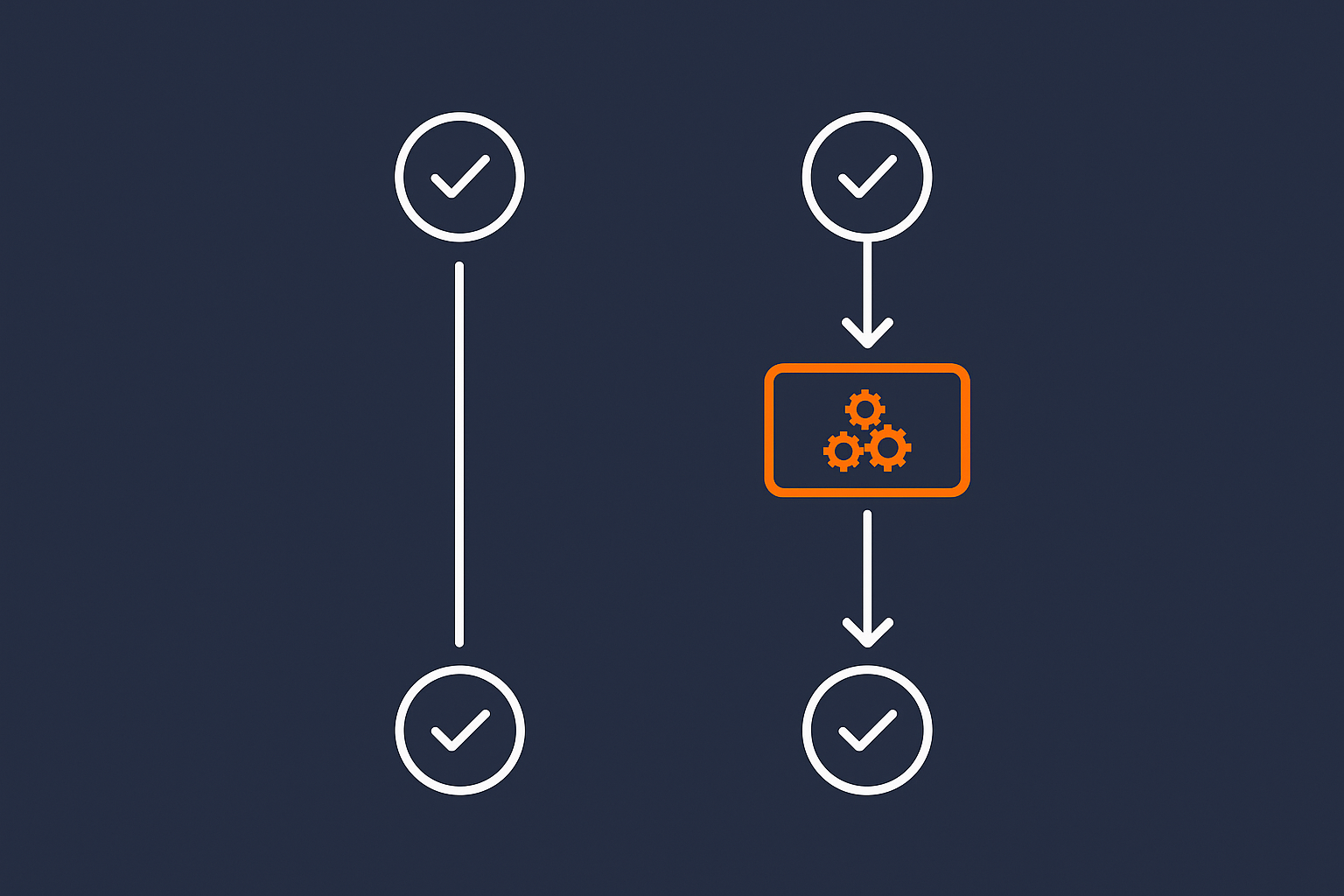
Managed updates aim to reduce the “surprise” factor. Compared with simple automatic updates, a good managed process adds:
- Guaranteed backups immediately before updates, with tested restores.
- Staging environments so updates are tested away from real users.
- Rollback plans if an update causes trouble that cannot be fixed quickly.
- Human review of update logs, error messages and key journeys.
This approach does cost more in time or money, but it avoids the expensive edge cases where an unnoticed automatic update quietly breaks something important at the worst possible moment.
Choosing the Right Update Strategy for Your Business
A simple risk based framework: brochure site, lead gen, or revenue critical
Rather than arguing about “manual vs automatic” in the abstract, map your site into one of three broad categories:
- Brochure site:
- Basic pages about your business, maybe a blog.
- Enquiries mostly come via phone, direct email or offline.
- A short outage or minor layout issue is annoying but rarely catastrophic.
- Lead generation site:
- Forms, landing pages, lead magnets and contact funnels.
- Most new business flows through the site in some way.
- Broken forms or slow pages have a measurable cost.
- Revenue critical site:
- WooCommerce, bookings, subscriptions or other online payments.
- Outages and checkout problems mean direct, visible revenue loss.
Once you know which category you are in, you can set different update policies accordingly.
Suggested policies for core, plugins and themes by site type
Here is a practical starting point for each category.
Brochure site
- Core minor: automatic
- Core major: automatic, or manual within 1 to 2 weeks of release
- Plugins: automatic for most, manual for any that control layouts or forms
- Themes: automatic for simple themes, manual for heavy page builders
- Frequency: review updates monthly
Lead generation site
- Core minor: automatic
- Core major: manual, tested on staging first
- Plugins: automatic for low risk utilities; manual for forms, SEO and marketing tools
- Themes and builders: manual with visual checks on key funnels and landing pages
- Frequency: review updates weekly or fortnightly
Revenue critical site (ecommerce, bookings)
- Core minor: automatic
- Core major: manual via staging, scheduled maintenance window
- Plugins: manual for all that touch products, carts, checkout, payments and stock
- Themes/builders: manual; check product, category and checkout designs
- Frequency: weekly updates, with the flexibility to delay updates known to be problematic
Deciding who owns updates: in house, freelancer or hosting provider
There are three common options for who handles updates in practice:
- In house:
- Someone on your team follows a defined process.
- Works if you have capacity and at least one person comfortable in wp-admin.
- Freelancer/agency:
- Typically via a monthly maintenance retainer.
- Good for more complex sites if you already rely on an agency for development.
- Hosting provider:
- Some managed platforms offer structured maintenance as part of the service.
- Works well when you want one place responsible for infrastructure and routine updates.
Which you choose depends mainly on complexity, risk and internal capacity. If you are already reaching the limits of “DIY” maintenance, it may be worth revisiting whether self hosted vs managed WordPress is still the right choice for your team.
Practical Safe Update Workflow for Non‑Technical Teams
Essential foundations: backups and staging access
Before you enable any automatic or managed updates, confirm two foundations:
- Reliable backups:
- At least daily backups, retained for 7 to 30 days.
- Ability to restore a full site or just files/database quickly.
- Backups stored off the main server.
- Staging environment:
- Easy way to clone live to staging.
- Simple “push to live” process, or at least ability to repeat updates on live after testing.
G7Cloud’s platform focuses heavily on backup and restore reliability. The article What Every WordPress Owner Should Know About Backups and Restores covers what to check and how to run basic restore tests.
Step by step: how to run a safe update cycle monthly or weekly
For most SMEs, a simple repeatable routine works well. This example assumes weekly or monthly updates.
- Pick a regular slot:
- Choose a low traffic time, for example early morning or late evening midweek.
- Confirm recent backup:
- Check that a backup exists from the last 24 hours.
- If not, trigger a manual backup.
- Update on staging first (for lead gen and ecommerce):
- Clone live to staging.
- Apply core, plugin and theme updates there.
- Run a quick test (see checklist below).
- Apply updates on live:
- Either sync staging to live or repeat the updates manually on live.
- Test key journeys on live:
- Spot check home page, a key service or product page, and main form or checkout.
- Monitor for 24 hours:
- Glance at error logs if your platform exposes them.
- Watch for unusual support tickets or a sudden drop in conversions.
What to test after updates: a short checklist that fits into 15 minutes
Non technical teams often worry they will “miss something” when checking updates. You do not need to test every page. Focus on what would hurt most if it stopped working.
A short, 15 minute checklist might include:
- Home page loads, menu works and there are no obvious layout issues.
- One or two key landing pages still look correct on desktop and mobile.
- Primary contact method works:
- Submit a contact form and confirm the email arrives, or
- Start a live chat or other primary lead capture mechanism.
- If you run WooCommerce:
- Search for a product.
- Add to basket and go to checkout.
- Complete a test order (using a real low value product or a test gateway if enabled).
- If you have logins or memberships:
- Log in as a normal user.
- Access a member only page or resource.
Write this checklist down somewhere your team can access. Consistency matters more than sophistication.
How to roll back quickly when something breaks
Even with care, something will occasionally go wrong. A quick rollback process keeps this from turning into a crisis:
- Identify the impact:
- Is the whole site down, or only one plugin misbehaving?
- Try simple reversals first:
- Deactivate a newly updated plugin to see if the problem disappears.
- Switch temporarily to a default theme if the issue is purely visual.
- Use your backup if needed:
- Restore the last working backup if the issue is serious and affects many areas.
- Confirm you understand whether the restore is full or partial (database only, files only or both).
- Delay reapplying problem updates:
- Exclude or hold back the specific plugin or theme that caused issues.
- Check for known issues in release notes or the plugin’s support forum before trying again.
Having clear hosting level web hosting security features such as malware scanning and login protection also helps here. They reduce the urgency of patching every plugin within minutes, which in turn allows a calmer, more controlled update process.
How Managed Hosting and Tooling Can Reduce Update Headache
What a good managed WordPress host should automate for you
For many UK SMEs, the main pain point is not the complexity of updates but the time and attention they demand. A good managed platform should:
- Handle server and PHP patching automatically.
- Provide effortless staging so testing updates does not need developer time.
- Include automatic backups with simple, tested restore paths.
- Offer options for scheduled updates, with control over what is included.
- Surface logs and basic health checks after updates, rather than leaving you to guess.
On the performance and security side, platforms using the G7 Acceleration Network can also reduce noise from bad bots. G7Cloud’s bot protection filters abusive and non human traffic before it hits PHP or the database, which keeps update windows smoother because the server is not already overloaded by pointless traffic when you apply changes.
Staging, uptime monitoring and security as part of your update safety net
Updates are less stressful when you have a clear safety net:
- Staging environments to test changes without risking live traffic.
- Uptime monitoring that alerts you quickly if something vital breaks after an update.
- Security tools that reduce the background noise of brute force attempts and exploit scans.
Modern managed platforms also help with performance tuning and cache management, which matters after updates. If you are also working on speed and Core Web Vitals, it helps when the hosting layer handles the heavy lifting: for example, the G7 Acceleration Network automatically converts uploaded images to modern AVIF and WebP formats on the fly, often cutting image file sizes by more than 60 percent without extra plugins or WordPress changes.
When it is time to move from DIY updates to a managed maintenance service
It may be time to step away from DIY updates if any of the following feel familiar:
- Updates keep getting pushed down the to do list until something breaks badly.
- You avoid necessary plugin or core updates because you are afraid of breaking things.
- Key people are spending evenings fixing WordPress instead of focusing on core business work.
- You have experienced revenue loss or reputational damage due to failed updates or long outages.
In that situation, outsourcing some or all of the maintenance burden often costs less than the hidden cost of disruption and lost focus. Whether you hand this off to an agency or adopt managed WordPress hosting for UK businesses with structured update support, the aim is the same: keep your site safe and current without it consuming your week.
Summary: A Simple Decision Checklist for Your Next Quarter
Key decisions to make about core, plugin and theme updates
To bring this into something you can action in the next quarter, decide:
- Site category: Brochure, lead gen or revenue critical.
- Core policy:
- Minor core updates automatic on all sites.
- Major core updates automatic only on simple sites, otherwise staged and scheduled.
- Plugin policy:
- List which plugins are allowed automatic updates.
- Identify “sensitive” plugins (checkout, forms, builders) that always need manual or managed updates.
- Theme policy:
- Decide whether your current theme or builder is safe to auto update, or must be staged.
- Responsibility:
- Who actually logs in or runs the maintenance routine, and how often.
What to document so updates stay under control as you grow
Documenting your approach turns it from a one off clean up into a habit.
- Write down your update schedule and add it to a shared calendar.
- Keep a list of critical plugins and how to test them after updates.
- Record your rollback steps and where backups live.
- Note who to contact (host, agency or internal person) if something goes wrong.
If you want a more detailed monthly routine to build on, the guide Day‑to‑Day WordPress Maintenance for UK SMEs provides a checklist that fits into a realistic schedule.
If this all feels like more than your team can comfortably absorb, it may be worth exploring managed maintenance and hosting. Moving to managed WordPress hosting for UK businesses or adding a light maintenance service can turn updates from an ongoing worry into a quiet background task, leaving you free to focus on customers and growth.




