
What Every WordPress Owner Should Know About Backups and Restores
Why backups matter more than most WordPress owners realise
What “losing your site” really looks like in practice
“Losing your site” rarely means everything vanishing in a puff of smoke. It is usually messier and more stressful.
In the real world it often looks like:
- Your homepage suddenly showing a white screen with a PHP error.
- Customers calling because checkout no longer works.
- Google warning that your site may be hacked.
- Your host suspending the account after malware is detected.
- An employee deleting key pages or products without realising.
In all of these cases, a reliable, recent backup is the difference between a calm restore in minutes and a long, uncertain rebuild involving developers, support tickets and lost revenue.
If you have never performed a restore, it is easy to assume “the host will have it covered” or that your backup plugin is quietly doing the right thing. That assumption is where many painful incidents begin.
Common triggers: hacks, updates, hosting issues and human error
Most restores are triggered by one of a handful of causes:
- Security incidents: brute force logins, vulnerable plugins or weak passwords leading to malware, spam pages or defaced content.
- Updates: a theme or plugin update that clashes with others, breaks layouts, or causes fatal errors.
- Hosting issues: storage failures, file system corruption or misconfigurations on the server.
- Human error: accidental deletion of pages, media, orders, products or configuration settings.
Good security and reliable hosting reduce the likelihood of many of these incidents, but they never remove the need for backups. Even the best maintained sites see the occasional bad update, rogue plugin or honest mistake.
Security features like the WordPress hosting security features that G7Cloud and similar providers offer will help block brute force and malware and can significantly cut incidents, but you still need something to fall back on when prevention is not enough.
Backups vs uptime and security: how they fit together
Backups are often discussed separately from uptime and security, but they are three parts of the same picture:
- Security aims to stop bad things happening.
- Uptime and monitoring aim to tell you quickly when something has gone wrong.
- Backups and restores give you a way to recover when prevention fails.
For a fuller view of why sites go down and how failures happen, you might find Why Websites Go Down: The Most Common Hosting Failure Points a useful follow up.
All three need to be in place. Strong security without backups still leaves you exposed to mistakes and unexpected bugs. Frequent backups without monitoring means you might not notice problems until days later, when clean restore points are limited.
The building blocks of a proper WordPress backup
Files vs database: what each contains and why both matter
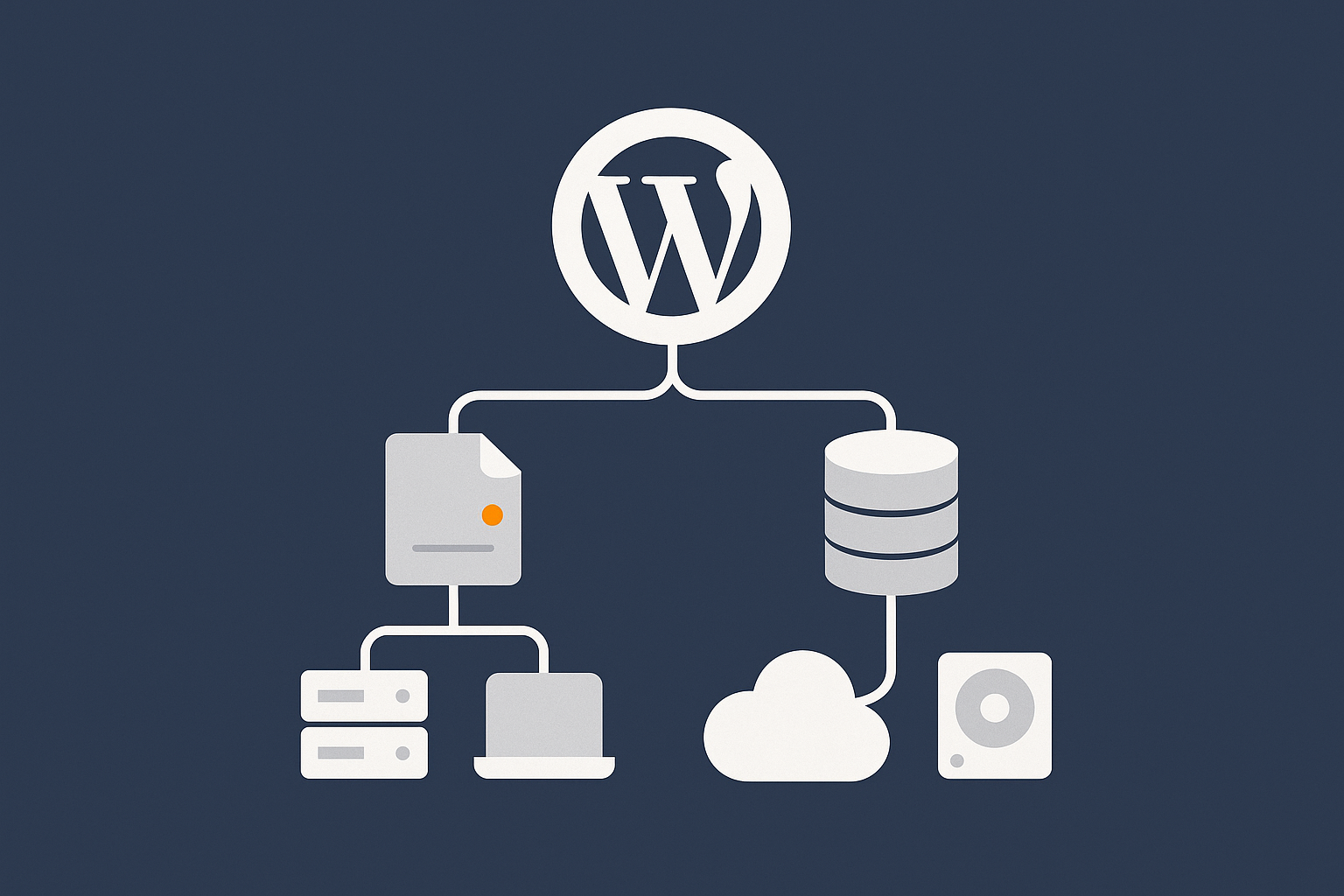
A WordPress site has two main parts:
- Files: WordPress core, themes, plugins, uploaded media (images, PDFs, etc.), configuration files.
- Database: posts, pages, products, orders, user accounts, comments, settings and many plugin configurations.
If you only back up the files, you lose content, orders and user data. If you only back up the database, you lose the theme, plugin code and uploaded media that make the site actually work and look the way it does.
A “proper” backup therefore includes both:
- A copy of all relevant files (often the entire site directory, or at least
wp-contentplus critical configuration files). - A complete database dump that includes every table used by WordPress and its plugins.
Full vs incremental vs differential backups in plain English
Backups are often described with confusing terminology. In simple terms:
- Full backup: a complete copy of all files and the database at a point in time. Easy to understand, but larger and slower to create.
- Incremental backup: backs up only what has changed since the last backup (full or incremental). Efficient on storage and performance, but restores may involve combining several increments.
- Differential backup: backs up what has changed since the last full backup. Bigger than incrementals, but usually simpler to restore than a long chain of tiny backups.
For most business WordPress sites, a practical approach is:
- Regular full backups (daily, weekly, monthly, depending on how critical the site is).
- More frequent incremental backups for high change sites like busy blogs or shops, to reduce the amount of data you lose between full backups.
On-server vs off-server vs off-site storage
Where backups live is as important as how they are made.
- On-server: backups stored on the same server as the live site. Fastest for restores, but if the server fails completely or is compromised, your backups may be gone too.
- Off-server (same provider): backups stored on a different server or storage system with the same host. Protects against single server failures, but not necessarily against provider-wide incidents or account compromises.
- Off-site (independent storage): backups copied to a separate provider or location (for example an S3 bucket or secure cloud storage). Offers the best protection against provider or region-level incidents.
For most UK businesses, a mix works well: host-level backups plus at least one independent copy of critical data.
How often should you back up a WordPress site?
The right schedule depends on how often your data changes and how much loss you can tolerate. This is where the idea of Recovery Point Objective (RPO) comes in, which we will cover in more detail later.
As a starting point:
- Brochure / static sites: daily or weekly full backups are usually sufficient, plus a fresh backup before major updates.
- Active blogs or content sites: daily full backups plus on-demand backups before plugin/theme updates.
- WooCommerce and membership sites: hourly or near real-time database backups during trading hours, with at least daily full backups of files and database.
If you are using managed WordPress maintenance and backups, much of this scheduling can be taken care of for you, but it is still important to understand the principles so you can set expectations correctly.
Special considerations for WooCommerce and dynamic sites
Why e-commerce backups are more time-sensitive
For a simple brochure site, losing a few hours of edits is inconvenient, but rarely critical. For a WooCommerce shop, membership site or booking system, losing even 30 minutes of orders or registrations can be expensive:
- Customers may not receive order confirmations or account details.
- Stock levels can get out of sync, leading to overselling.
- Bookings and appointments might vanish, causing confusion.
This is why e-commerce backups need a shorter RPO. In practice that often means:
- More frequent database backups, especially during busy periods.
- Careful planning before restores so you can minimise lost orders.
Order data, customer accounts and stock levels
WooCommerce stores order and customer data across multiple database tables. Backing up “only posts” or a subset of tables is not enough.
For a WooCommerce site, you should ensure that your backups include, at minimum:
- All core WordPress tables.
- All WooCommerce tables (orders, order items, coupons, tax rates, shipping zones, etc.).
- Any subscription or membership plugin tables if used.
On the file side, product images, downloadable files and theme overrides also need to be present, or your restored shop will be incomplete.
Minimising lost orders and data during a restore
When you restore a shop from a backup, any orders placed after that backup will not exist in the restored database. To minimise impact:
- Time your restore carefully: outside trading hours if possible, or during a quiet period.
- Put the shop into maintenance mode while you work, with a clear, calm message.
- Export recent orders (if you can still access the dashboard) so you have a record to reconcile later.
- Keep payment gateway logs and emails: many gateways and email providers retain records you can use to rebuild missing orders manually if necessary.
If your hosting includes automated backups as part of a performance-focused WooCommerce hosting plan, ask how often database snapshots are taken and whether more frequent backups can be enabled for peak trading periods such as Black Friday.
Types of WordPress backup solutions (and how they really differ)
Hosting-level backups: snapshots and disaster recovery
Pros: simplicity, performance, whole-server recovery
Many managed WordPress hosting platforms provide automated, server-level backups. These are often created at the filesystem or virtual machine level, outside of WordPress itself.
Advantages include:
- Simplicity: you usually enable them once and the host manages the schedule.
- Performance: backups happen outside PHP, so they are less likely to slow down the site.
- Consistency: whole-server snapshots make it easier to roll back an entire environment to a known state.
For serious incidents such as hardware failure or severe corruption, host-level snapshots can be the fastest way to bring an entire system back online.
Cons: provider lock-in and retention limits
There are trade offs:
- Provider lock-in: backups are often stored in a way that is easiest to restore to the same platform. Moving them to another host may be harder.
- Limited retention: some hosts offer only a small number of daily copies (for example 7 or 14 days). If you need to restore from a month ago, you may be out of luck.
- Less granular control: you may not be able to restore only the database or only files, which can be inconvenient for some incidents.
This is why many businesses combine host-level snapshots with an additional, more portable backup strategy.
Plugin-based backups inside WordPress
Pros: control and portability
Backup plugins running inside WordPress can give you:
- Fine-grained control over which files and tables are backed up.
- Portable archives such as ZIP files and SQL dumps that can be downloaded and stored wherever you like.
- Direct integration with third-party storage such as S3 or other cloud services.
This flexibility makes plugin-based backups attractive for agencies managing multiple sites, and for businesses that want independent, host-agnostic copies of their data.
Cons: reliability, performance and storage costs
Running heavy backup jobs inside WordPress comes with drawbacks:
- Performance overhead: generating large archives over HTTP can slow down your site or time out, especially on shared hosting.
- Reliability issues: long-running PHP processes may fail silently, leaving you with incomplete archives.
- Storage costs: if you back up everything frequently to third-party storage without a sensible retention policy, costs can creep up quickly.
On busy WooCommerce sites, heavy backup plugins can also contend with live traffic, cron jobs and other tasks, causing random slowdowns or errors during checkout at peak times.
Manual and developer-driven backups (SSH, rsync, wp-cli, database dumps)
For technical teams, command-line tools offer more control and efficiency:
- Database dumps via
mysqldumporwp db exportfor consistent database backups. - File syncs via
rsyncor similar tools to copy only changed files to another server or storage. - Automated scripts that combine both and run via cron.
This approach is powerful, but it also requires documentation, monitoring and someone responsible for maintaining the scripts and verifying that backups keep running correctly over time.
Why “more backups” is not the same as “better backups”
It is tempting to install several backup plugins, rely on host-level snapshots and also copy databases manually, thinking that more is safer. In reality, overlapping tools can cause problems:
- Multiple heavy backup jobs running at once can overload your server.
- You may not be clear which backup to use in an incident.
- Different tools may use inconsistent schedules or include different data.
It is better to have one clear, tested plan that you understand well, with thoughtfully layered copies, than a patchwork of uncoordinated systems.
If you prefer not to manage that complexity in house, using a provider that includes structured managed WordPress maintenance and backups can remove many moving parts while still giving you clarity on what is happening behind the scenes.
Designing a backup strategy that actually matches your business
Defining your RPO and RTO in simple terms
How much data can you afford to lose? (RPO)
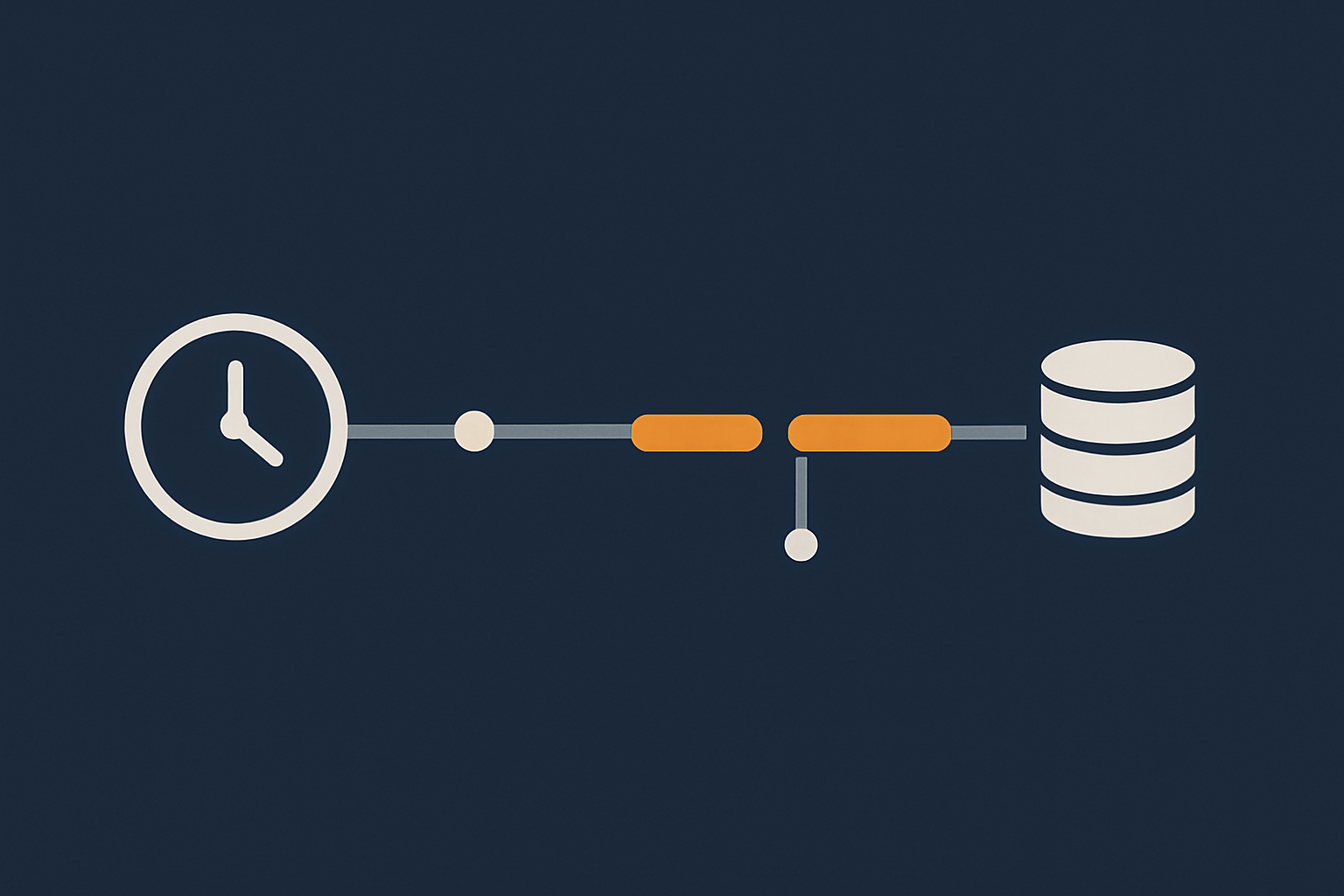
Your Recovery Point Objective (RPO) is the maximum amount of data you can afford to lose, expressed as time.
Ask yourself: “If I had to restore from a backup, what is the oldest backup I would be comfortable using?”
- If losing a day of content is acceptable, a 24-hour RPO might be fine.
- If losing even one order is unacceptable, your RPO might be 5 minutes, which implies near real-time replication or transaction logging.
Once you know the RPO, you can set backup frequency accordingly. For many small businesses, a realistic RPO is between 15 minutes and 24 hours, depending on how transactional the site is.
How long can you afford to be down? (RTO)
Your Recovery Time Objective (RTO) is how long you can afford the site to be unavailable or degraded while you restore.
Ask: “If the site went down now, how quickly would it need to be back for the business to cope?”
- For an informational site, an RTO of a few hours might be tolerable.
- For an active online shop, you might need an RTO of under an hour.
Your RTO influences not only backups, but also your hosting architecture, monitoring and whether you have a documented, rehearsed restore procedure.
Choosing backup frequency for blogs, brochure sites and shops
Combining RPO and RTO thinking, you might land on something like:
- Brochure site: nightly full backups, stored off-server, with a tested restore process that can bring you back online within half a day.
- Content-heavy blog: nightly full backups plus hourly database incrementals, to minimise loss of posts and comments.
- WooCommerce shop: daily full backups plus incremental database backups at least every 15 minutes during trading hours, with a documented process for reconciling any missing orders from payment gateway logs.
Retention policies: how many copies and how far back
Retention is about how many backups you keep and how far back they go. A common pattern is:
- Daily backups for 7 to 14 days.
- Weekly backups for 4 to 8 weeks.
- Monthly backups for 3 to 12 months.
This gives you options for both recent incidents (for example a bad update yesterday) and longer standing problems (for example malware first injected several weeks ago).
Retention consumes storage, so you want enough history for safety, but not so much that you pay for years of unnecessary copies or find yourself managing a cluttered archive.
Where your backups should live: the 3–2–1 rule
A simple principle to follow is the 3–2–1 rule:
- 3 copies of your data.
- 2 different media or storage types (for example your host’s snapshots plus independent cloud storage).
- 1 copy off-site and independent from your primary infrastructure.
For many WordPress owners, that might look like:
- Host-level daily backups in your managed WordPress hosting platform.
- A separate weekly or monthly backup exported to independent storage such as an encrypted cloud bucket.
- Occasional local downloads of the most critical archives (for example before major redevelopment work).
The part everyone skips: testing restores regularly
Why an untested backup is just a guess
A backup that has never been restored is an assumption, not a safety net. Common failure modes include:
- Archives that are incomplete or corrupted.
- Backups that excluded key folders such as
wp-content/uploads. - Database dumps missing custom tables required by plugins.
- Automated tasks that quietly stopped running months ago.
You only find these issues when you try to restore. That is why periodic restore tests are as important as creating the backups in the first place.
Safe places to test: staging sites and temporary clones
You never want to test restores directly on your production site.
Better options include:
- Staging environments provided by your host.
- Temporary clones created on subdomains or separate hosting accounts.
- Local development environments for smaller sites.
Many managed WordPress hosting platform plans include staging as standard, which makes safe testing much easier.
Step-by-step: a basic WordPress restore test
Verify the backup exists and is complete
Before you start a test, check:
- You can see the backup in your hosting panel or plugin.
- The backup date and time match what you expect.
- The archive includes both files and database (or clearly separated components for each).
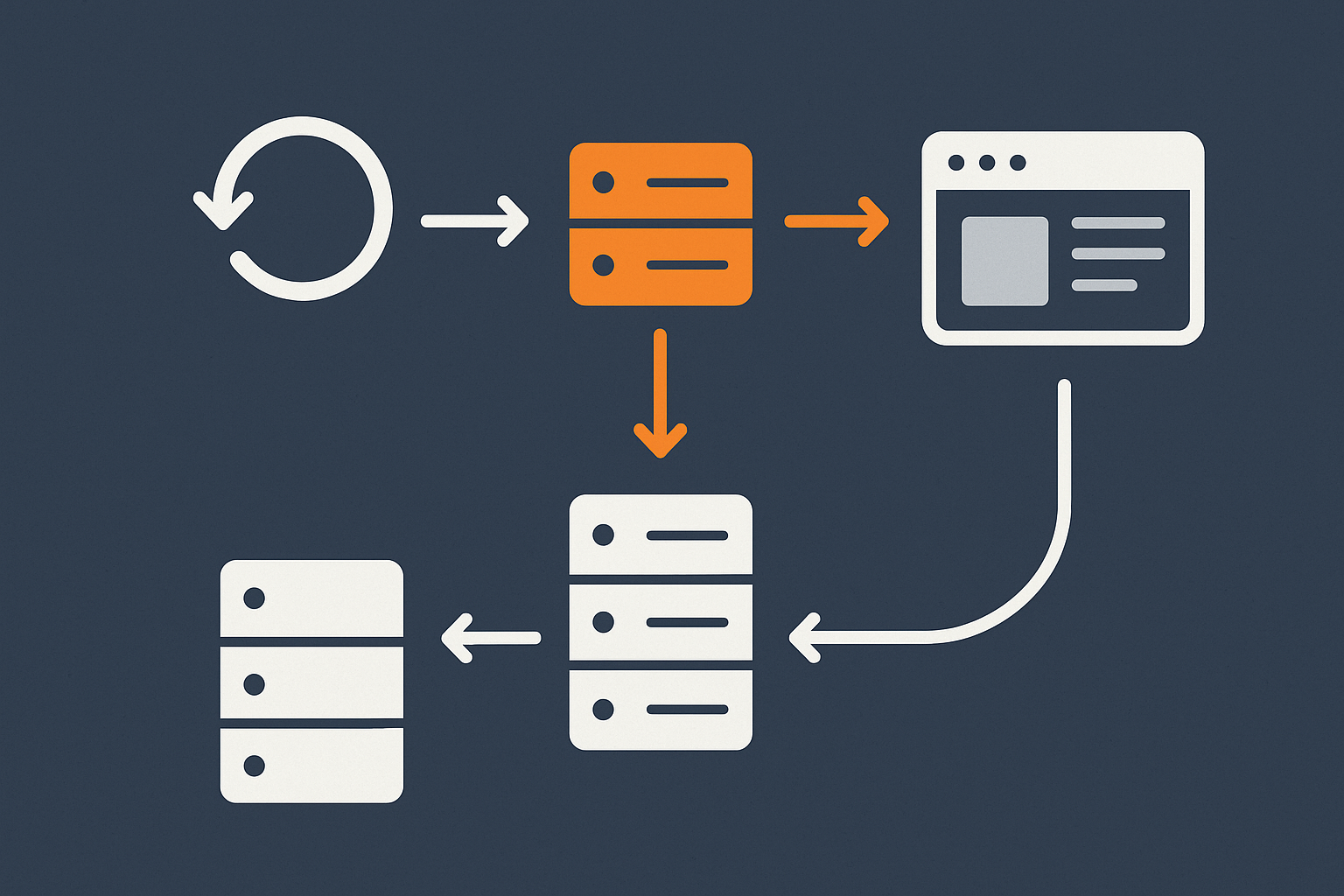
Restore files and database to a test environment
Then:
- Create or identify a non-production environment (staging, clone, or local).
- Restore the files from the backup into this environment.
- Restore the database dump and update the site URL if needed (many tools do this automatically).
If you are unsure about the practical steps, the article How to Back Up Your WordPress Site includes more hands-on guidance.
Check logins, forms, checkout and media
Once your test site is running, perform a quick but focused check:
- Log in to
/wp-adminas an administrator. - Load a few key pages and posts to check layout and functionality.
- Submit a contact form and confirm it arrives.
- If you have WooCommerce, run a test order in sandbox mode.
- Open several random images and downloads to ensure media restored correctly.
Make a note of anything that did not restore correctly, so you can adjust your backup configuration or process.
Documenting a simple restore checklist for your team
Finally, write down a straightforward checklist that someone non-technical in your team could follow under pressure. Include:
- Where backups are stored and how to access them.
- Who is authorised to initiate a restore.
- The order of operations (for example “put site in maintenance mode, then restore database, then files”).
- How to verify that the restore worked.
- Who to contact if something goes wrong.
Keep this document in a shared, easily reachable location, not only in a single person’s inbox or notes app.
How restores actually work in real incidents
Scenario 1: a plugin update breaks your layout
You update several plugins and suddenly your homepage is misaligned, or a critical slider stops working.
Options include:
- Rolling back the individual plugin if it supports version control.
- Restoring only the affected plugin files from a backup, if you are confident you can isolate them.
- Performing a full file and database restore from just before the update, usually to a staging site first to confirm the fix.
This is where frequent backups and clear timestamps are valuable, along with the habit of taking a manual backup or snapshot just before running bulk updates.
Scenario 2: malware infection or hacked site
If your site is compromised, simply restoring from the latest backup might reintroduce malware if the infection predates that backup. A more careful process is:
- Identify roughly when the site was last known clean (using logs, analytics or uptime alerts).
- Restore from a backup before that point, ideally to staging first.
- Update all passwords, keys and salts, and patch any known vulnerabilities.
- Scan the restored site and compare it against a clean WordPress core to ensure nothing suspicious remains.
Good security monitoring, such as the WordPress hosting security features included by some providers, can help you spot when a compromise first occurred, so you know how far back to go.
Scenario 3: host-level failure or data centre issue
If your hosting platform has a serious outage or storage failure, host-level snapshots are usually your first line of defence. Here your restore might involve:
- Failover to a different node or region using your host’s infrastructure tools.
- Restoring recent snapshots to new servers.
- Updating DNS or load balancers to point to the restored environment.
In the most severe cases, off-site backups kept according to the 3–2–1 rule provide the final safety net if your primary provider cannot recover your data.
Scenario 4: mistaken content deletion
Someone deletes a category of products or a key set of landing pages. Here you may want a targeted restore rather than rolling back the entire site, especially if other changes have been made since.
Options include:
- Restoring a copy of the site to staging from a recent backup and exporting only the missing content.
- Using tools like
wp-clior database imports to selectively reintroduce the deleted records.
Having clear, dated backups and a staging environment makes this sort of surgical restore much easier and less risky.
Common mistakes that quietly ruin WordPress backups
Storing the only backup on the same server
If your only backup lives on the same server as the live site, you are exposed to:
- Disk failures.
- Host-level account compromises.
- Ransomware encrypting both live files and backups.
Always ensure you have at least one copy on independent storage, in line with the 3–2–1 rule.
Backing up partial data: missing uploads or database tables
It is surprisingly common to find “backups” that exclude:
- The
uploadsfolder, which contains all your images and media. - Custom plugin tables where critical data such as orders or memberships are stored.
During your next restore test, deliberately check that:
- Old blog posts still have their images.
- WooCommerce orders, coupons and customer accounts are present.
- Any third-party integrations that store data in custom tables still work.
Running heavy backup plugins on busy WooCommerce sites
Launching large, full backups from inside WordPress at peak times can cause:
- Slow page loads or timeouts during checkout.
- Failed backup jobs due to PHP time limits.
- Increased resource usage, pushing shared hosting over limits.
Schedule heavier jobs for off-peak times, use incremental backups where possible, and consider offloading heavy lifting to host-level tools or more efficient mechanisms outside PHP.
Never cleaning up or rotating old backups
Without retention rules, your backup storage can quickly grow out of control, leading to:
- Unexpected storage charges.
- Slow or confusing restore processes due to hundreds of archives.
- Security risk from keeping very old, unencrypted copies of data.
Implement automated cleanup based on your retention policy, and review it every 6 to 12 months to ensure it still matches your business needs.
Not considering security and GDPR for backup data
Backups often contain personal data: customer names, addresses, emails and sometimes payment-related information. Under GDPR and similar regulations you must:
- Store backups securely, ideally encrypted at rest.
- Control who has access and log access where possible.
- Have a plan for handling data retention and deletion requests, including how they apply to backups.
If you work with an external provider for managed WordPress maintenance and backups, clarify how they store and protect backup data from a compliance perspective.
How managed hosting and maintenance can simplify backups
What to expect from a serious WordPress hosting provider
A provider that takes WordPress seriously should offer, as a baseline:
- Automated daily backups with sensible retention.
- Easy, point-and-click restores from recent restore points.
- Optional staging environments for safe testing.
- Clear documentation of what is included and where backups live.
On top of that, strong WordPress hosting security features reduce the likelihood that you will need to restore in the first place, through firewalls, malware scanning and hardened configurations.
Where host responsibility ends and yours begins
Even with good hosting, there are areas that remain your responsibility:
- Defining how much data loss and downtime your business can tolerate (RPO/RTO).
- Deciding whether host-level retention is enough or if you need independent, off-site copies.
- Testing restores regularly in the context of your specific plugins, themes and workflows.
- Managing access and security for anyone who can trigger restores or download archives.
Hosting covers infrastructure-level safety nets; you still own the broader continuity plan for your business.
How G7Cloud’s maintenance and backup approach works in practice
For example, sites hosted on a managed WordPress hosting platform with G7Cloud benefit from automated, infrastructure-level backups with clear retention, alongside options for staging environments and human support during restores when needed.
For WordPress owners who prefer not to handle the details, G7Cloud’s managed WordPress maintenance and backups service layers additional checks, plugin update planning and restore assistance on top of the hosting platform, so you have a single place to turn when something goes wrong.
Practical checklist: your WordPress backup and restore plan
Quick self-audit: questions to ask about your current setup
Use these questions to quickly gauge where you stand today:
- Do you know exactly which tools or services are creating backups for your site?
- Can you see a list of recent backups with clear dates and times?
- Do your backups definitely include both files and database, and all critical plugin data?
- Where are those backups stored, and do you have at least one off-site copy?
- When was the last time you performed a test restore?
- Who in your organisation knows how to trigger a restore at short notice?
Minimum sensible baseline for most business sites
For a typical UK business running WordPress or WooCommerce, a sensible baseline is:
- Daily full backups of files and database, plus more frequent database backups for active shops.
- Backups stored both on your hosting platform and in at least one independent location.
- Documented RPO and RTO that match your actual tolerance for data loss and downtime.
- Quarterly restore tests to a staging environment, with a short checklist to verify key functionality.
- Clear ownership inside your team for monitoring backups, running tests and updating the plan.
When you should get expert help
Consider bringing in expert support when:
- You run a revenue-critical WooCommerce or membership site and do not have in-house technical expertise.
- You need to meet formal compliance requirements around data retention and disaster recovery.
- You have already experienced a painful incident and want to avoid a repeat.
- Your site stack is complex, with many integrations, and you are not confident about designing a safe restore process alone.
In those cases, moving to managed WordPress hosting platform or using a structured service such as G7Cloud’s managed WordPress maintenance and backups can reduce risk and day-to-day hassle, so you spend less time thinking about disaster scenarios and more time running your business.
If you are unsure where to start, reviewing your current backups against the checklist above and then speaking with a provider that can clearly explain how their backups and restores work in practice is a sound next step.




