

From Brochure Site to Lead Machine: Hosting, Caching and Plugin Choices That Keep WordPress Fast
Why Turning Your Brochure Site Into a Lead Machine Often Makes It Slow
What changes when you move from “online brochure” to real lead generation
Most WordPress sites start out simple.
You have a few pages, a contact form and perhaps a blog. Traffic is modest and most visitors are just checking who you are and what you do.
Once you decide to turn that brochure site into a genuine lead machine, the WordPress workload changes very quickly:
- Landing pages for campaigns, each with different layouts and assets
- Heavier form plugins with conditional logic, multi step journeys and CRM integrations
- Exit intent popups, slide ins and “sticky” bars
- More tracking: analytics, social pixels, session recording, A/B testing tools
- Chat widgets and sometimes appointment booking tools
Individually, each change seems small. Together, they push your hosting, caching and plugin stack much harder than a basic brochure site ever did.
How extra tracking, forms and popups quietly damage performance and conversions
The main problems rarely show up on day one. They build over time as more tools are added:
- More PHP work per page view as complex forms, shortcodes and page builders are processed.
- More database queries for things like lead tracking, marketing automation and personalisation.
- More render blocking scripts from analytics and pixels that stop the page showing quickly.
- More conflicts between caching plugins and marketing plugins that expect fresh content.
All of this directly affects conversions. If a landing page takes an extra couple of seconds to become usable, more visitors abandon it before they even see your offer. The irony is that the tools added to increase leads often reduce them if performance is not managed carefully.
Typical symptoms: great marketing ideas, sluggish site
Common signs that your lead generation stack is starting to overwhelm the original “brochure site” setup:
- Campaign traffic causes slow page loads or brief outages
- Admin area feels sticky, especially when editing large pages
- Inconsistent performance: fast at off peak times, slow during business hours or campaigns
- Form submissions hang or occasionally fail under load
- Hosting support tells you that “CPU usage” or “concurrent processes” are maxed out
These are usually less about a single bad plugin and more about how everything works together: hosting resources, caching configuration, plugin choices and external scripts.
Clarifying Your Lead Generation Stack Before You Add More Tools
Map the journey: from first visit to qualified enquiry or booked call
Before changing hosting or adding yet another plugin, it helps to map the actual journey a visitor takes:
- Traffic source: ad, organic search, social post, email, referral.
- First page view: usually a campaign landing page or key service page.
- Primary action: form submission, booking, phone call click, email signup.
- Follow up: CRM entry, email sequence, sales call scheduling.
Write this down for your main funnels. Then note which parts are handled inside WordPress and which by external systems (for example CRM, booking software, email marketing platform).
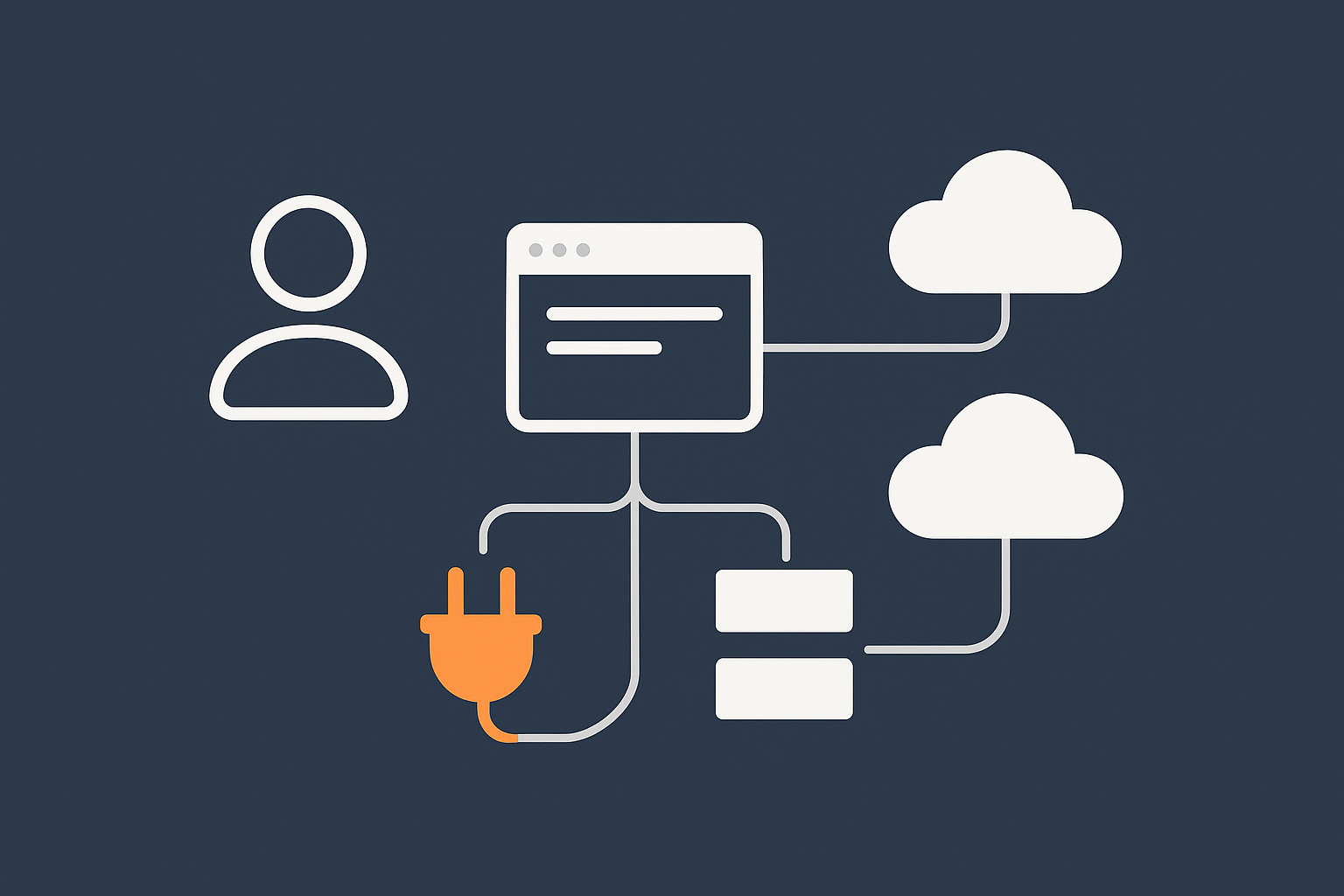
This makes it easier to see where you actually need WordPress level changes, and where to keep complexity outside WordPress.
Common WordPress marketing components: what normally runs where
For a typical UK business site, the marketing stack looks roughly like this:
- Inside WordPress:
- Theme / page builder and landing page templates
- Contact / quote / booking request forms
- Popups, slide ins, sticky banners
- On site search and sometimes simple personalisation
- WooCommerce or other e‑commerce, if relevant
- Outside WordPress:
- CRM (HubSpot, Pipedrive, Capsule, etc.)
- Email marketing / marketing automation (Mailchimp, ActiveCampaign, etc.)
- Call tracking and phone systems
- Payment processors and invoicing systems
The safest pattern is to use WordPress for what it is good at: serving fast pages, collecting data and sending it to other systems, rather than doing everything inside one bulky plugin.
Deciding what should live in WordPress vs in external services
As you evaluate tools, ask:
- Does this really need to live inside WordPress? For example, complex sales workflows are usually more reliable in a dedicated CRM than a multi purpose “all in one marketing stack” plugin.
- Can WordPress just be the front end? Use a lightweight form plugin that posts data to your CRM or automation platform via API, rather than trying to reproduce the CRM inside your site.
- What happens if the plugin fails? Will you lose leads, or do you at least have copies via email or CRM?
This approach keeps WordPress slimmer and reduces the risk that one plugin update breaks the whole lead flow.
Hosting Foundations: The Limits of Cheap Shared Plans as You Add Marketing Tools
What your hosting actually does every time a visitor hits a landing page
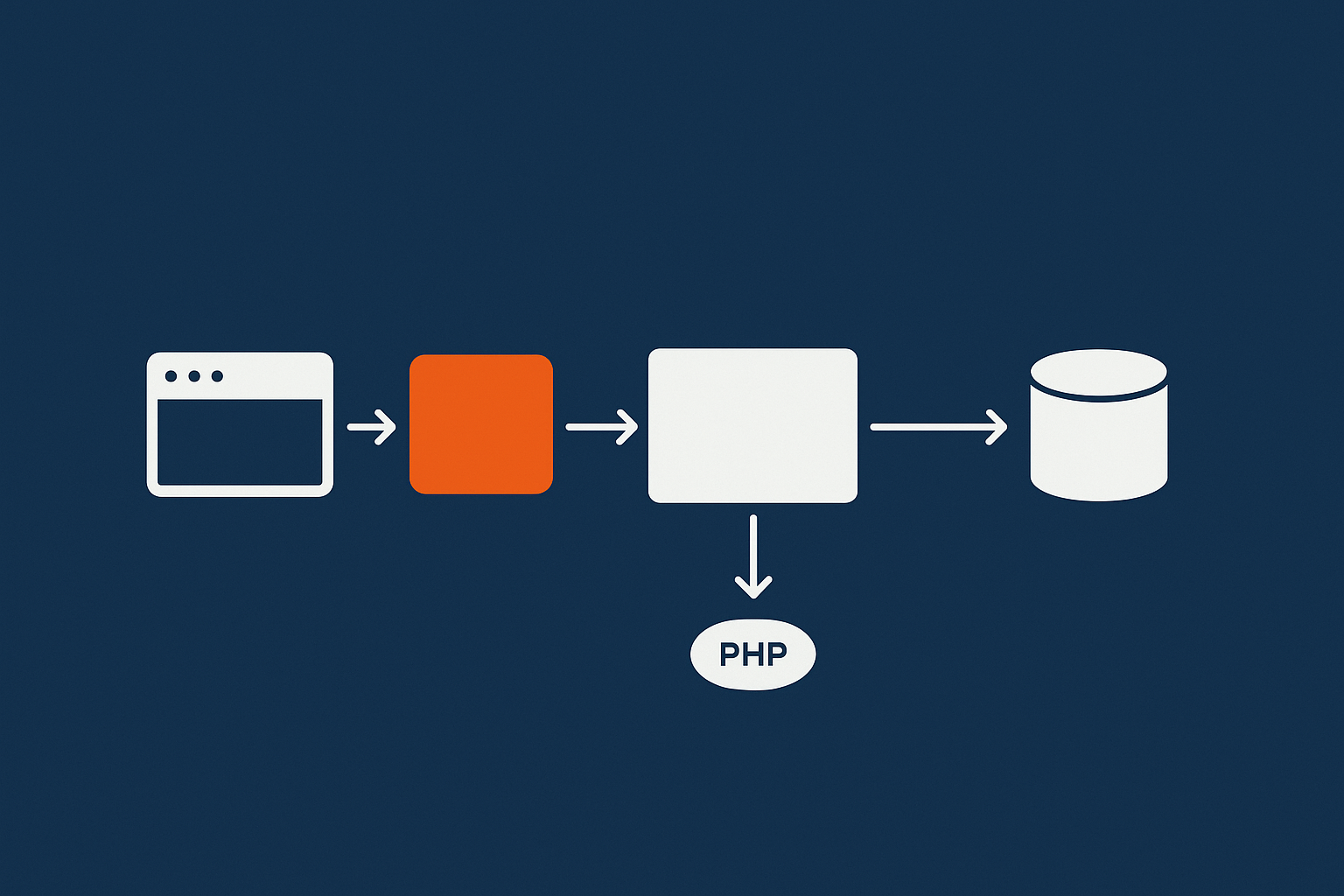
When someone clicks your ad and lands on a WordPress page, several things happen on the server before they see anything:
- Request hits the web server (for example Nginx or Apache).
- Caching is checked: if there is a cached HTML copy of that page, it can be served directly without running WordPress.
- If not cached, PHP runs WordPress:
- Loads WordPress core files
- Loads theme and plugins
- Runs database queries to fetch posts, options, user data, plugin data
- Builds the final HTML for the page
- HTML is sent to the browser, which then requests images, CSS, JavaScript, fonts and tracking scripts.
On a basic brochure site with mostly static pages, full page caching can handle most requests cheaply because the same HTML can be reused for each anonymous visitor.
Once you add:
- Dynamic forms with nonces and anti spam checks
- Personalised content, logged in areas or cart fragments
- Heavy popup logic
more requests bypass the cache. Each of those uncached requests has to go through the full PHP and database process above, which uses CPU and memory and can quickly become a bottleneck on cheap shared hosting.
If you want a deeper technical explanation of these caching layers and where hosts should help, see the guide Understanding WordPress Caching Layers: What Really Speeds Up Your Site.
Resource bottlenecks that show up in busy campaigns: CPU, PHP workers and database load
On busy days or during campaigns, a few things tend to limit performance:
- CPU: Handles the actual PHP execution. Heavy plugins, page builders and marketing logic all consume CPU time.
- PHP workers / processes: Control how many requests can be served in parallel by PHP. If they are all busy, extra requests queue and visitors see slow responses.
- Database load: WordPress depends heavily on MySQL or MariaDB. Poorly coded plugins may run dozens or hundreds of queries per page view.
On a very cheap shared plan, these resources are limited and shared with many other sites. That might be fine for a small brochure site, but as soon as you run paid campaigns or see regular spikes in leads, those limits become visible as:
- High “time to first byte” (TTFB)
- Intermittent 502 / 503 errors during traffic spikes
- Admin area timeouts while editing landing pages
Providers focused on performance, such as those offering strong web hosting performance features, typically allocate more consistent CPU, memory and PHP workers, and tune the database for WordPress workloads.
When you should move from basic shared hosting to managed WordPress or a virtual dedicated server
Consider moving to managed WordPress hosting for business sites or a virtual dedicated server when you notice any of the following:
- You plan to run sustained paid traffic rather than occasional tests
- Form or checkout performance directly affects revenue or lead targets
- You regularly install and update marketing plugins and need safety nets
- Hosting support keeps telling you that your site is using “too many resources”
Managed WordPress or a VPS with a WordPress aware provider costs more than entry level shared hosting, but you are paying for:
- More predictable resources under load
- WordPress specific caching, backups and security
- Someone else handling PHP versions, database tuning and web server configuration
That frees your team to focus on campaigns rather than firefighting hosting issues.
Caching That Still Works When You Add Forms, Popups and Personalisation
The key caching layers for WordPress in business terms
For lead generation, you only need a practical grasp of how the main caching layers fit together:
- Browser cache: The visitor’s browser keeps copies of images, CSS and JavaScript so repeat visits are faster.
- Full page cache: Stores the finished HTML for pages so they can be served without running WordPress each time.
- Object cache: Stores results of expensive database queries (for example product lists, options) so they can be reused.
On a well tuned setup, a landing page for anonymous visitors should nearly always come from the full page cache, which is extremely fast and uses very little server resource. Object caching, for example via Redis, then helps when pages need some dynamic content.
For a more detailed technical view of object caching specifically, you can refer to How to Use Object Caching to Speed Up WordPress.
Which pages can be aggressively cached, and which need more care
In practice, you can usually:
- Aggressively cache:
- Landing pages for cold traffic with simple forms
- Service pages and blog posts
- Case studies and testimonials
- Treat carefully or bypass cache:
- Logged in areas, customer dashboards and account pages
- Checkout pages and carts in WooCommerce
- Multi step application or booking forms
Most caching plugins and managed hosts allow you to define rules for which URLs are excluded and which cookies or query strings bypass cache. It is worth spending time to set these up, then test form flows thoroughly while cache is enabled.
Avoiding conflicts between caching plugins and marketing plugins
Problems often arise when several tools try to control caching and optimisations at the same time:
- A caching plugin, plus a performance plugin, plus a page builder’s own optimisation features
- Popups or forms that rely on nonces and dynamic JavaScript conflicting with cached HTML
To avoid this:
- Use a single primary caching solution and switch off overlapping features in others.
- Check plugin documentation for recommended cache rules or exclusions for sensitive pages.
- After enabling cache, test:
- Form submissions
- Popups based on scroll or exit intent
- Any “unique per user” content
If you rely on a managed platform, clarify which caching layers they provide, then avoid stacking multiple caching plugins on top. A misconfigured stack can be slower than a simpler one that is correctly tuned.
How a network level cache with smart rules can simplify all of this
A network level cache such as the G7 Acceleration Network for caching and optimisation sits in front of your server and can serve cached pages before they even reach PHP. With sensible default rules for common paths like /wp-admin/, cart and checkout URLs, it reduces the risk of breaking dynamic areas while still giving good cache hit rates on campaign landing pages.
Because the rules are applied centrally, you are less dependent on individual caching plugins and there is less risk of overlapping configurations.
Choosing Marketing Plugins Without Turning WordPress into a Slow, Fragile Stack
Types of plugins that often hurt performance: real world examples
Certain categories of plugin are more likely to cause slowdowns when misused or overused:
- “All in one” marketing suites that bundle popups, analytics, A/B testing, email and CRM into one heavy plugin.
- Visual builders and add on packs that load large CSS and JavaScript bundles on every page.
- Popups and overlays that add extra requests and complex JavaScript for every visit.
- Analytics and heatmap plugins that run tracking via PHP rather than sending data directly from the browser to external services.
- Backup, security and scan plugins that run frequent scheduled tasks against the database and file system.
Many are fine in isolation but stack up quickly. Four or five heavy plugins, each doing its own tracking and marketing logic, can easily turn a fast site into a fragile one.
Evaluating a new plugin before it goes live: questions to ask and quick tests to run
Before installing a new marketing plugin, consider:
- Does it duplicate anything? If your managed host already provides security scans, backups or caching, you may not need extra plugins for the same jobs.
- How big is it? Look at the plugin’s asset sizes and whether it loads CSS and JavaScript on every page or only where needed.
- How often is it updated and supported? Regular updates and clear documentation are good signs.
Then run some quick tests:
- Measure page load and Core Web Vitals scores (for example with PageSpeed Insights) before installing.
- Install and configure the plugin on a staging site.
- Retest key landing pages with and without the plugin enabled.
- Watch for large jumps in total page weight or blocking time.
If performance drops significantly, look for lighter alternatives or configure the plugin to only load assets where truly needed.
Keeping lead capture reliable: forms, booking tools and CRM integrations
Lead capture is the one area where reliability matters more than shaving a few milliseconds. A slightly heavier form plugin is acceptable if it means:
- Submissions are logged and can be resent if email fails
- Data reaches your CRM every time
- Spam protection does not block genuine enquiries
A good approach is:
- Use a well maintained form plugin with a proven track record rather than a niche, unmaintained one.
- Send leads to both email and your CRM where possible.
- Set up simple monitoring: for example, an internal email address that receives copies of form submissions so issues are seen quickly.
If you would like a deeper dive on choosing and configuring forms and booking setups, see the guide Choosing a Reliable WordPress Contact Form and Booking Setup for UK SMEs.
A sensible process for testing new marketing tools on staging first
To reduce risk:
- Keep a staging copy of your site where you can safely install and remove plugins.
- Test critical flows:
- Lead forms and confirmation pages
- WooCommerce cart and checkout, if used
- Login and account areas
- Once happy, replicate changes on production in a controlled window, ideally outside peak hours.
- Enable logging and monitor for errors or unusual behaviour for a few days.
Many providers offering hassle free WordPress maintenance service will help set up staging, backups and safe update processes, which is useful once your site becomes central to lead generation.
Managing Third Party Scripts: Analytics, Pixels and Chat Widgets Without Killing Speed
Why external scripts so often dominate total load time
Even on a well hosted and cached site, third party scripts can undo a lot of your good work.
Analytics, remarketing pixels, A/B testing tools and chat widgets often:
- Add multiple JavaScript files
- Load additional assets from other domains
- Block rendering if loaded synchronously at the top of the page

In simple terms:
- Blocking scripts prevent the browser from showing the page until they are downloaded and run. This hurts “First Contentful Paint” and “Largest Contentful Paint” in Core Web Vitals.
- Non blocking (async or deferred) scripts let the browser render the page first, then load analytics and similar tools in the background.
Where possible, configure third party scripts to load asynchronously and after the main content. Many providers offer an “async” version of their tracking snippet; use that by default unless you have a specific reason not to.
Prioritising what really needs to load on every page
Not every script needs to be on every page. A practical approach:
- Global scripts:
- Core analytics, for example Google Analytics or Plausible
- Key remarketing pixels if you rely heavily on them
- Landing page only:
- A/B testing tools
- Session recording or heatmap tools
- Chat widgets, if your main focus is sales conversations rather than support
Use conditions in your tag manager or plugin settings so heavy tools only load on campaign landing pages or confirmation pages where the data is most useful.
Tag managers, consent tools and privacy: doing it cleanly on WordPress
Tag managers such as Google Tag Manager (GTM) make script management easier but can also encourage piling on extra tags.
To keep things clean:
- Document each tag’s purpose and expiry date. If a campaign ends, remove its tags.
- Use your consent management platform (CMP) to control which tags fire before consent is given, to stay compliant with UK GDPR requirements.
- If possible, load the tag manager in a non blocking way and avoid adding unnecessary custom HTML tags that do heavy work on every page view.
A modest, well documented tag setup usually beats an ever growing list of tags that no one remembers adding.
Image and Media Optimisation for Lead Pages and Case Studies
Why hero images, case study screenshots and logos are often the heaviest part of a lead page
On many B2B landing pages, the largest elements are:
- Full width hero images or video backgrounds
- Logos and partner badges
- Case study screenshots or portfolio images
Uncompressed images straight from designers or screen grabs from large displays can easily be several megabytes each. A few of these on a single page will slow first load significantly, especially on mobile connections.
Easy win rules for marketers: dimensions, formats and compression levels
Some practical habits go a long way:
- Resize before upload: Do not upload a 4000 px wide image if it is displayed at 1200 px. Export at the maximum size you actually use.
- Use appropriate formats:
- Photographic images: JPEG or WebP / AVIF
- Logos and simple graphics: SVG (if safe) or PNG / WebP
- Compress sensibly: Quality settings around 70–80 for JPEG are generally fine for web. Compare a few variants and pick the smallest that still looks acceptable.
- Lazy load below the fold: Most modern themes or performance plugins support lazy loading, so images further down the page are only loaded when needed.
On some platforms, a network layer such as the G7 Acceleration Network will automatically convert uploaded images to modern AVIF and WebP formats on the fly, often cutting image file sizes by over 60 percent while keeping quality suitable for real sites. This happens outside WordPress and does not require extra plugins or changes to your content workflow.
How automatic AVIF/WebP conversion at the network level simplifies media performance
Handling image optimisation at the network level means:
- You can keep storing originals in high quality formats
- The edge network serves lighter AVIF or WebP versions to supported browsers
- Older browsers still receive compatible formats
That balances editorial freedom with performance and reduces the risk of someone uploading a very heavy image that slows down your hero section.
Keeping Bots and Bad Traffic Away From Your Marketing Budget
How bad bots and scrapers quietly eat server resources and distort your analytics
Once your site attracts more attention, it also attracts more non human traffic:
- Simple bots that crawl your site excessively
- Scrapers copying content or product data
- Brute force login attempts
- Basic denial of service attempts
Even if they do not take your site offline, they skew your analytics and consume CPU, PHP workers and database capacity that should be serving real visitors. On cheaper plans with low resource limits, a few noisy bots can cause slowdowns at the exact time you are running campaigns.
Why blocking abusive traffic before it reaches PHP keeps campaign performance predictable
Requesting a cached page is cheap. Letting bots trigger full WordPress page loads hundreds or thousands of times an hour is not.
Filtering abusive and non human traffic at the network edge is far more efficient. For example, G7Cloud’s bot protection within the G7 Acceleration Network filters suspicious requests before they hit PHP or the database, which reduces wasted server load, keeps response times more consistent and helps avoid preventable downtime when campaigns are live.
Whether you use a host provided edge firewall, a specialist service or well tuned server rules, the principle is the same: stop bad traffic before it reaches WordPress.
A Simple Performance Checklist Before Every New Campaign or Tool Rollout
Baseline checks: TTFB, Core Web Vitals and key funnel pages
Before you launch a new campaign, spend 15–20 minutes checking:
- TTFB (Time to First Byte) on your main landing pages. Ideally under 200–300 ms from your primary audience region.
- Core Web Vitals:
- Largest Contentful Paint (LCP) under 2.5 seconds
- Good Cumulative Layout Shift (CLS) and Interaction to Next Paint (INP) scores
- Key funnel pages: landing page, form or checkout, and confirmation page.
Tools like PageSpeed Insights, WebPageTest or your hosting provider’s monitoring can give you quick snapshots. For a deeper, WordPress specific checklist, see A Practical Core Web Vitals Checklist for WordPress Business Sites in the UK in the G7Cloud knowledge base.
Staging, backups and rollback: protecting yourself when you add new plugins or scripts
Any time you add or significantly change:
- Plugins and themes
- Tag manager setups
- Major content structures (for example new page builder layouts)
make sure you have:
- A recent backup you can restore quickly
- A staging environment mirroring your live hosting stack
- A simple rollback plan if things go wrong
A typical rollback plan might be:
- Disable the new plugin or script if errors occur.
- If issues persist, restore yesterday’s backup.
- Investigate in staging before trying again.
Managed WordPress providers with automated backups and staging support make this much less stressful.
How to monitor during and after launch without becoming a full time engineer
You do not need to watch graphs all day, but a little monitoring helps:
- Set up uptime checks so you are alerted if the site or key pages go down.
- During major campaigns, keep an eye on:
- Server resource usage
- Average response times
- Form submission rates, to spot problems quickly
- After launch, review:
- Overall page load times from real users (for example in GA4)
- Error logs for PHP and your web server
Your goal is not perfection, but early warning if performance degrades or leads suddenly drop.
When to Consider a Different Hosting Model as Your Lead Machine Grows
Signs you have outgrown your current plan (beyond “the site feels slow”)
Beyond general slowness, more concrete warning signs include:
- Regular 500 errors or brief outages during ad campaigns
- Hosting support suggesting constant upgrades or blaming “high usage” without clear explanations
- Inability to run staging, or no safe way to test changes
- Manual, unreliable backups
- Limits that stop you from using needed PHP extensions or memory settings
If these sound familiar, you are likely bumping into the structural limits of the current hosting model rather than a simple configuration issue.
Choosing between higher spec shared, managed WordPress and virtual dedicated servers
Broadly, your options are:
- Higher spec shared hosting:
- Better than entry level shared, but still sharing resources with other sites
- OK for modest lead generation where budget is tight
- Managed WordPress hosting:
- WordPress tuned stack with caching, backups, updates and support included
- Good fit for most SMEs running leads and moderate e‑commerce
- Virtual dedicated servers (VPS / cloud instances):
- More control and isolation, but more responsibility for tuning and security if unmanaged
- Well suited when you have in house technical capability or a partner managing the server
For many UK businesses that rely on WordPress for leads but do not want to run servers, managed WordPress hosting for business sites provides a sensible middle ground: better performance and support without needing a full time engineer.
How managed hosting and an acceleration layer take work off your plate
With managed WordPress hosting and an acceleration layer such as the G7 Acceleration Network for caching and optimisation, you typically get:
- Network level caching, image optimisation and security rules handled outside WordPress
- Automatic handling of PHP updates and security patches
- Backups, staging and basic performance monitoring baked in
That lets your marketing and content teams work on campaigns, confident that the underlying platform is kept updated and tuned for WordPress.
Bringing It All Together: A Sustainable Setup for Fast, Flexible Lead Generation
Prioritise: where to start this month vs nice to have later
If your current site is feeling the strain as you add marketing tools, a practical order of work might be:
- Stabilise hosting: ensure you have reliable backups, staging and enough resources for current traffic.
- Rationalise plugins: remove duplicates, disable unused features and replace the heaviest offenders where feasible.
- Tune caching: implement sensible full page caching, exclude sensitive areas and avoid conflicting plugins.
- Trim third party scripts: remove unused tags, load remaining ones asynchronously and only where needed.
- Improve media: adopt basic image sizing rules and, where available, lean on automatic AVIF/WebP conversion at the network layer.
Once this is in place, you can add more sophisticated marketing tools with far less risk.
How to work with your host so performance stays stable as marketing evolves
Your hosting provider should be a partner rather than a mystery box. To keep performance stable:
- Share your plans, for example upcoming campaigns or expected traffic spikes.
- Ask what caching and bot protection is in place and how it interacts with your plugins.
- Clarify who is responsible for what, using resources like Understanding Hosting Responsibility: What Your Provider Does and Does Not Cover in the G7Cloud knowledge base as a reference.
- Review performance together a few times a year as your lead generation stack evolves.
If you are reaching the point where WordPress is central to your sales pipeline and you want fewer moving parts to manage, exploring managed WordPress hosting for business sites and the G7 Acceleration Network for caching and optimisation can be a straightforward way to offload much of the technical work while keeping your site fast, secure and ready for the next campaign.




