
Day‑to‑Day WordPress Maintenance for UK SMEs: A Monthly Checklist That Actually Fits Your Schedule
Why WordPress Maintenance Matters (And Why It Feels Overwhelming)
Most UK SMEs end up in one of two situations with WordPress:
- The site has quietly worked for years and nobody touches it unless something breaks.
- Someone on the team is constantly firefighting issues, updates and hack attempts.
Both are stressful in different ways. The real aim is boring reliability: a site that stays fast, secure and available without taking over your week.
What happens when you skip maintenance: the real world symptoms
If you ignore maintenance for months, you rarely see a single dramatic failure straight away. Instead you get a slow build-up of problems:
- Performance drifts: pages that used to load in 2 seconds creep to 6 or 8 seconds, especially on WooCommerce product and checkout pages.
- Security risk climbs: outdated plugins with known vulnerabilities sit exposed to automated attacks.
- Strange behaviour: forms stop sending emails, payment gateways throw intermittent errors, or the WordPress admin feels sluggish.
- Indexing and SEO issues: search engines see slow responses or uptime blips and gradually send you less traffic.
- Higher costs later: a developer needs hours of paid time to untangle problems that could have been prevented with a few minutes each week.
Many of these problems are invisible until something hits revenue: a broken checkout, lost leads from a dead contact form, or customers complaining that the site “keeps crashing”. Routine care is cheaper than recovery.
The two types of work: one‑off fixes vs quiet, routine care
It helps to separate WordPress work into two buckets:
- Projects: redesigns, new features, migrations, major plugin changes. These are one‑off and often need developers or agencies.
- Maintenance: small, repeatable tasks that keep everything safe and stable. These are what this checklist is about.
Once you see maintenance as a small recurring job rather than an endless list, it becomes easier to schedule and delegate. For most SMEs, 60 to 90 minutes a month is enough if you are consistent.
What you should expect from your host vs what stays on your plate
Good hosting should remove a lot of noise. For example, managed WordPress hosting for UK SMEs typically includes things like server updates, core security patches, basic firewalls and backups at the infrastructure level.
You should reasonably expect your host to handle:
- Operating system and web server updates.
- PHP installation, patches and configuration.
- Server‑level security and network firewalls.
- At least daily backups of your account or site.
- Basic uptime monitoring of the server itself.
What usually remains on your plate (or your agency’s) includes:
- Deciding when and how to update plugins and themes.
- Cleaning out unused plugins, themes and admin users.
- Checking forms, checkout and other key journeys still work.
- Keeping an eye on speed, Core Web Vitals and page weight.
- Responding to security alerts specific to your site.
If you are not sure exactly where the line is, Understanding Hosting Responsibility: What Your Provider Does and Does Not Cover is a useful explainer.
Before You Start: A Simple Safety Net
Before changing anything, you need two things in place: working backups and a safe place to test changes.
Check your backups are real, recent and restorable
Many businesses assume backups exist because a plugin is installed or the host mentioned them once. The only backups that matter are ones you can actually restore.
Once a month, check:
- Backups exist: confirm you can see recent backup points in your hosting control panel or backup plugin.
- They are recent enough: for active WooCommerce shops or content sites, daily backups are a sensible minimum.
- They include both files and database: your media and plugin files plus the database that holds orders, posts and settings.
Every few months, perform a small restore test. This might be restoring to a staging site, or restoring just the database to confirm the process works. If you need a deeper dive into how to set this up properly, see What Every WordPress Owner Should Know About Backups and Restores.
Why a staging site makes maintenance less stressful
A staging site is a copy of your live site where you can test updates and changes without affecting customers. Many managed hosts include 1‑click staging. If not, a developer or agency can usually set one up fairly cheaply.
Using staging for maintenance lets you:
- Test major updates (e.g. WooCommerce, page builders) before applying them live.
- Experiment with new plugins and settings safely.
- Practice your restore process without touching the production site.
If you are unsure where to begin, A Practical Guide to WordPress Staging Sites for UK Businesses walks through the options and trade‑offs.
Deciding who does what: owner, marketer, developer and host
For an SME, maintenance usually touches several roles:
- Business owner / director: decides priorities, approves bigger changes, and keeps an eye on risk.
- Marketer or content lead: can handle simple checks, plugin tidy‑ups and reporting performance issues.
- Developer / agency: deals with complex updates, conflicts, debugging and performance optimisation.
- Host: provides the technical foundation, backups, security at infrastructure level and support when needed.
Before you start, assign each task in this checklist to a role, even if that role is “agency on retainer”. It stops jobs falling between the cracks.
Your Monthly WordPress Maintenance Checklist (Quick Overview)
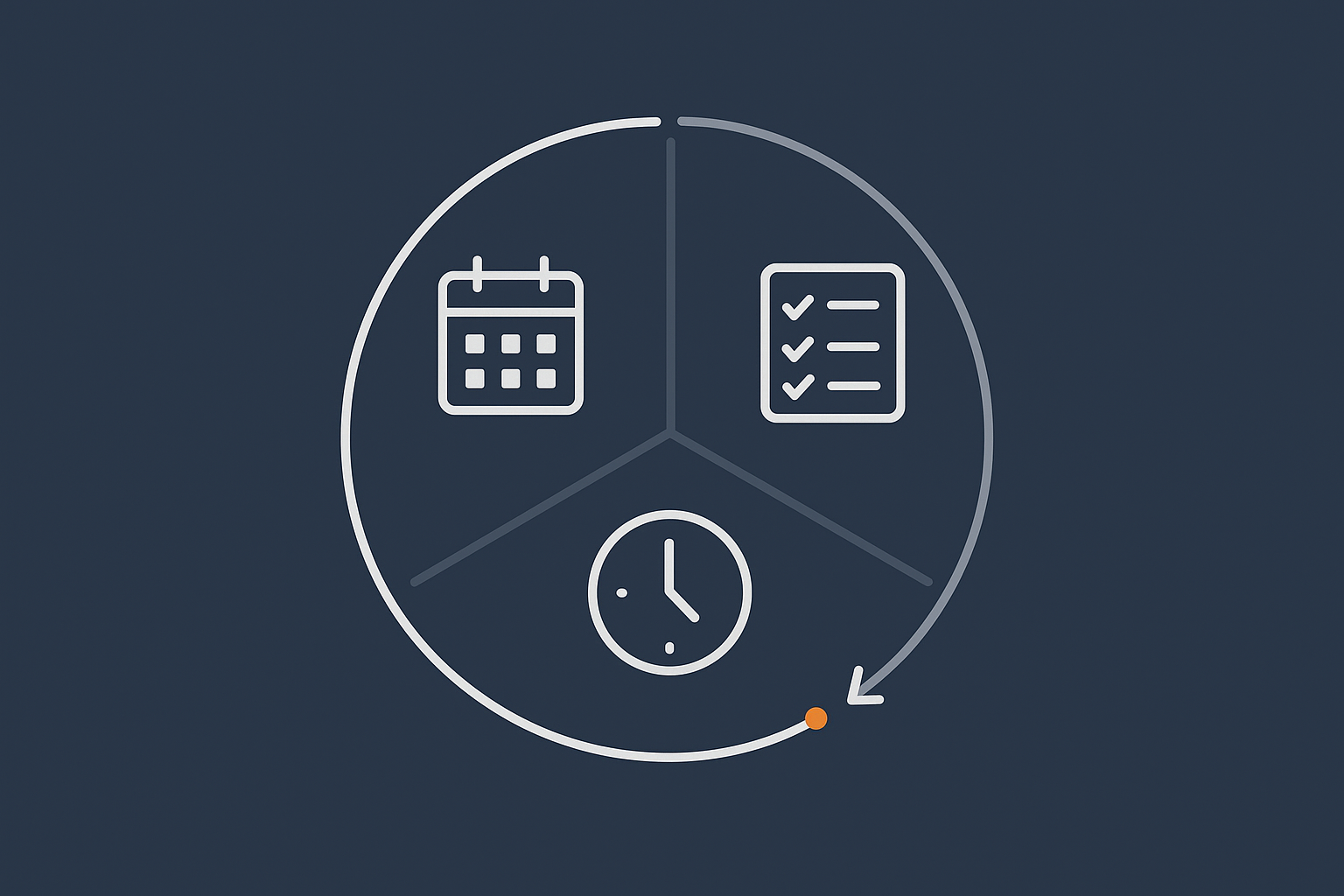
A realistic time budget: about 60‑90 minutes per month
If you follow this routine consistently, most SME sites can be kept in good health with:
- 10–20 minutes per week for basic checks and updates.
- 45–60 minutes per month for cleaner, security review and performance sanity checks.
- 1–2 hours per quarter for deeper technical and recovery tests.
The aim is to avoid long, painful sessions by doing little and often.
What to do weekly vs monthly vs quarterly
In short:
- Weekly: log in, visually scan key pages, apply routine updates, confirm backups ran.
- Monthly: tidy plugins, themes and users; run a security health check; review performance and uptime; clean the database and media library.
- Quarterly: review hosting and PHP baseline; check Core Web Vitals and front‑end experience; rehearse restores from backup.
Printable / copy‑paste checklist summary
You can copy this into your project management tool or print it:
Weekly (10–20 minutes)
[ ] Log in and visually check home, key service/product pages, contact form, and checkout.
[ ] Check WordPress dashboard for update notices, errors or security alerts.
[ ] Apply safe plugin/theme updates (skip major versions until tested on staging).
[ ] Confirm latest backup completed successfully.

Monthly (45–60 minutes)
[ ] Remove unused plugins and themes; update everything else.
[ ] Review admin and staff accounts; remove old logins, enforce strong passwords.
[ ] Check for abandoned or risky plugins.
[ ] Confirm SSL is valid; check basic security headers and firewall.
[ ] Run a malware/suspicious file scan.
[ ] Review recent login attempts and security alerts.
[ ] Run speed tests on home, key landing pages and checkout.
[ ] Check uptime or monitoring summaries; note any patterns.
[ ] Clean trash, revisions and spam comments.
[ ] Clear old WooCommerce orders/logs and form entries you no longer need.
[ ] Review media library for bloat; optimise or delete unused images.

Quarterly (1–2 hours)
[ ] Confirm PHP version and WordPress core are supported and in active maintenance.
[ ] Review hosting resources against traffic and revenue.
[ ] Review Core Web Vitals via Search Console or PageSpeed Insights.
[ ] Note recurring performance issues (images, scripts, layout shifts).
[ ] Confirm caching and any CDN settings are working as expected.
[ ] Test a full or staging restore from backup.
[ ] Update your “what to do if the site breaks” document.
Weekly Tasks: 10–20 Minutes to Keep Things Safe and Stable
1. Log in and scan for obvious problems
Visual checks on key pages and forms
Once a week, log in and behave like a customer:
- Visit the home page, a key service or category page, your main lead form, and (if relevant) your checkout.
- Check for any obvious layout issues, missing images or error messages.
- Submit a test enquiry form and confirm the email arrives where it should.
This catches problems that automatic monitoring will often miss, such as a broken embedded form or a widget that silently failed after an update.
Quick dashboard health check (updates, alerts, errors)
Next, glance at the WordPress dashboard:
- Check for update notifications for core, plugins and themes.
- Look for persistent error messages or warnings from plugins.
- Review any security plugin notices like repeated failed logins.
If your host offers enhanced web hosting security features, you might also see firewall or malware alerts in their panel. Make a note of anything that looks unusual, even if you cannot fix it immediately.
2. Review and apply safe updates
How to prioritise core, plugin and theme updates
Not all updates are equal. As a simple rule:
- Security updates (often labelled “security release” or patch versions) should be applied quickly.
- Minor updates that fix bugs are usually safe but still worth backing up first.
- Major version jumps (e.g. WooCommerce 6.x to 7.x, big page builder releases) deserve testing on staging.
A sensible order each week is:
- Update WordPress core if a security or minor update is available.
- Update essential plugins like security and backup tools.
- Update other plugins and themes, leaving anything major for staging.
A safe update routine using staging or backups
For routine weekly updates:
- Ensure a fresh backup exists (your host or backup plugin should have run one in the last 24 hours).
- Apply updates in small batches rather than hitting “update all”.
- After each batch, quickly re‑check the front‑end and admin for problems.
For riskier or major updates:
- Use your staging site to apply the updates first.
- Test logins, forms, checkout and any key custom functionality.
- Only then repeat the update on live, or ask your agency to manage it.
When to wait, and when to update immediately (security releases)
If an update clearly fixes a critical security issue that is being actively exploited, waiting can do more harm than good. In that case:
- Take or confirm a fresh backup.
- Apply the update the same day.
- Test key flows straight afterwards.
For non‑critical major updates, it is often wise to wait a week, let early bugs shake out, and upgrade on staging first.
3. Check backups completed successfully
Verifying backup logs in your hosting panel or plugin
Once a week, log into your host or backup plugin and confirm:
- The most recent backup ran on time.
- There are no error messages for failed backups.
- Retention looks adequate (for many SMEs, 7–30 days is reasonable).
If you see repeated failures, fix them immediately or ask your host for help. Backups that quietly fail are one of the most common and painful surprises.
Doing a small test restore a few times a year
Every few months, schedule time to test a restore, ideally to a staging site:
- Pick a recent backup.
- Restore it to staging.
- Check that logins, content, and media all appear as expected.
This gives you confidence that, if something goes wrong with an update or a hack, you know exactly how to get back online.
Monthly Tasks: 45–60 Minutes to Keep Performance and Security On Track
4. Tidy plugins, themes and user accounts
Removing unused plugins and themes safely
Unused plugins and themes are a common source of security risk and clutter, even if they are deactivated. Once a month:
- Go to Plugins → Installed Plugins and remove anything you definitely no longer use.
- Check Appearance → Themes and keep only your active theme plus one default theme for safety.
Before deleting anything you are unsure about, note its name and check with your developer or agency.
Reviewing admin access and staff accounts
User accounts often linger long after staff leave or agencies change. To reduce risk:
- Visit Users → All Users and remove or downgrade accounts for people who no longer need admin access.
- Ensure each person has their own login, rather than sharing one admin account.
- Use strong passwords and enable two‑factor authentication where possible.
Checking for abandoned or risky plugins
Once a month, take a slightly deeper look at your plugins:
- Open each plugin’s details to see when it was last updated.
- Anything not updated for over a year deserves scrutiny, especially if it handles payments, logins or forms.
- Search for the plugin name plus “vulnerability” to see if there are known issues, or ask your developer to run a quick audit.
If you find abandoned or risky plugins, plan a replacement with your developer.
5. Security health check
Confirming SSL, security headers and firewall are in place
Security has several layers. Monthly, check that:
- Your SSL certificate is valid (padlock shows in the browser; no warnings).
- Your host or security plugin has a firewall enabled.
- Security headers like
Content-Security-PolicyandStrict-Transport-Securityare configured (your host or developer can confirm this).
Solutions like the G7 Acceleration Network for caching and image optimisation can also apply sensible security headers automatically, which lowers the amount you have to configure manually.
Scanning for malware or suspicious files
If you use a security plugin, run a monthly scan:
- Look for unexpected files or modified core files.
- Review any high‑severity warnings and act on them promptly.
Your host might also run server‑side malware checks as part of their web hosting security features. If alerts appear frequently, speak to them about tightening rules or cleaning the site.
Reviewing recent login attempts or security alerts
Security plugins and some hosts log failed logins and blocked attacks. Once a month:
- Review whether you are seeing a sudden spike in failed logins or blocked IPs.
- Look for repeated attempts against specific usernames like “admin”.
If logs show heavy brute force or bot activity, that is a sign you should harden access or consider bot filtering. For example, G7Cloud’s bot protection inside the G7 Acceleration Network filters abusive and non human traffic before it ever hits PHP or the database, which helps keep your site responsive during busy periods.
6. Performance and uptime sanity check
Simple speed tests on key pages (home, services, contact, checkout)
Speed tests do not have to be complex. Once a month:
- Use tools like Chrome’s built‑in Lighthouse report or PageSpeed Insights.
- Test your home page, a key service or category page, your main lead page and, for shops, the product and checkout pages.
- Note the load times and any clear suggestions that appear repeatedly, such as image size, unused JavaScript or lack of caching.
If front‑end optimisation feels daunting, Practical WordPress Speed Optimisation for Non‑Developers gives a step‑by‑step breakdown.
Checking uptime or basic monitoring reports
Uptime monitors and hosting dashboards can show whether your site has been unavailable. Each month:
- Review uptime percentage; anything below around 99.5% deserves investigation.
- Check if downtime clusters around backups, traffic spikes or attacks.
If you see regular short outages, it can indicate underlying capacity or security issues. Managed platforms with integrated bot filtering, such as G7Cloud’s protection inside the G7 Acceleration Network, help by blocking abusive or non human requests before they hit PHP or MySQL, which reduces avoidable slowdowns and crashes.
Flagging performance issues for your developer or host
When you spot patterns, keep notes and share them with your host or agency:
- Which pages are consistently slow?
- Are problems worse at specific times or during promotions?
- Did they start after a particular plugin or theme change?
A concise monthly summary is far more helpful for support teams than a vague “the site feels slow”.
7. Database and media housekeeping
Cleaning up trash, revisions and spam comments
WordPress stores post revisions, trashed posts and spam comments in the database. Over time, these add weight without value. Monthly:
- Empty post and page trash.
- Empty comment spam and trash.
- Optionally, use a reputable optimisation plugin to limit or clear old revisions.
For busy sites, ask your developer to schedule safe automatic clean‑ups to avoid manual effort.
Keeping WooCommerce, forms and logs under control
Shops and lead heavy sites accumulate data quickly:
- WooCommerce orders: archive or delete old failed / cancelled orders that you no longer need for reporting or compliance.
- Logs: some plugins (including WooCommerce) store logs in the database; clear out old entries where safe.
- Form entries: export and archive if needed, then clear from the site to keep the database lean and improve privacy.
Dealing with image bloat and media library clutter
Images are one of the biggest causes of slow sites. Each month:
- Review the Media Library for huge files (e.g. multi‑megabyte uploads from cameras).
- Delete obviously unused or duplicate images where you are confident they are not embedded.
- Ensure new uploads are sensibly sized before upload, not straight from a 20 MP camera.
Modern hosting platforms can reduce the need for manual image optimisation. For instance, the G7 Acceleration Network automatically converts images to AVIF and WebP on the fly without extra plugins, typically cutting file sizes by more than 60 percent while keeping quality suitable for real business sites.
Quarterly Tasks: A Short Deep‑Dive to Prevent Bigger Problems
8. Review hosting, PHP version and technical baseline
Checking PHP and WordPress versions are still supported
At least quarterly, check:
- Your WordPress version is still supported and not stuck far behind current releases.
- Your PHP version is one of the actively supported versions listed on php.net.
Old PHP versions eventually lose security patches and can put your site at risk. Managed providers will usually prompt or assist with upgrades, but on self‑managed hosting you may need to raise a support ticket to move to a newer version and then test your site.
Does your current hosting still fit your traffic and revenue?
As traffic and revenue grow, the cost of downtime rises. Every quarter, ask:
- Has traffic or order volume grown significantly?
- Have support tickets for “site slow” or “504 errors” become more frequent?
- Are you regularly hitting resource limits like CPU, RAM or entry processes?
If yes, it may be time to move to a higher tier or to a platform that specialises in WordPress. When WordPress is central to your revenue, offloading infrastructure care to managed WordPress hosting for UK SMEs can be more cost‑effective than asking internal staff to keep patching performance and security issues on shared or generic hosting.
9. Check Core Web Vitals and front‑end experience
Using PageSpeed Insights or Search Console reports
Quarterly, move beyond simple load time and look at Core Web Vitals. In practice:
- Use PageSpeed Insights to run tests on real URLs and see the Core Web Vitals summary.
- Check Google Search Console’s Core Web Vitals report for trends over the last 3 months.
For a deeper, non‑developer friendly walkthrough, see Practical Core Web Vitals for WordPress: A Non‑Developer’s Guide for UK Business Sites.
Spotting patterns: images, scripts and layout shifts
Core Web Vitals reports will often highlight recurring issues:
- Large images or unoptimised background photos.
- Heavy scripts from chat widgets, tracking tags or page builders.
- Layout shifts when ads, popups or slow fonts load.
Note down which issues appear on multiple pages. Often, fixing one underlying cause, such as a heavy theme script or a generic cookie banner, lifts scores across the site.
Where a CDN, caching and automatic image optimisation helps
If reports frequently mention slow server response, lack of caching or large images, performance‑aware hosting can reduce the workload on your side. An edge network such as the G7 Acceleration Network combines full‑page caching with on‑the‑fly conversion of images to AVIF and WebP, usually more than halving total page weight without touching your WordPress media library.
10. Disaster rehearsal: can you restore and recover quickly?
Testing a full restore or staging restore from backup
Once a quarter, rehearse a realistic failure scenario:
- Pick a backup from a specific date (for example, before a major update).
- Restore it to a staging environment or a separate test site.
- Check that users, orders, content and settings all match what you expect.
This confirms that backups are not only present but usable, and helps you estimate how long a real recovery would take.
Documenting who to call and what to do if the site breaks
Write a short “site emergency” document and keep it somewhere easy to find. It should include:
- Primary contact at your host (including emergency or out‑of‑hours details, if available).
- Primary and backup contact for your agency or developer.
- Where backups are stored and who has access.
- A simple sequence: who logs the ticket, who authorises a restore, who communicates with customers if needed.
In a real incident, this avoids confusion and wasted time.
How Much Should Your Host Handle For You?
What a good managed WordPress host typically takes care of
A good managed provider should reduce your maintenance workload noticeably. For example, with hassle free WordPress maintenance as part of a managed plan, you would expect:
- Automatic WordPress core updates and security patches.
- Managed PHP versions and timely upgrades.
- Server‑level caching and performance tuning.
- Automatic daily backups and straightforward restores.
- WAF (web application firewall) and active bot filtering.
This does not replace all site‑level care, but it shrinks your checklist considerably.
Where DIY is still needed, even on managed hosting
Even with strong managed WordPress hosting, you will still need to:
- Approve and test major plugin and theme updates, especially where the site is customised.
- Review user accounts, forms, and business processes that your host cannot see.
- Decide which third‑party scripts and integrations remain worth their performance cost.
- Keep content and design up to date with your business.
Think of your host as handling the engine and chassis, while you remain responsible for how the vehicle is used day to day.
When to move from self managed hosting to managed WordPress support
It may be time to move if:
- Maintenance keeps being postponed because nobody “owns” it internally.
- You have had more than one painful outage or hack caused by missed updates.
- Performance tweaks, caching and image optimisation feel outside your team’s skills.
- Your site is now core to revenue and downtime has a clear cost.
In that situation, exploring managed WordPress hosting for UK SMEs can free your team to focus on marketing and content, while specialists look after the platform, performance and security.
Making the Checklist Fit Your Actual Schedule
Turning tasks into calendar reminders and simple SOPs
A checklist is only useful if it happens. To make it realistic:
- Create recurring events in your calendar for the weekly, monthly and quarterly blocks.
- Attach this checklist or a simplified version to each event.
- Turn repeated tasks into short SOPs (standard operating procedures) with screenshots, so others can step in if needed.
A simple document or internal wiki page with “how to run our weekly WordPress check” can save days when staff change or are on leave.
What to delegate to your agency, freelancer or in‑house team
You do not have to do everything personally. Often, the best split is:
- In‑house non‑technical staff: weekly visual checks, simple updates, basic content checks.
- Developer or agency: quarterly deep‑dives, complex plugin changes, performance and security hardening.
- Host: backups, uptime, platform security, caching and network‑level protection.
Agree responsibilities clearly in writing to avoid confusion.
Red flags that mean you need outside help now, not later
Do not wait if you see:
- Repeated malware infections or unexplained redirects.
- Checkout failures or payment errors that you cannot reproduce or fix quickly.
- Regular 500/502/504 errors under load, even after basic clean‑ups.
- Core Web Vitals or speed metrics getting steadily worse despite your efforts.
These are signs of deeper issues that need specialist attention, whether from your host, developer or a managed WordPress provider.
Summary: A Calm, Repeatable Maintenance Routine for Your UK WordPress Site
The one page version of the routine
Your aim is not perfection; it is a calm, repeatable habit:
- Weekly: log in, visually check key pages, apply routine updates, confirm backups ran.
- Monthly: tidy plugins, themes and users; run a security and performance health check; clean up database and media.
- Quarterly: verify your hosting and PHP baseline, review Core Web Vitals, and rehearse restores.
With this in place, most UK SMEs can keep WordPress and WooCommerce running smoothly without constant firefighting.
Next steps if you want experts to handle the heavy lifting
If this checklist feels sensible but you know it will not happen consistently in your team, that is a sign to delegate. A combination of a reliable developer or agency and solid managed WordPress hosting for UK SMEs can take on most of the technical load, including performance tuning, caching and security features like bot filtering.
If you would like to spend less time worrying about updates, uptime and bad bots, and more time using your site to grow the business, it is worth exploring managed options and platforms such as the G7 Acceleration Network for caching and image optimisation. Even if you keep some tasks in‑house, having a stronger foundation underneath your WordPress site makes this whole maintenance routine far easier to stick to.




